
How do I: Set up working patterns
Learn how to configure working patterns and schedules for employees.
Overview
Working patterns define the standard weekly schedule for employees, specifying how many hours they work each day of the week. These patterns are used for scheduling, leave calculations, and payroll processing. You can create patterns like "Full-Time (40 hours)", "Part-Time (20 hours)", "4-Day Week", or custom schedules.
Accessing Working Patterns
To create a working pattern:
- Navigate to Admin > Working Patterns
- Click "Create Pattern" or "New Pattern"
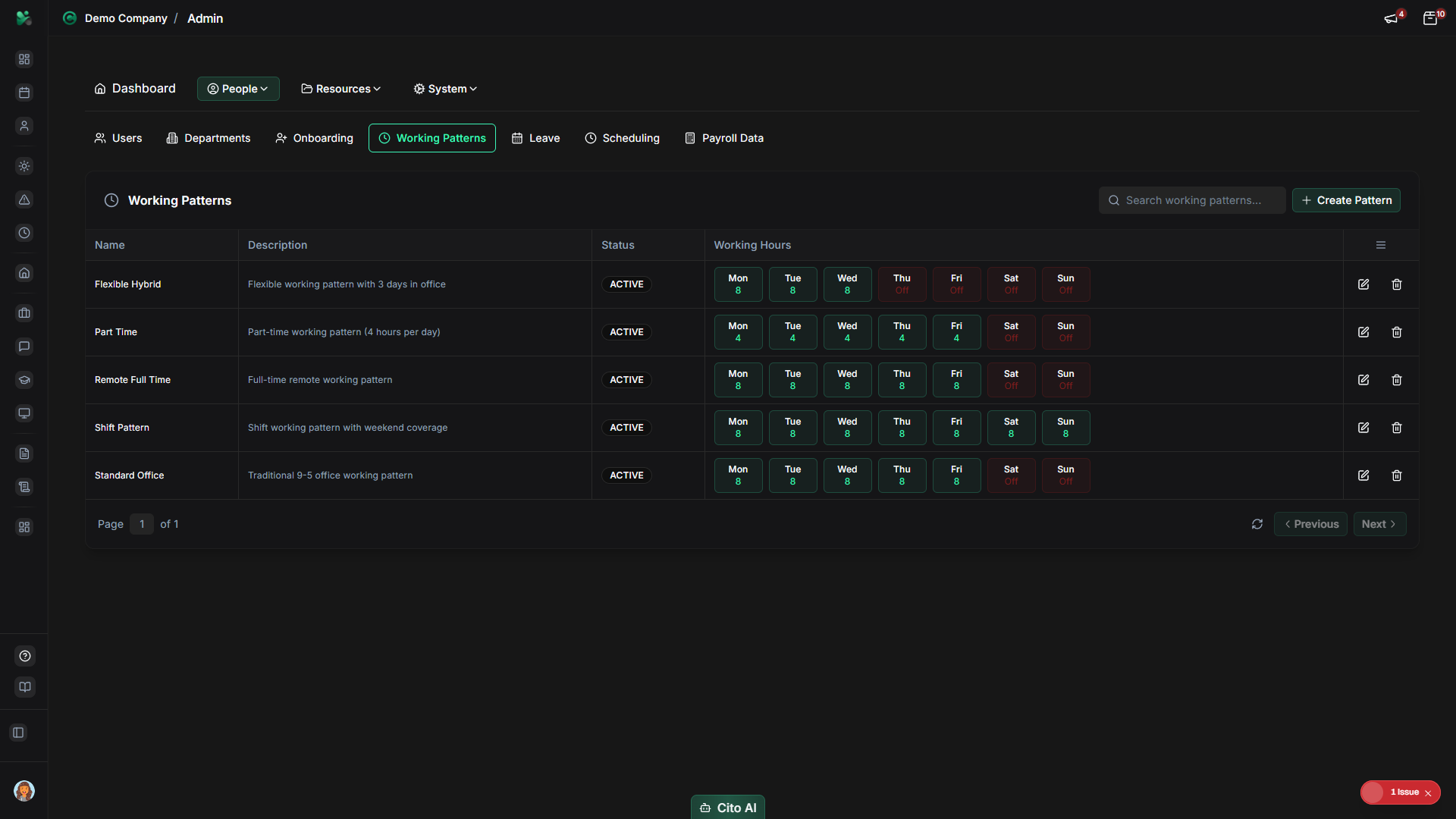
Creating a Working Pattern
To set up a new working pattern:
- Enter a Pattern Name (e.g., "Full-Time 40h", "Part-Time 20h", "4-Day Week")
- Add a Description (optional) - Notes about when to use this pattern
- Set the daily hours for each day of the week:
- Monday
- Tuesday
- Wednesday
- Thursday
- Friday
- Saturday
- Sunday
- The system will automatically calculate the Total Weekly Hours
- Set the pattern status to "Active"
- Click "Save" or "Create Pattern"
Tip
Common patterns include:
- Full-Time - 8 hours per day, Monday-Friday (40 hours/week)
- Part-Time - 4-6 hours per day, Monday-Friday (20-30 hours/week)
- 4-Day Week - 10 hours per day, Monday-Thursday (40 hours/week)
- Shift Work - Varying hours across different days
Assigning a Pattern to Employees
To assign a working pattern to an employee:
- Navigate to Admin > Users
- Click on the employee you want to assign a pattern to
- Go to the "Employment" section
- Find the "Working Pattern" field
- Select the pattern from the dropdown
- Set the Effective Date (when the pattern should start)
- Click "Save"
Bulk Assignment
To assign the same pattern to multiple employees:
- Navigate to Admin > Users
- Use filters to find the employees (e.g., by department)
- Select multiple employees using checkboxes
- Click "Bulk Actions" > "Set Working Pattern"
- Select the pattern and confirm
Tip
Bulk assignment is useful when setting up patterns for a new department or after organizational changes.
Editing Working Patterns
To modify an existing pattern:
- Navigate to Admin > Working Patterns
- Find the pattern you want to edit
- Click "Edit"
- Make your changes
- Click "Save"
Important
Changing a working pattern will affect all employees assigned to that pattern. Consider creating a new pattern
instead if you want to preserve the old pattern for historical records.
Related Documentation
- Admin: Working Patterns - Complete working patterns guide
- Admin: User Management - Assign patterns to employees
- Admin: Scheduling - Use patterns for shift scheduling