
Documents
Complete guide to uploading, viewing, and managing documents in CitoHR.
Overview
The Documents feature allows you to store, organize, and access important documents. You can upload personal documents, view company documents, and manage document access permissions.
Prerequisites
- You must be logged in to your CitoHR account
- You need appropriate permissions to upload or view documents (varies by document type)
Accessing Documents
- Log in to your CitoHR account
- Click on Documents in the main navigation menu
- You'll see your documents dashboard
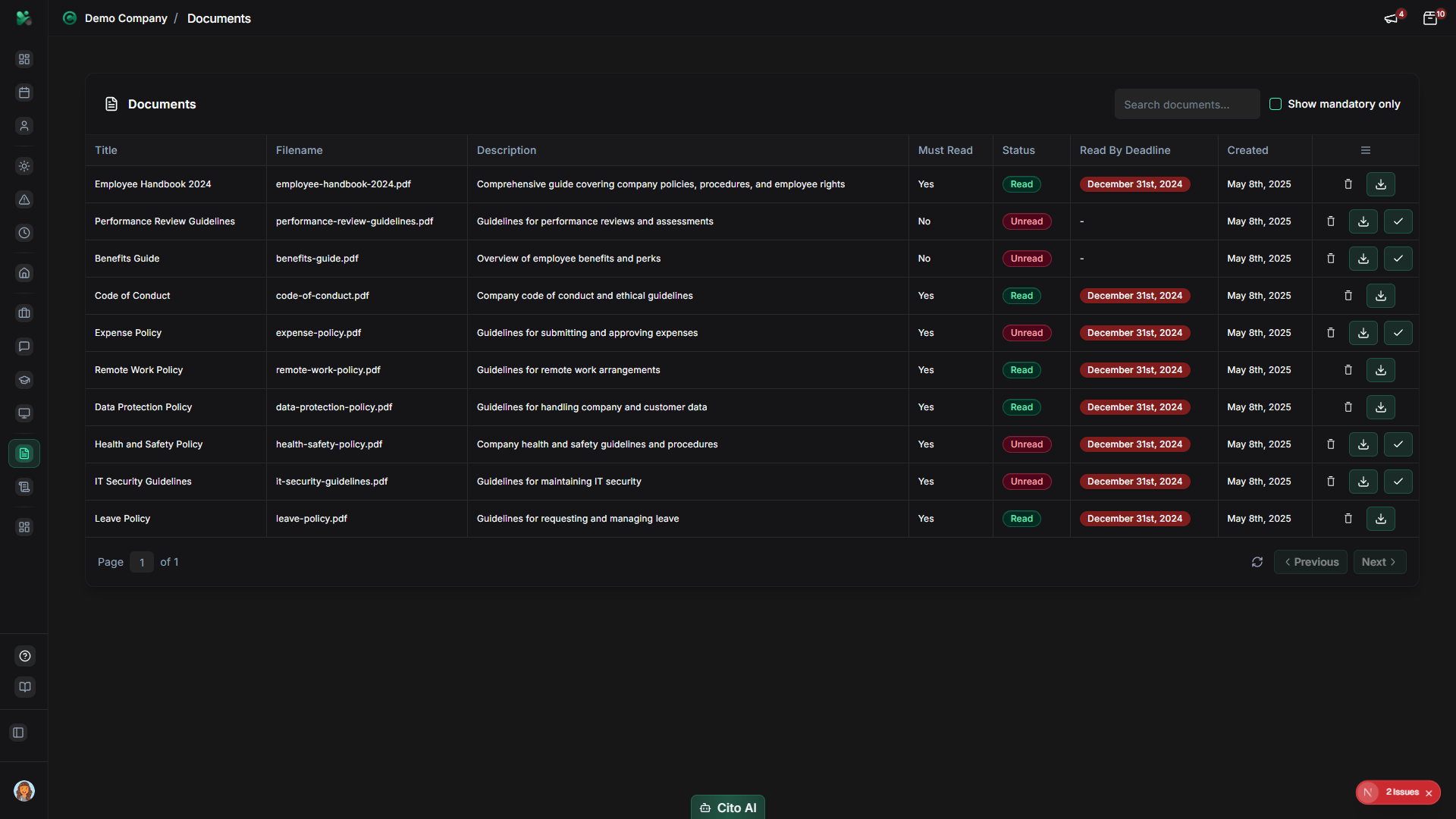
Viewing Your Documents
See all documents you have access to:
- On the Documents page, you'll see tabs for different document types:
- My Documents - Documents you've uploaded
- Company Documents - Shared company documents
- Personal Documents - Your personal files
- Each document shows:
- Document name
- File type icon
- File size
- Upload date
- Category or folder
- Use the search bar to find specific documents
- Use filters to narrow results:
- By category
- By file type
- By date range
Uploading Documents
Add new documents to your account:
- On the Documents page, click the "Upload Document" button (usually top right)
- In the upload dialog:
- Click "Choose File" or "Browse"
- Select the file from your device
- Or drag and drop files into the upload area
- Fill in document details:
- Document Name - Enter a descriptive name (defaults to filename)
- Category - Select a category (Contract, ID, Certificate, etc.)
- Description - Add optional notes about the document
- Visibility - Choose who can view:
- Private - Only you
- Manager - You and your manager
- HR - HR department
- Company - All employees
- Wait for the upload to complete (progress bar will show)
- Click "Save" or "Upload"
- The document will appear in your documents list
Note
Supported file formats typically include: PDF, DOC, DOCX, XLS, XLSX, JPG, PNG, and more.
Maximum file size is usually 10MB per file. Check with your administrator for specific limits.
Viewing a Document
Open and view document contents:
- Find the document in your documents list
- Click on the document name
- The document will open in a viewer:
- PDFs open in an embedded PDF viewer
- Images display directly
- Other files may download or open in a new tab
- Use viewer controls to:
- Zoom in/out
- Navigate pages (for multi-page documents)
- Download the file
- Print the document
Downloading Documents
Save documents to your device:
- Find the document you want to download
- Click the "Download" button (usually a download icon)
- Or right-click on the document name and select "Download"
- The file will download to your default download folder
Editing Document Details
Update document information:
- Find the document you want to edit
- Click the "Edit" button or icon (usually three dots menu)
- Update any of the following:
- Document name
- Category
- Description
- Visibility settings
- Click "Save" to apply changes
Deleting Documents
Remove documents you no longer need:
- Find the document you want to delete
- Click the "Delete" button or icon (usually in a menu)
- Confirm the deletion in the dialog that appears
- The document will be permanently removed
Warning
Deleting a document is permanent and cannot be undone. Make sure you have a backup if you might need
the document later. Some documents may be protected from deletion by administrators.
Organizing Documents with Categories
Use categories to organize your documents:
- When uploading or editing a document, select a category from the dropdown
- Common categories include:
- Contracts
- ID Documents
- Certificates
- Policies
- Training Materials
- Personal
- Use the category filter on the Documents page to view documents by category
- Categories help you find documents quickly
Managing Company Documents (Admin)
Administrators can manage shared company documents:
- Navigate to Admin > Documents
- Click "Upload Company Document"
- Upload the document and set it as "Company" visibility
- Configure access:
- Select which departments can view
- Set required acknowledgment (if applicable)
- Add expiration date (if applicable)
- Employees will see company documents in their Documents section
Related Features
- My Profile - View documents attached to your profile
- Onboarding - Upload required documents during onboarding
- Policies - Access company policy documents