
Expense Management
Complete guide to submitting expense claims, uploading receipts, and managing expense approvals in CitoHR.
Overview
The Expense Management system allows employees to submit expense claims with receipts, track their status, and enables managers to review and approve expenses according to company policies.
Prerequisites
- Your account must be ACTIVE
- Expense categories must be configured by administrators
- You need MANAGER or ADMIN role to approve expenses
- Receipt images should be ready (JPG, PNG, or PDF format)
Accessing Expense Management
- Log in to your CitoHR account
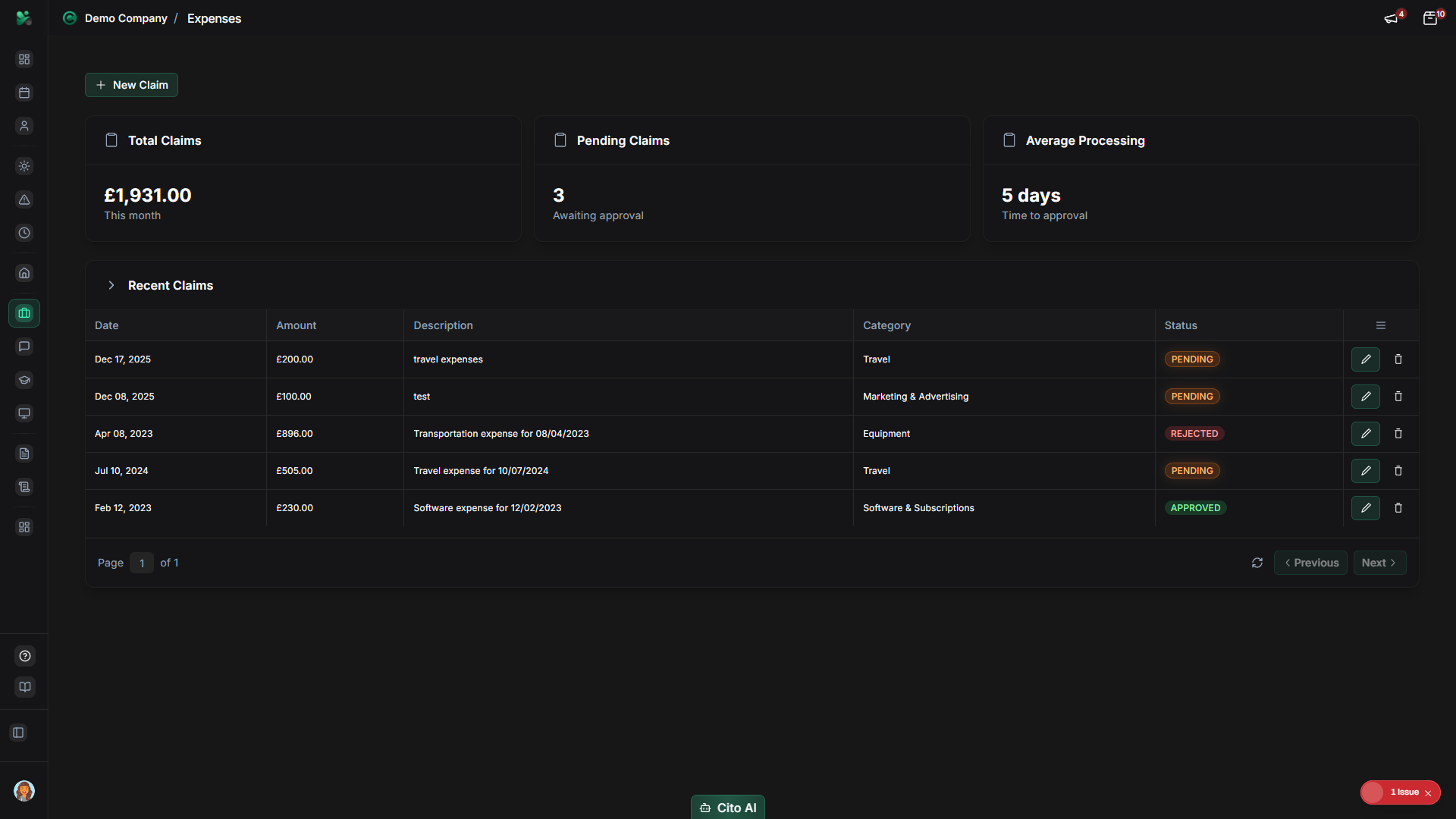
- Click on Expenses in the main navigation menu
Submitting an Expense Claim
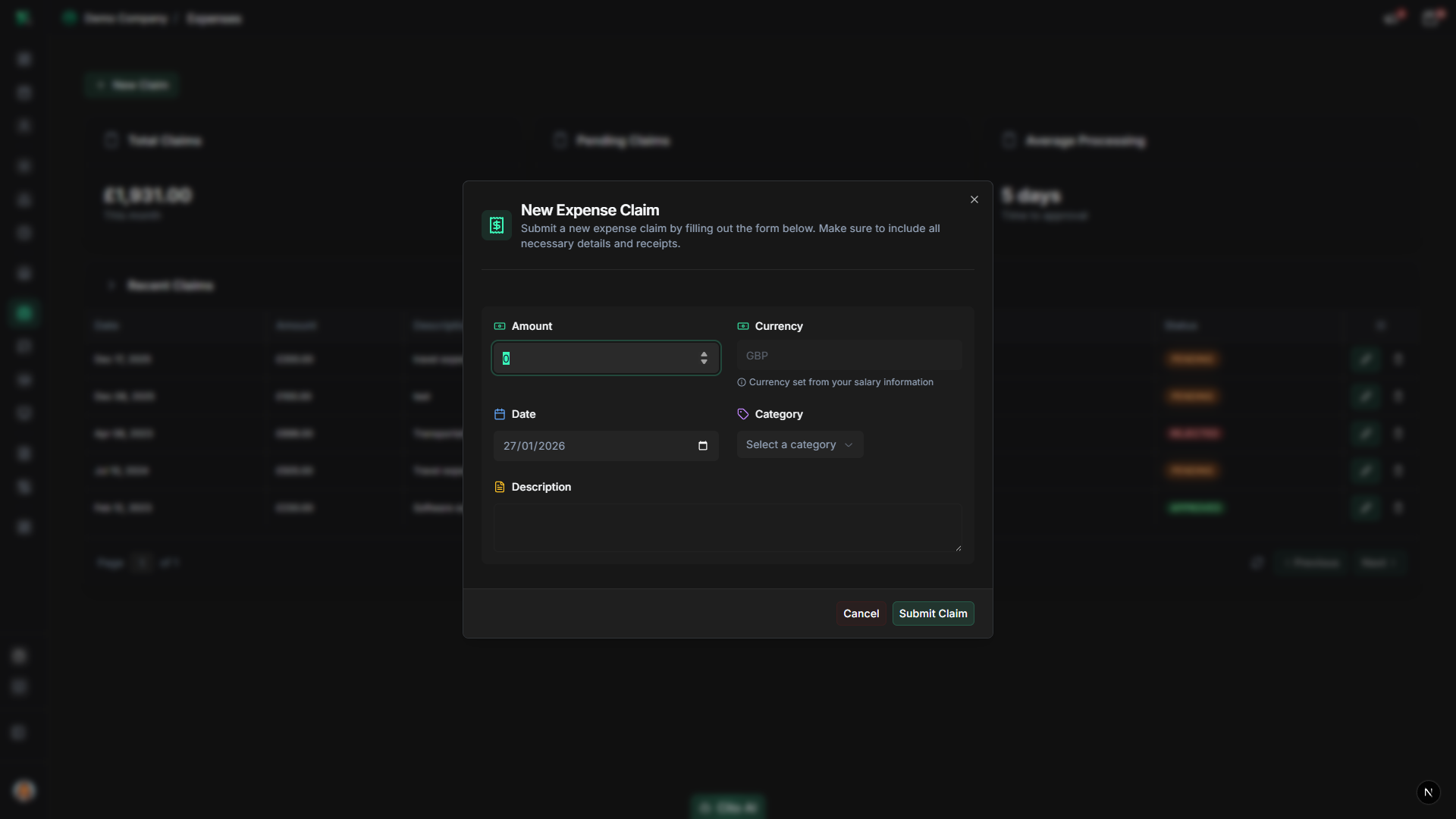
Create a new expense claim with these steps:
- Navigate to the Expenses page
- Click the "New Expense" or "Submit Expense" button
- Fill in the expense claim form:
- Date - Date when the expense was incurred (required)
- Category - Select from available categories (Travel, Meals, Supplies, etc.)
- Description - Brief description of the expense (required)
- Amount - Expense amount in your organization's currency (required)
- Currency - If different from organization default
- VAT Amount - VAT/tax amount if applicable
- Payment Method - How you paid (Company Card, Personal, etc.)
- Upload receipt:
- Click "Upload Receipt" or drag and drop file
- Supported formats: JPG, PNG, PDF
- Maximum file size: 10MB
- You can upload multiple receipts if needed
- Review all information
- Click "Submit for Approval"
Important
Receipts are required for most expense categories. Claims without receipts may be rejected or require
additional approval. Check your company's expense policy for specific requirements.
Tip
Take clear, well-lit photos of receipts. Ensure the date, amount, and merchant name are clearly visible.
This will speed up the approval process.
Viewing Your Expense Claims
Track the status of all your expense claims:
- On the Expenses page, you'll see all your claims organized by status:
- Pending - Waiting for approval
- Approved - Approved and ready for reimbursement
- Rejected - Rejected by approver
- Paid - Reimbursement has been processed
- Click on any claim to view full details including receipts
- Use filters to view claims by:
- Date range
- Category
- Status
- Amount range
Editing an Expense Claim
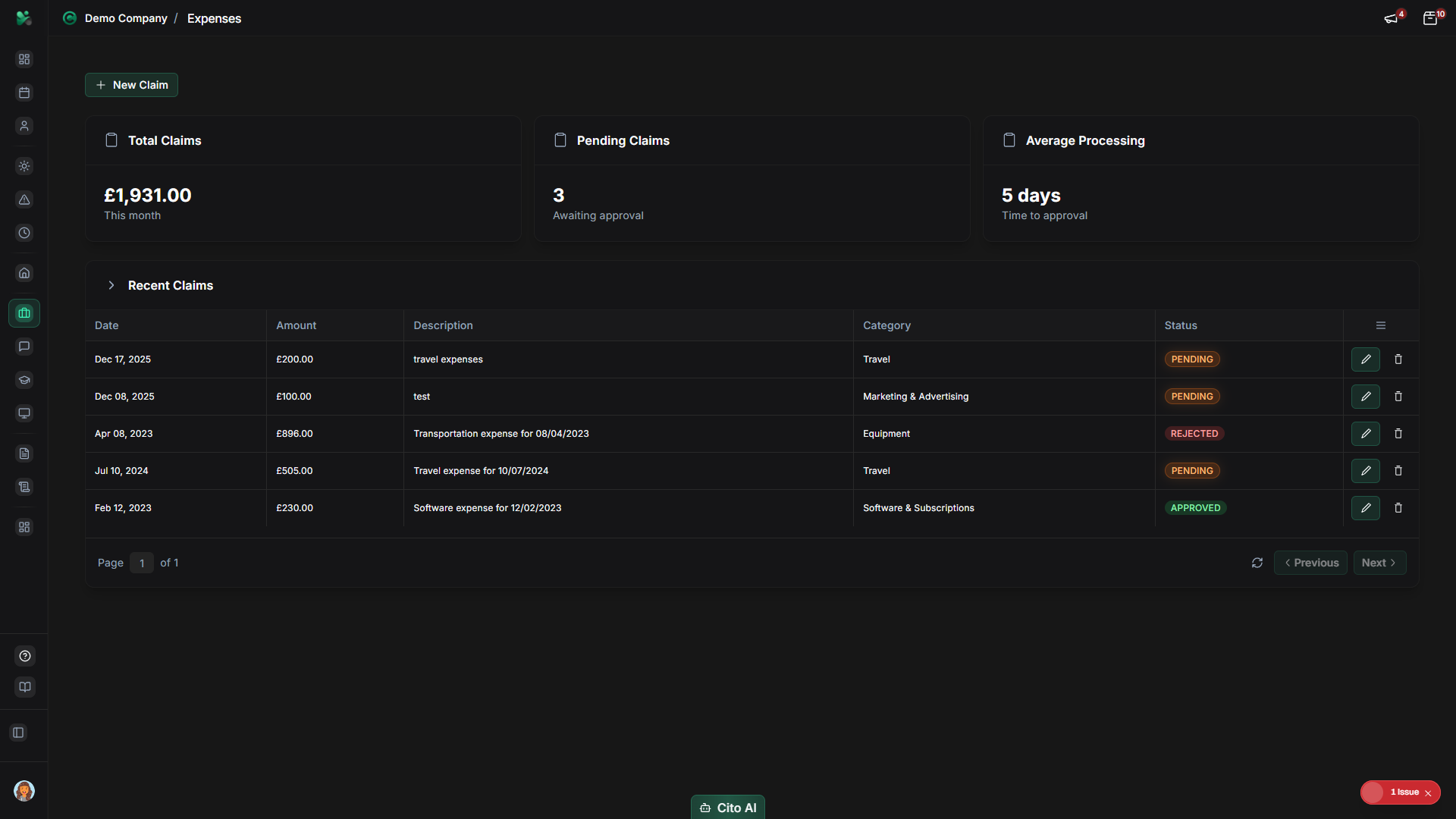
- Navigate to the Expenses page
- Find the claim you want to edit (must be in Pending status)
- Click on the claim to open details
- Click the "Edit" button
- Make your changes
- Click "Save Changes"
Note
You can only edit claims that are in Pending status. Once approved or rejected,
you cannot edit them. Contact your manager or admin if you need to make changes to an approved claim.
Deleting an Expense Claim
- Open the expense claim you want to delete
- Click the "Delete" button
- Confirm the deletion in the dialog
Warning
Deleting an expense claim is permanent and cannot be undone. Only delete claims that haven't been
approved or paid yet.
Approving Expenses (Managers)
Review and approve expense claims from your team:
- Navigate to the Expenses page
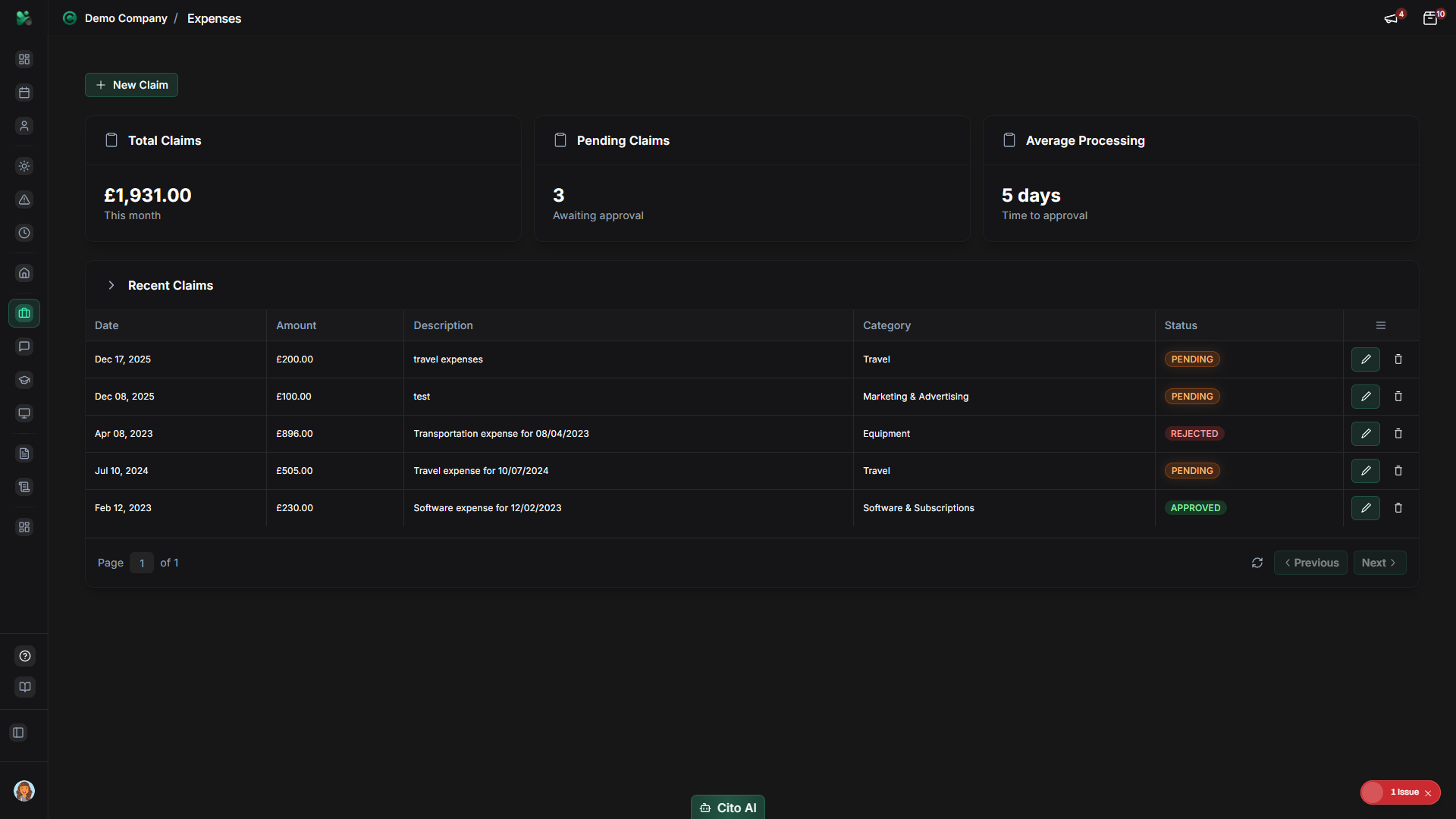
- Look for the "Pending Approvals" section
- You'll see all expense claims waiting for your approval
- Click on a claim to review:
- Employee name and details
- Expense date and amount
- Category and description
- Receipt images (click to view full size)
- VAT and payment method
- Review the receipt and verify:
- Receipt matches the claim details
- Amount is correct
- Date is within policy period
- Category is appropriate
- Click "Approve" or "Reject"
- If rejecting, add a reason for the rejection
- Confirm your decision
Tip
You can approve or reject multiple expenses at once by selecting them and using the bulk actions menu.
This is useful when processing many claims at once.
Important
Always verify receipts match the claim details. If a receipt is unclear or missing, reject the claim
and ask the employee to resubmit with a better receipt.
Understanding Expense Categories
Common expense categories include:
- Travel - Flights, trains, taxis, parking
- Accommodation - Hotels, Airbnb
- Meals - Business meals and entertainment
- Supplies - Office supplies, equipment
- Training - Courses, conferences, certifications
- Software - Subscriptions, licenses
- Other - Miscellaneous expenses
Note
Available categories are configured by administrators. Contact your HR or finance team if you need
a category that isn't available.
Understanding Expense Policies
Your organization may have specific policies for expenses:
- Maximum amounts per category
- Receipt requirements
- Approval workflows
- Reimbursement timelines
- Currency conversion rules
Tip
Check your company's expense policy document (usually in Policies section) before submitting claims
to ensure compliance and faster approval.
Related Features
- Reports & Analytics - View expense reports and analytics
- Policies - Review expense policies
- User Management - Configure expense settings for users