
My Profile
Complete guide to viewing and updating your personal profile information in CitoHR.
Overview
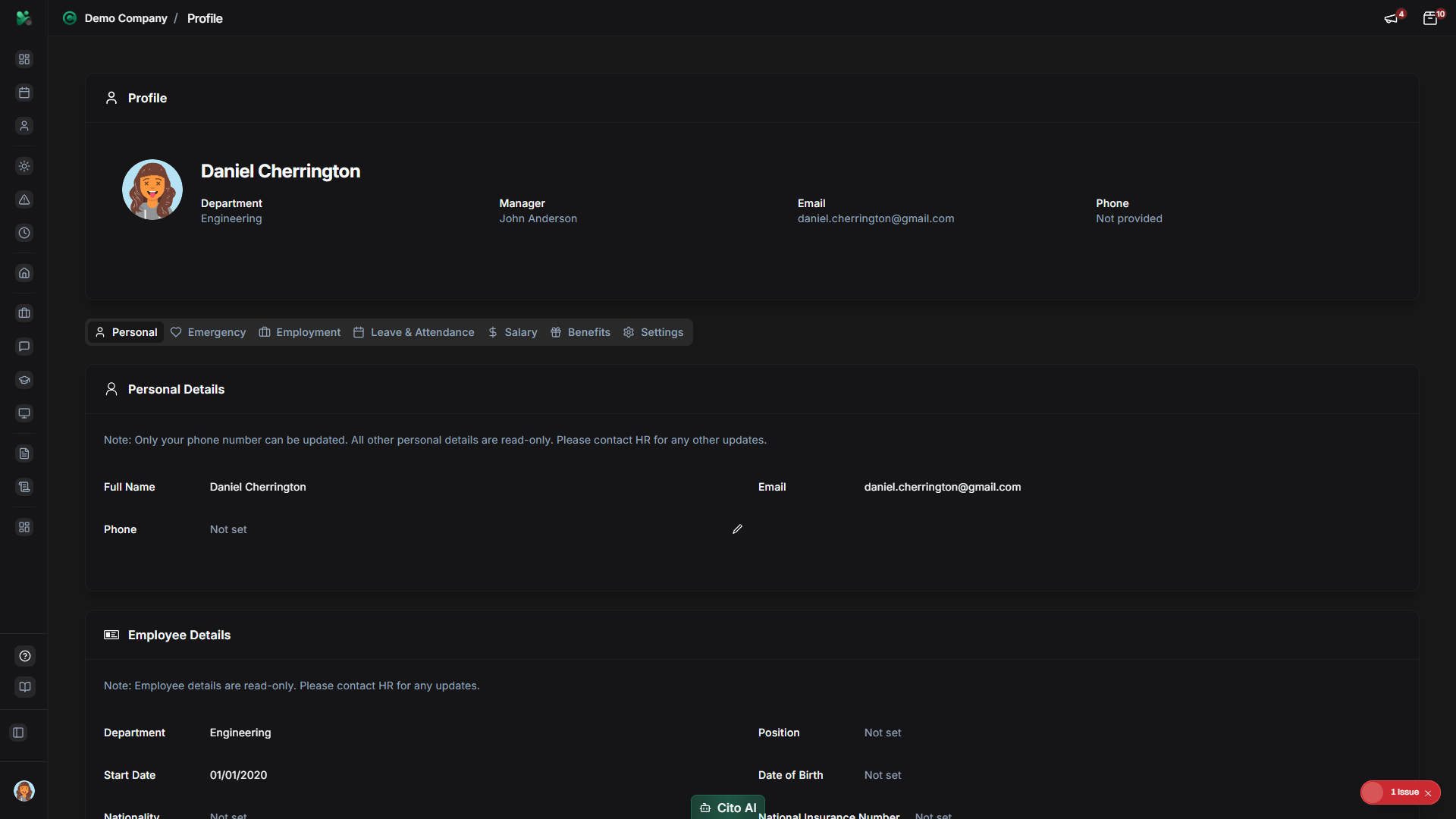
Your profile contains all your personal and employment information organized into multiple sections. You can view and update most of your information directly from your profile page.
Accessing Your Profile
- Log in to your CitoHR account
- Click on Profile or My Profile in the main navigation menu
- Or click on your profile picture/name in the top navigation
Understanding Profile Sections
Your profile is organized into the following sections:
- Personal - Name, date of birth, contact details, address
- Employment - Department, manager, role, start date, employment type
- Salary - Salary information and history
- Payroll - Payroll settings and tax information
- Benefits - Employee benefits and entitlements
- Banking - Bank account details for payroll
- Emergency - Emergency contact information
- Jobs - Job history and position changes
- Leave - Leave settings, balance, and approvers
- Records - Leave history and adjustments
- Expenses - Expense settings and history
- Documents - Documents associated with your profile
Updating Personal Information
Edit your personal details:
- Navigate to the Personal section
- Click the "Edit" button or click directly on editable fields
- Update the information you want to change:
- Phone number
- Address
- Date of birth
- Nationality
- Other personal details
- Click "Save" to apply changes
Note
Some fields like name and email may require admin approval to change. Contact your HR team if you need
to update these fields.
Updating Emergency Contacts
Keep your emergency contact information up to date:
- Navigate to the Emergency section
- Click "Add Contact" or "Edit" for existing contacts
- Fill in the contact details:
- Contact name
- Relationship
- Phone number
- Email (optional)
- Click "Save"
- You can add multiple emergency contacts
Updating Banking Details
Update your bank account information for payroll:
- Navigate to the Banking section
- Click "Edit"
- Update your banking information:
- Account holder name
- Account number
- Sort code
- Bank name
- Click "Save"
Important
Banking information changes may require verification. Your payroll team will be notified of any changes
to ensure payments continue correctly.
Viewing Your Leave Balance
Check your leave entitlements and usage:
- Navigate to the Leave section
- View your leave balance:
- Total entitlement for each leave type
- Days used
- Days pending
- Days available
- See your leave approvers
- View leave settings and policies
Viewing Salary Information
Access your salary details:
- Navigate to the Salary section
- View your current salary information
- See salary history if available
- View pay frequency and payment method
Note
Salary information is typically view-only for employees. Contact your manager or HR if you notice
any discrepancies.
Uploading a Profile Photo
- Navigate to your profile
- Click on your current profile photo (or placeholder)
- Click "Upload Photo" or "Change Photo"
- Select an image file from your device
- Crop or adjust the image if needed
- Click "Save" to update your photo
Tip
Use a clear, professional photo. Recommended size is 200x200 pixels or larger. The image will be
automatically resized and cropped to fit.
Viewing Your Documents
Access documents associated with your profile:
- Navigate to the Documents section
- View all documents:
- Contracts
- Policies
- Certificates
- Other HR documents
- Click on a document to view or download
- Documents are organized by type
Related Features
- Leave Management - Request leave and view balance
- Expense Management - Submit expense claims
- Employee Directory - View other employees' profiles