
How do I: Set up payroll templates
Learn how to create reusable payroll templates for consistent payroll processing.
Overview
Payroll templates define the structure and format for exporting payroll data to your payroll provider or accounting software. By creating templates, you can ensure consistent formatting and field mappings for each payroll run.
Note
Payroll Templates is a Pro feature. Ensure your organization has a Pro subscription to access this functionality.
Accessing Payroll Templates
To create a payroll template:
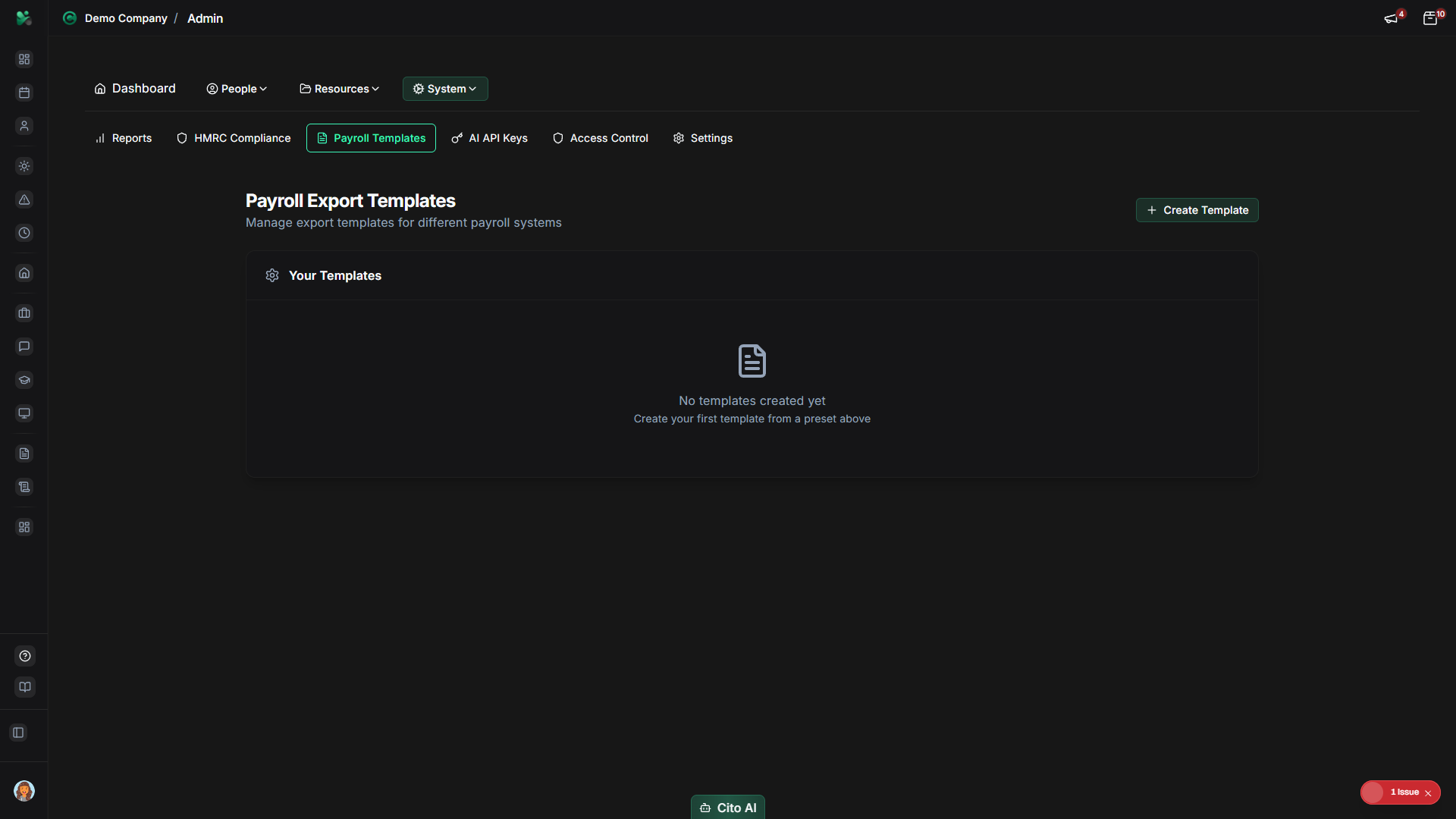
- Navigate to Admin > Payroll Templates
- Click the "Create Template" or "New Template" button
Creating a Template
To set up a new payroll template:
- Enter a Template Name (e.g., "Sage Payroll Export", "Xero Monthly")
- Select the Payroll System:
- Sage
- Xero
- QuickBooks
- CSV (Generic)
- Custom
- Choose the Export Format:
- CSV
- Excel (XLSX)
- XML
- Add a Description (optional) - Notes about when to use this template
Configuring Field Mappings
Map CitoHR fields to your payroll system's required fields:
- In the "Field Mappings" section, you'll see a list of available CitoHR fields
- For each required field in your payroll system:
- Select the corresponding CitoHR field from the dropdown
- Or enter a custom field name if your system requires specific column headers
- Common field mappings include:
- Employee ID / Employee Number
- First Name / Forename
- Last Name / Surname
- Date of Birth
- National Insurance Number
- Tax Code
- Salary / Gross Pay
- Pension Contributions
- Department
- Pay Frequency
Testing the Template
Before using a template in production, test it:
- Click "Test Template" or "Preview Export"
- Select a test employee or date range
- Review the generated export file
- Verify that:
- All required fields are present
- Field names match your payroll system's requirements
- Data is formatted correctly
- No data is missing or incorrectly mapped
- Make adjustments if needed and test again
Tip
Test with a small sample of employees first to ensure the format is correct before running a full payroll export.
Saving and Activating the Template
Once your template is configured:
- Click "Save Template"
- Set the template status to "Active" if you want to use it immediately
- Or keep it as "Draft" for further testing
Using a Template
To export payroll data using a template:
- Navigate to Admin > Payroll Data
- Select the employees and pay period
- Choose your template from the "Export Template" dropdown
- Click "Export"
- Download the generated file and import it into your payroll system
Related Documentation
- Admin: Payroll Templates - Complete template management guide
- Export payroll data - How to export payroll using templates
- Admin: Payroll Data - Manage payroll information