
Admin: Payroll Templates
Complete guide to configuring and managing payroll export templates for different payroll systems in CitoHR.
Overview
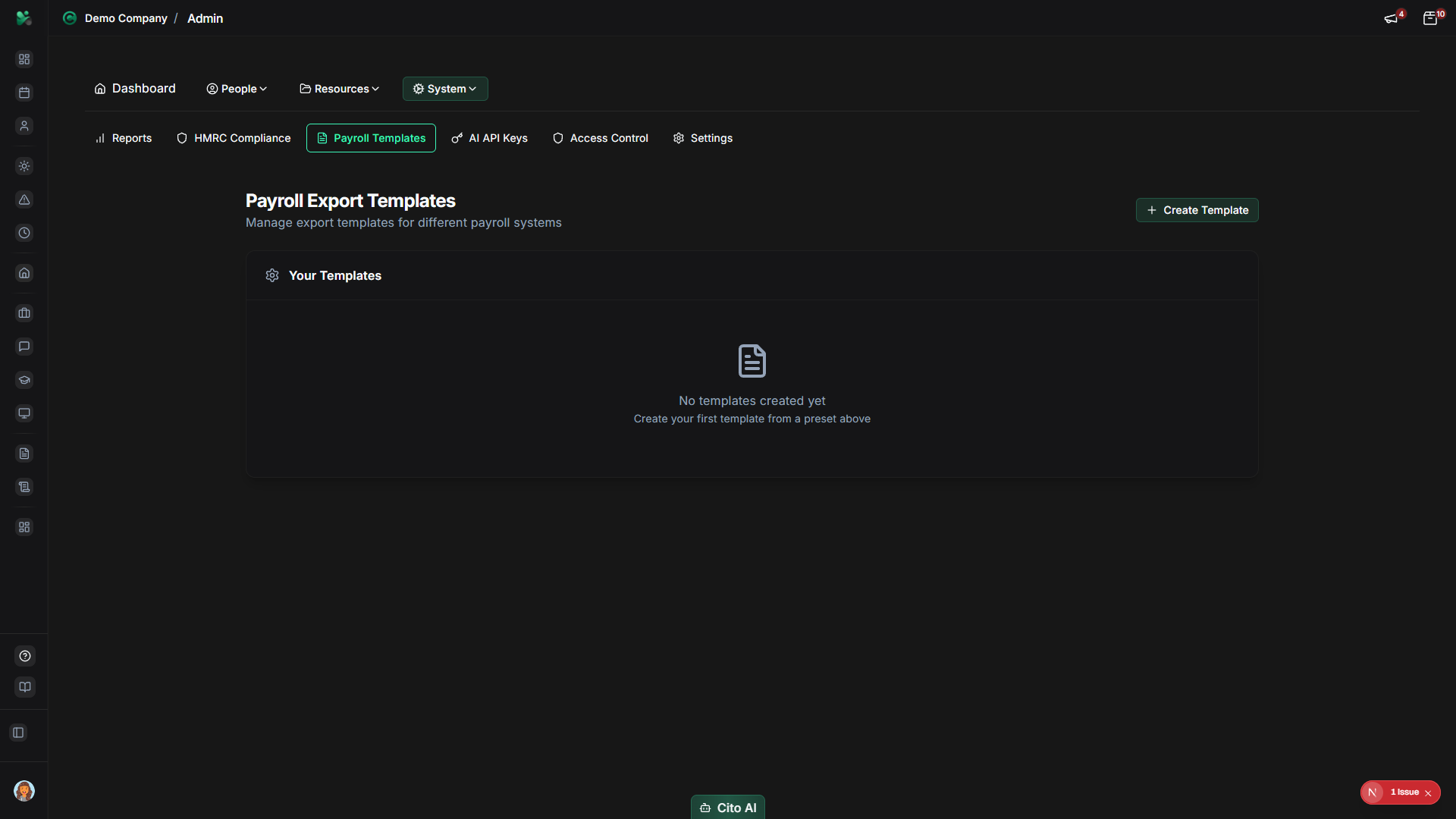
The Admin Payroll Templates section allows you to configure export templates that format payroll data for different payroll systems. Templates define the structure, format, and field mappings for payroll exports, ensuring compatibility with your payroll provider or accounting software.
Note
Payroll Templates is a Pro feature. Ensure your organization has a Pro subscription to access template configuration.
Prerequisites
- You must have ADMIN role to manage payroll templates
- Payroll Templates is a Pro feature - ensure your organization has Pro subscription
- Know the format requirements of your payroll system
Accessing Payroll Templates
- Log in to your CitoHR account with Admin credentials
- Click on your organization name in the header
- Select "System" from the admin menu
- Click "Payroll Templates" from the System dropdown
- Or navigate directly to /admin/payroll-templates
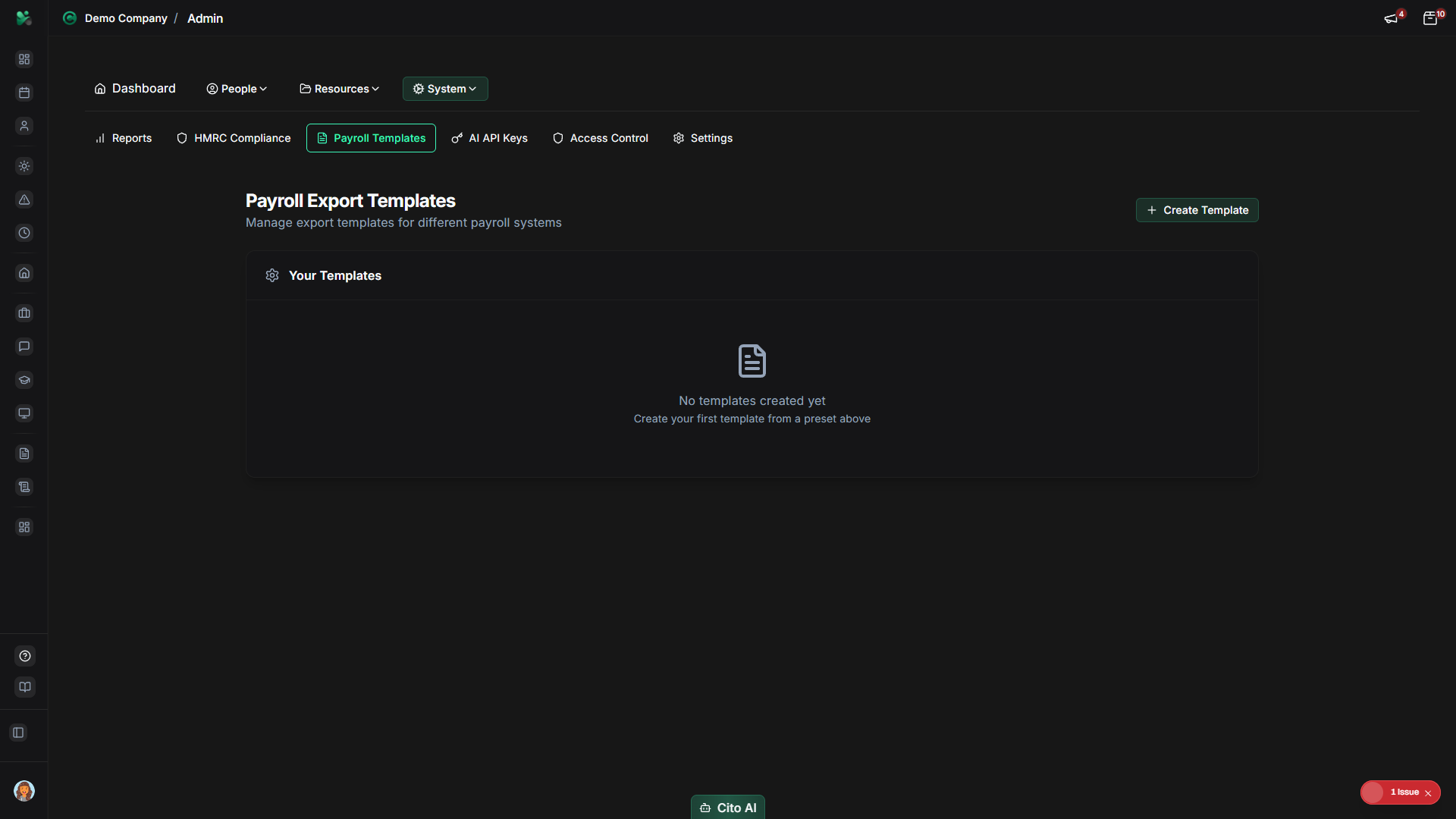
Viewing Payroll Templates
See all configured payroll templates:
- On the Payroll Templates page, you'll see a list of all templates
- Each template shows:
- Template name
- Payroll system (e.g., Sage, Xero, QuickBooks, CSV)
- Format (CSV, Excel, XML, etc.)
- Version
- Status (Active, Inactive)
- Description
- Actions (Edit, Delete, Test)
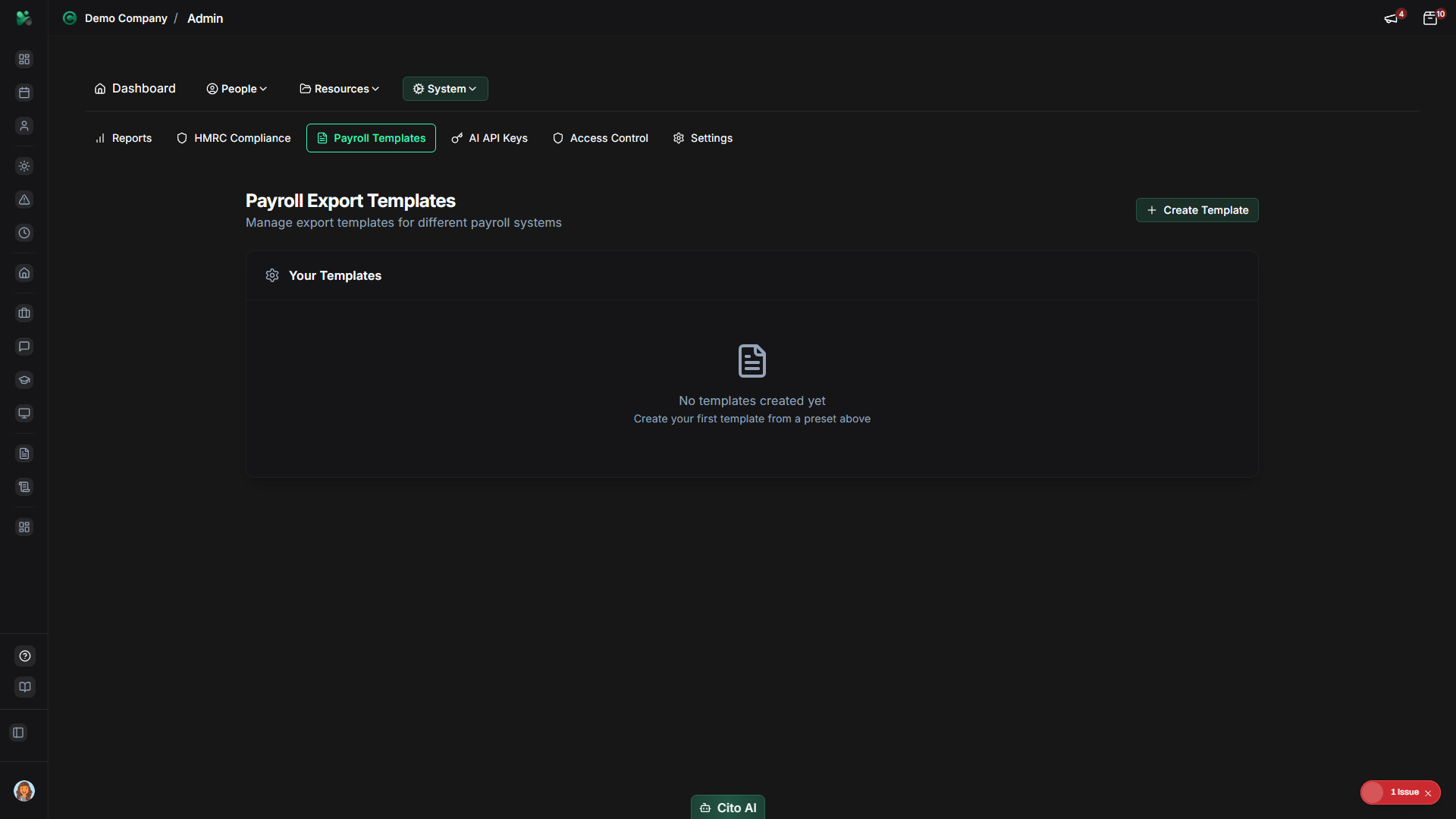
Creating a Payroll Template
Create a new payroll export template:
- On the Payroll Templates page, click the "Create Template" or "Add Template" button
- The template creation dialog will open
- Fill in template details:
- Name - Enter a descriptive name (e.g., "Sage 50 Payroll", "Xero CSV Export")
- System - Select the payroll system (Sage, Xero, QuickBooks, Generic CSV, etc.)
- Format - Select export format (CSV, Excel, XML, etc.)
- Version - Enter version number or identifier
- Description - Add notes about the template
- Configure field mappings:
- Map CitoHR fields to payroll system fields
- Define column order and structure
- Set data formatting rules
- Click "Save" or "Create"
- The template will be saved and available for payroll exports
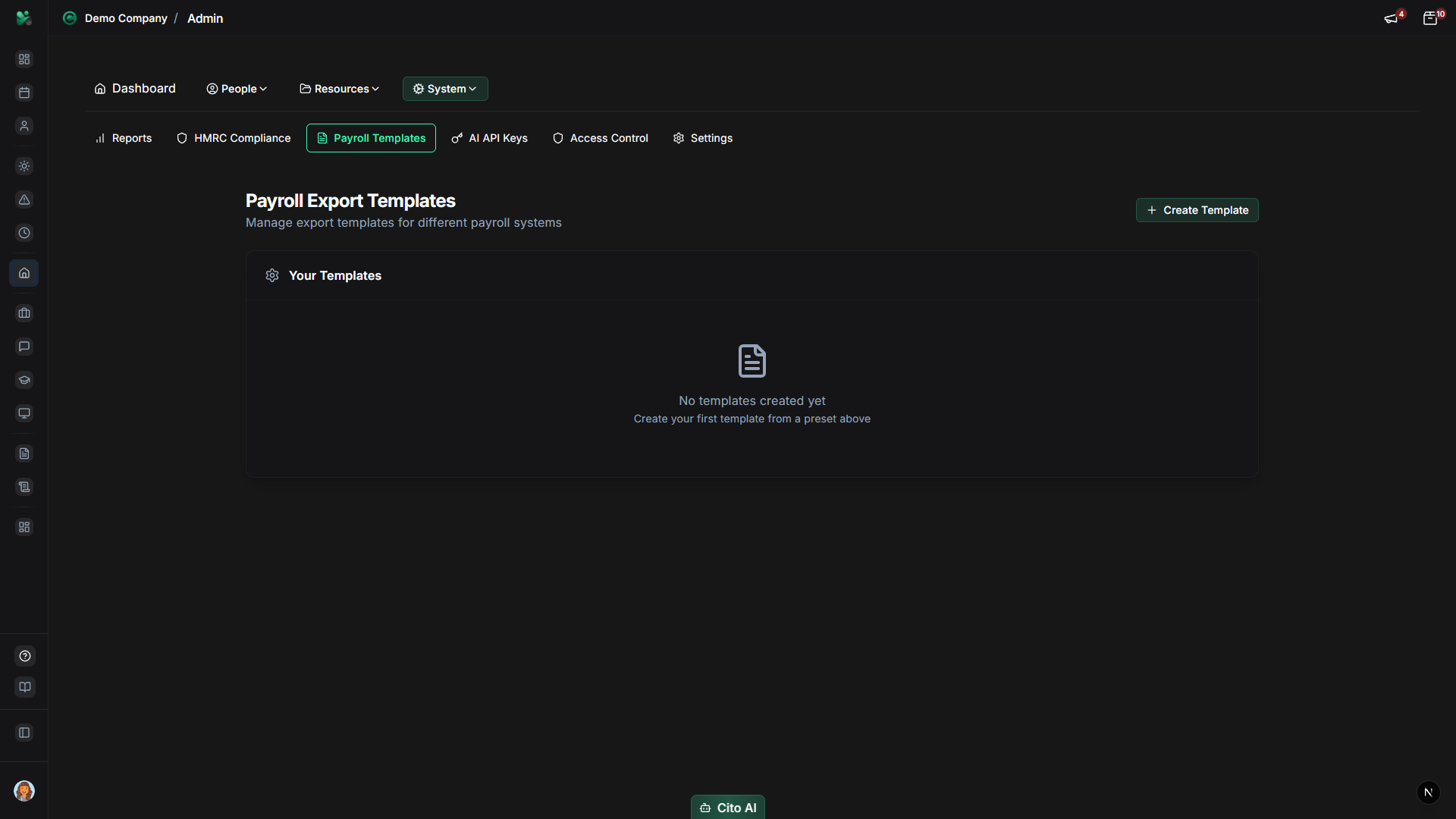
Tip
Contact your payroll provider or accountant to get the exact format requirements before creating a template. This ensures
the exported data will be compatible with their system.
Editing a Payroll Template
Update an existing template:
- On the Payroll Templates page, find the template you want to edit
- Click the "Edit" button
- Update template details or field mappings as needed
- Click "Save" to save changes
Testing a Payroll Template
Test a template before using it for production exports:
- On the Payroll Templates page, find the template you want to test
- Click the "Test" button
- A test export will be generated with sample data
- Review the exported file to ensure:
- Field mappings are correct
- Data format matches requirements
- Column order is correct
- All required fields are included
- Make adjustments if needed and test again
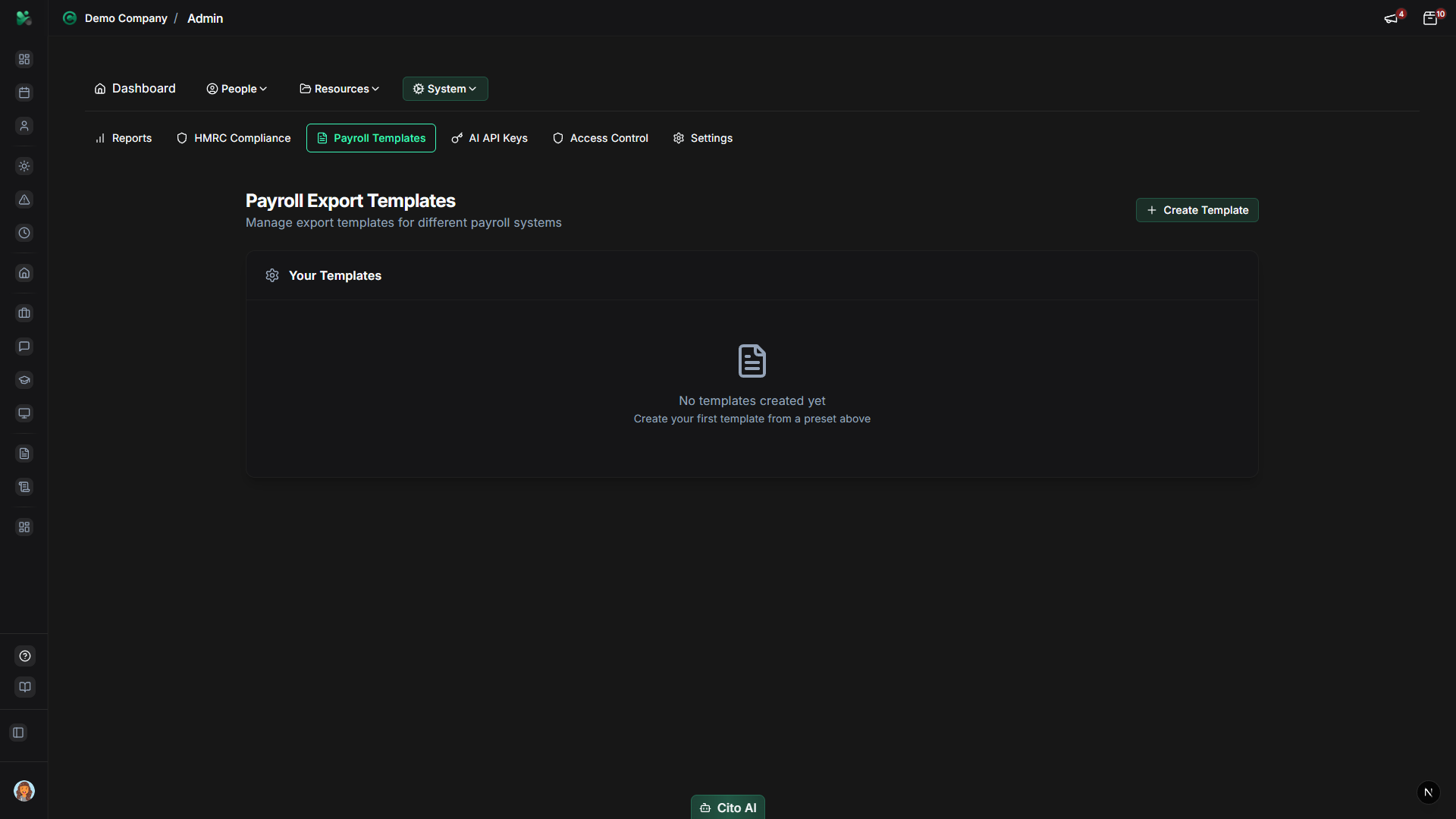
Activating or Deactivating Templates
Control which templates are available for exports:
- On the Payroll Templates page, find the template
- Toggle the Status to Active or Inactive
- Active templates appear in the export template selection
- Inactive templates are hidden but not deleted
Tip
Keep multiple templates active if you use different payroll systems or formats. You can select the appropriate template
when exporting payroll data.
Using a Template for Payroll Export
Export payroll data using a template:
- Navigate to Admin > Payroll Data
- Click "Export Payroll Data"
- Select the payroll template from the dropdown
- The export will use the selected template's format and mappings
- The file will download in the configured format
Best Practices
- Test templates thoroughly before using them for production exports
- Document template configurations for future reference
- Keep templates updated when payroll system requirements change
- Use descriptive template names that indicate the system and format
- Coordinate with your payroll provider to ensure template accuracy
- Keep backup copies of working templates
- Deactivate old templates instead of deleting them for historical reference
Related Features
- Payroll Data - Export payroll data using configured templates