
How do I: Change an employee's job
Learn how to update an employee's job title, department, or role in the system.
Overview
When an employee's role changes—whether it's a promotion, department transfer, or job title update—you need to update their information in CitoHR. This guide walks you through updating job-related information and maintaining a job history record.
Note
You need Admin or HR Manager permissions to change employee job information.
Accessing the Employee Profile
To change an employee's job:
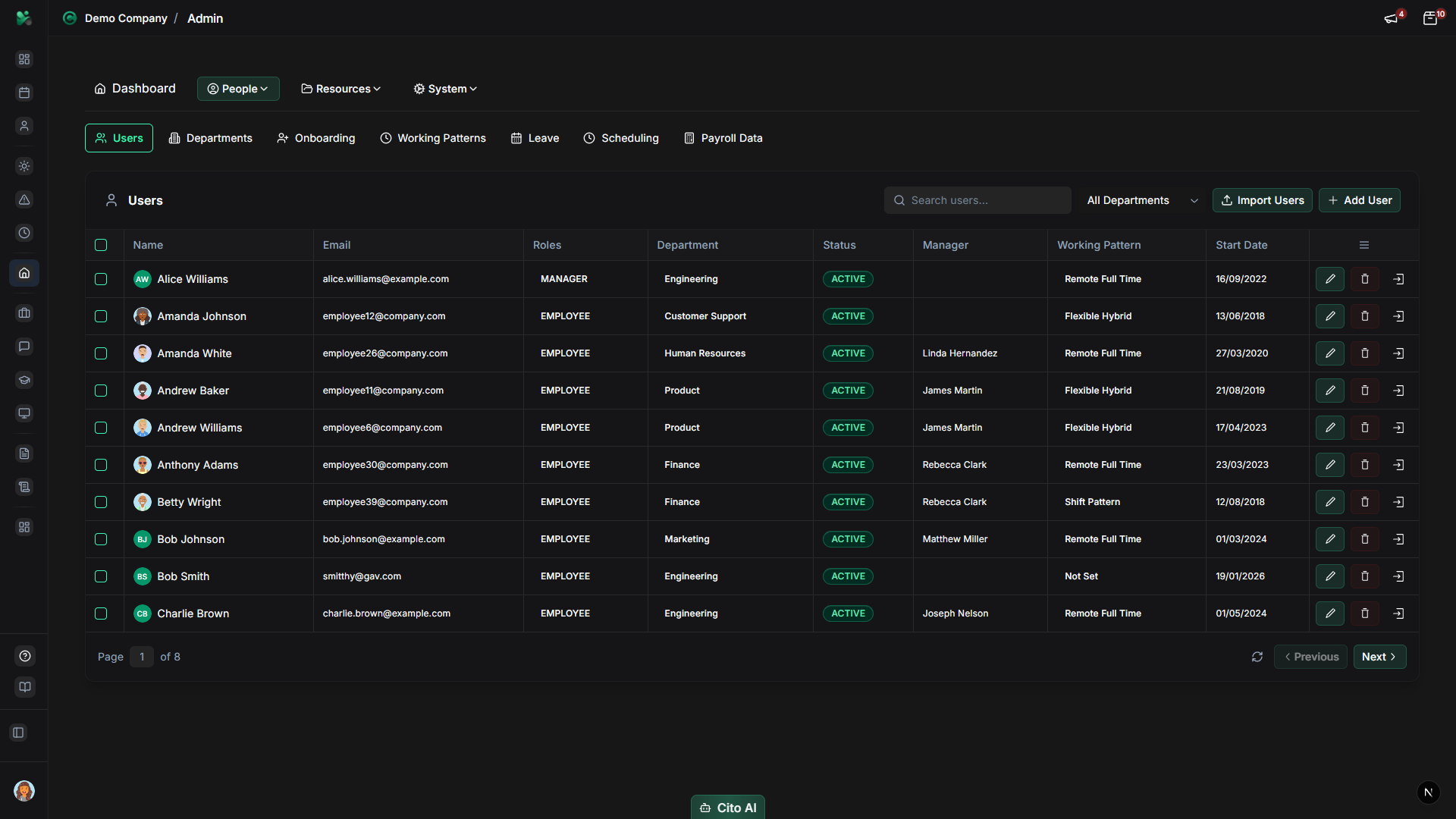
- Navigate to Admin > Users
- Search for or find the employee whose job you want to change
- Click on the employee's name to open their profile
- Navigate to the "Employment" section
Updating Job Information
To update job details:
- In the "Jobs" tab, you'll see the current job and job history
- To edit the current job, click "Edit" on the current job entry
- Or to add a new job (for promotions/transfers), click "Add Job" or "New Job"
- Update or enter the following fields as needed:
- Job Title - The employee's new job title
- Department - Select the new department from the dropdown
- Manager - Assign a new manager if the reporting structure changed
- Employment Type - Full-time, Part-time, Contract, etc.
- Start Date - The effective date of the job change
- End Date - Leave blank for current job, or set if this is a historical entry
- Click "Save" to apply the changes
Tip
The effective date is important for maintaining accurate job history and ensuring payroll and leave calculations
are correct for the transition period.
Maintaining Job History
The Jobs tab maintains a complete job history for each employee:
- When you add a new job or edit the current job, the system maintains a complete history
- View all job history in the "Jobs" tab of the employee profile
- The history shows:
- All previous job titles
- Previous departments
- Date ranges for each position
- Manager changes
- The current job (marked as active)
- The "Employment" tab automatically reflects the latest job information from the Jobs tab
Tip
When adding a new job (e.g., for a promotion), the previous job will automatically be marked with an end date,
and the new job becomes the current active position.
Updating Salary (If Applicable)
If the job change includes a salary adjustment:
- Navigate to the "Salary" section in the employee profile
- Click "Edit" or "Update Salary"
- Enter the new salary amount
- Set the effective date (should match the job change date)
- Add a note explaining the change (e.g., "Promotion to Senior Developer")
- Click "Save"
Updating Permissions and Access
If the job change requires different system permissions:
- Navigate to Admin > Access Control
- Find the employee in the user list
- Update their role and permissions:
- Admin
- HR Manager
- Manager
- Employee
- Adjust feature access as needed
- Save the changes
Important
Ensure that permission changes are appropriate for the new role. Removing admin access should be done carefully
to prevent accidental loss of system access.
Notifications
When you change an employee's job:
- The employee will receive an email notification about the change
- The new manager (if changed) will be notified
- Relevant administrators will be informed
Related Documentation
- Admin: User Management - Complete user management guide
- Admin: Departments - Manage departments
- Admin: Access Control - Configure user permissions