
Admin: Access Control (ACL)
Complete guide to configuring feature access permissions and controlling which features employees can access in CitoHR.
Overview
The Admin Access Control (ACL) section allows you to configure which features are available to employees in your organization. You can enable or disable access to specific features like Leave Management, Expenses, Training, Equipment, and more. This gives you control over what functionality employees can use, allowing you to customize CitoHR to match your organization's needs and subscription level.
Prerequisites
- You must have ADMIN role to configure access control
Accessing Access Control
- Log in to your CitoHR account with Admin credentials
- Click on your organization name in the header
- Select "System" from the admin menu
- Click "Access Control" from the System dropdown
- Or navigate directly to /admin/acl
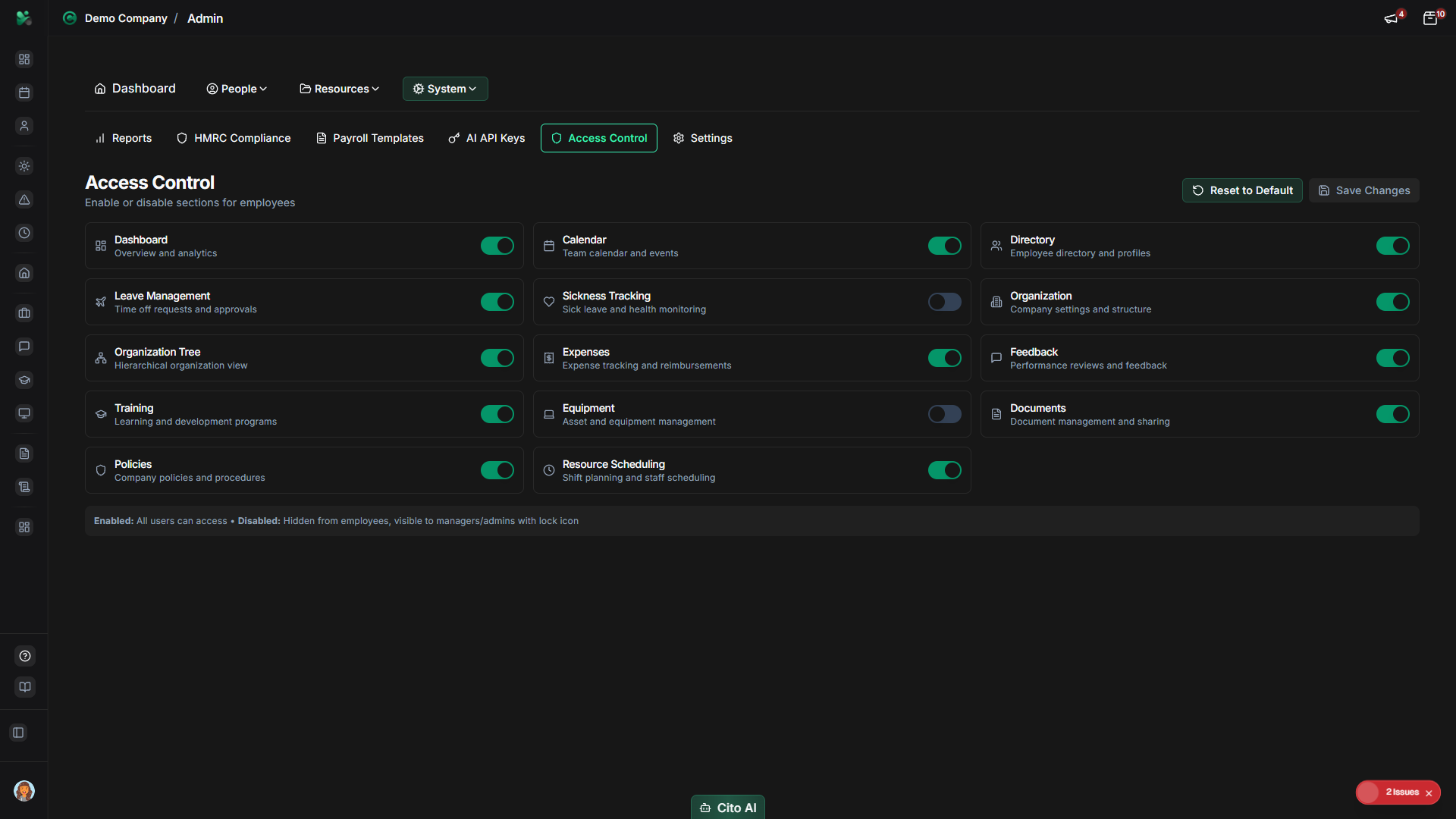
Viewing Access Control Settings
See all feature access settings:
- On the Access Control page, you'll see a list of feature sections
- Each section contains related features with toggle switches
- Common sections include:
- Time & Attendance (Leave, Sickness, Scheduling)
- Financial (Expenses, Payroll)
- Development (Training, Feedback, Reviews)
- Resources (Documents, Equipment, Policies)
- Administration (Forms, Reports, Settings)
- Toggle switches show whether each feature is enabled (ON) or disabled (OFF)
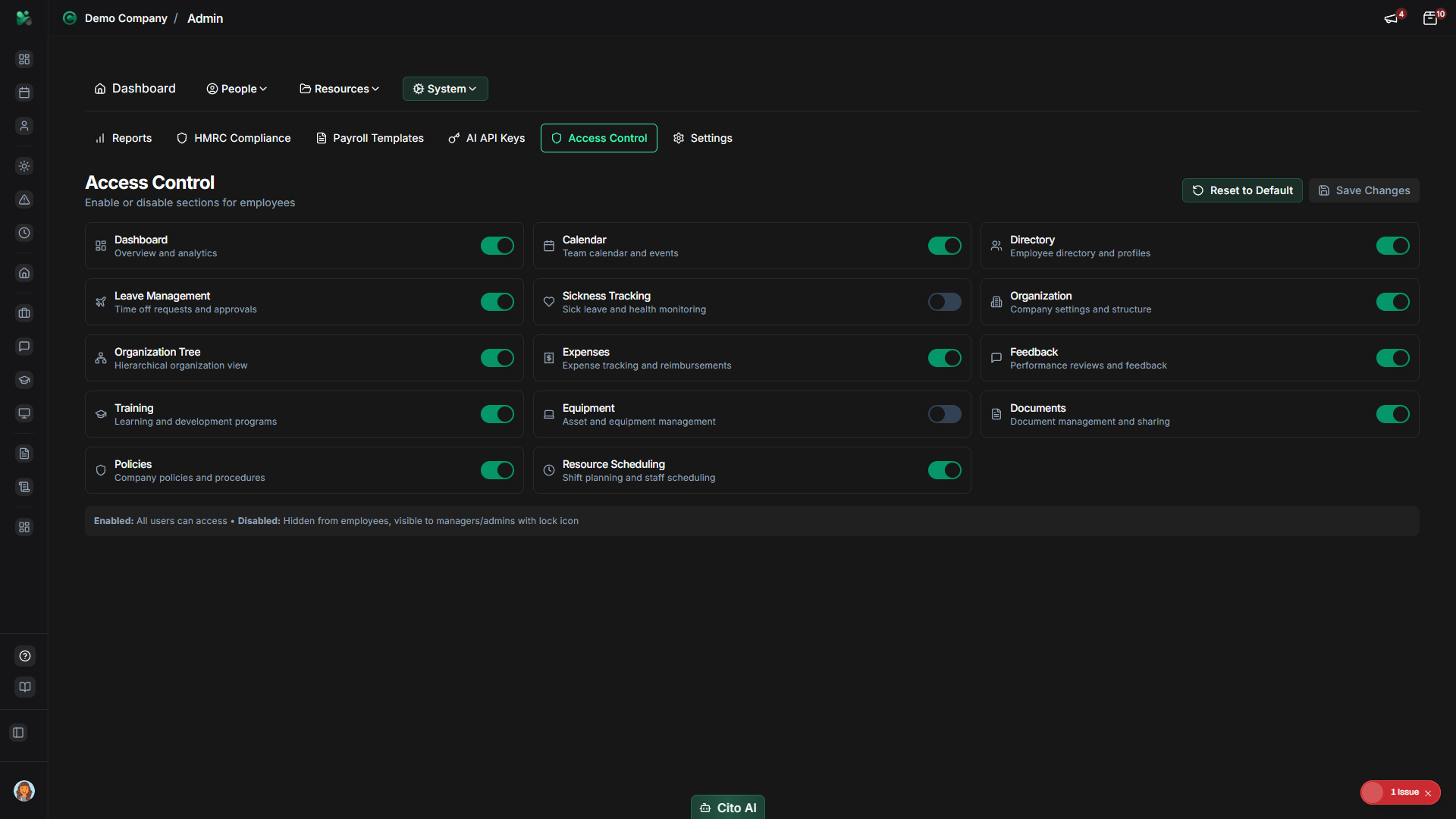
Enabling or Disabling Features
Control feature access:
- On the Access Control page, find the feature you want to configure
- Locate the toggle switch next to the feature name
- Click the toggle to enable (ON) or disable (OFF) the feature:
- ON - Feature is available to employees
- OFF - Feature is hidden and unavailable
- The change will be saved automatically
- Employees will see or not see the feature based on the setting
Note
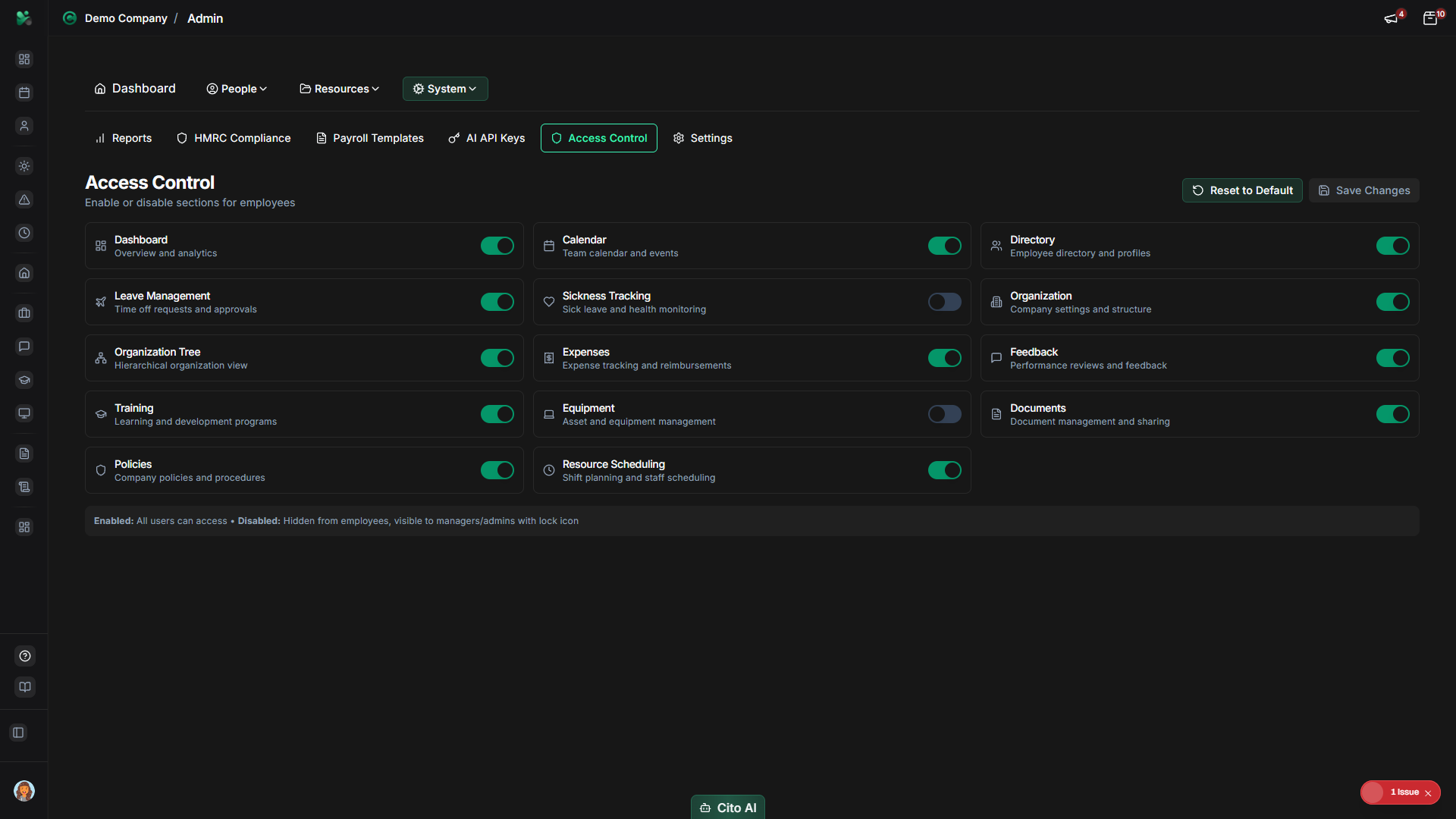
Saving Access Control Settings
Save your access control configuration:
- After making changes to feature toggles, click the "Save" button (usually at the bottom of the page)
- A success message will confirm the settings were saved
- Changes will be applied immediately
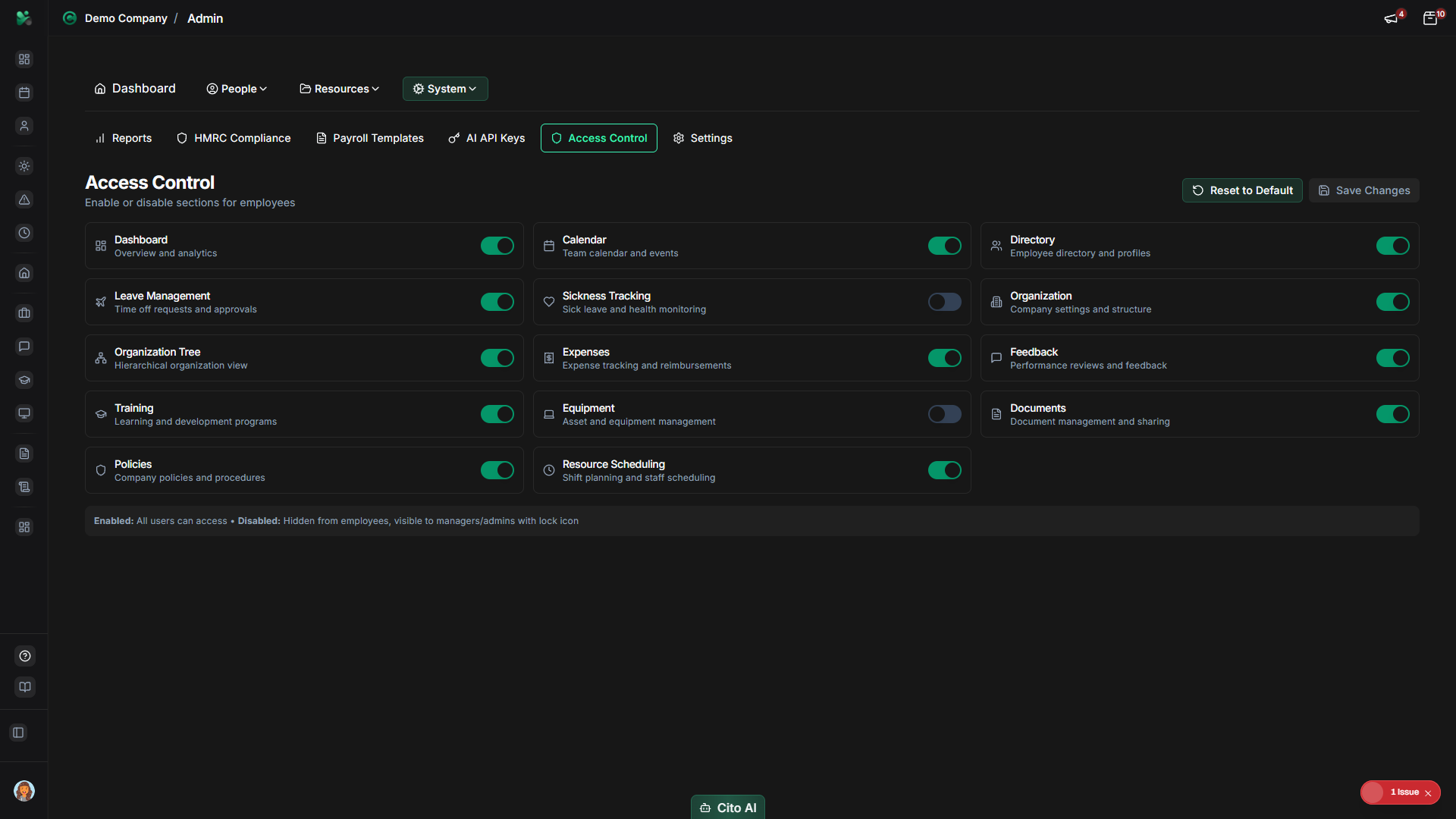
Resetting to Default Settings
Restore default access control settings:
- On the Access Control page, click the "Reset to Defaults" button
- A confirmation dialog will appear
- Review the warning message
- Click "Confirm" to proceed
- All settings will be reset to default values
- Default settings typically enable all standard features
Warning
Feature Access Considerations
Things to consider when configuring access:
- Some features may require Pro subscription - disabling them won't affect subscription costs
- Disabling a feature hides it from employees but doesn't delete existing data
- Re-enabling a feature restores access to all existing data
- Consider your organization's needs and subscription level when configuring access
- Some features may have dependencies - disabling one feature might affect related features
Best Practices
- Review access control settings during initial setup
- Enable only the features your organization needs and uses
- Disable unused features to simplify the employee experience
- Regularly review access settings as your organization's needs change
- Consider your subscription level when enabling Pro features
- Test feature access from an employee account to verify settings
- Document your access control configuration for reference
Related Features
- All CitoHR features that can be controlled through access control settings