
Admin: Onboarding Management
Complete guide to creating onboarding processes, assigning tasks to new employees, and managing onboarding workflows in CitoHR.
Overview
The Admin Onboarding section allows you to create standardized onboarding processes with tasks that can be assigned to new employees. You can define processes with multiple tasks, assign them to users, and track completion. This ensures all new employees complete the same essential steps when joining your organization.
Note
Prerequisites
- You must have ADMIN role to manage onboarding processes
- Onboarding is a Pro feature - ensure your organization has Pro subscription
Accessing Onboarding Management
- Log in to your CitoHR account with Admin credentials
- Click on your organization name in the header
- Select "People" from the admin menu
- Click "Onboarding" from the People dropdown
- Or navigate directly to /admin/onboarding
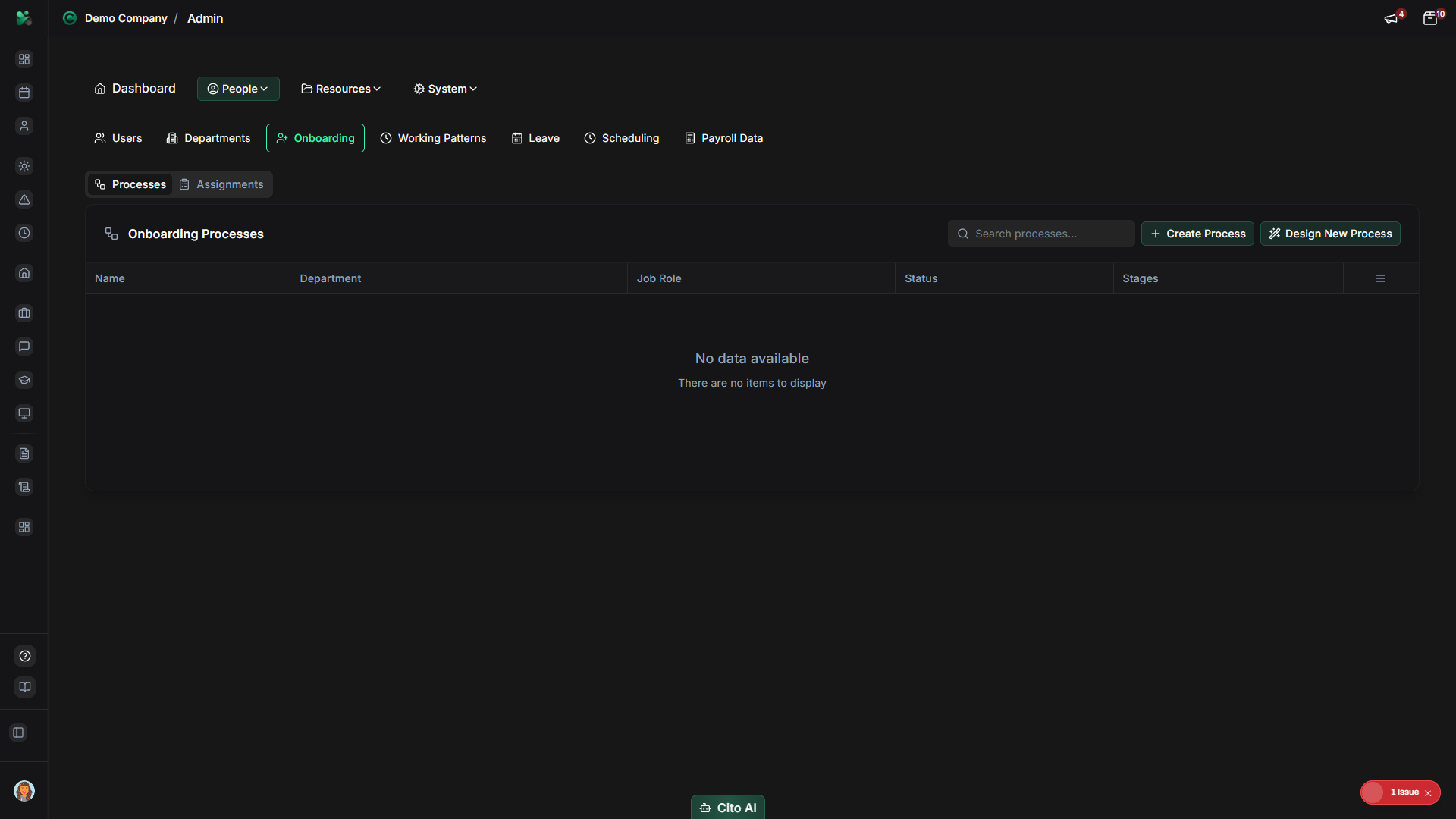
Onboarding Tabs
The Onboarding page has two main tabs:
- Processes - Create and manage onboarding process templates
- Assignments - View and manage onboarding assignments for specific users
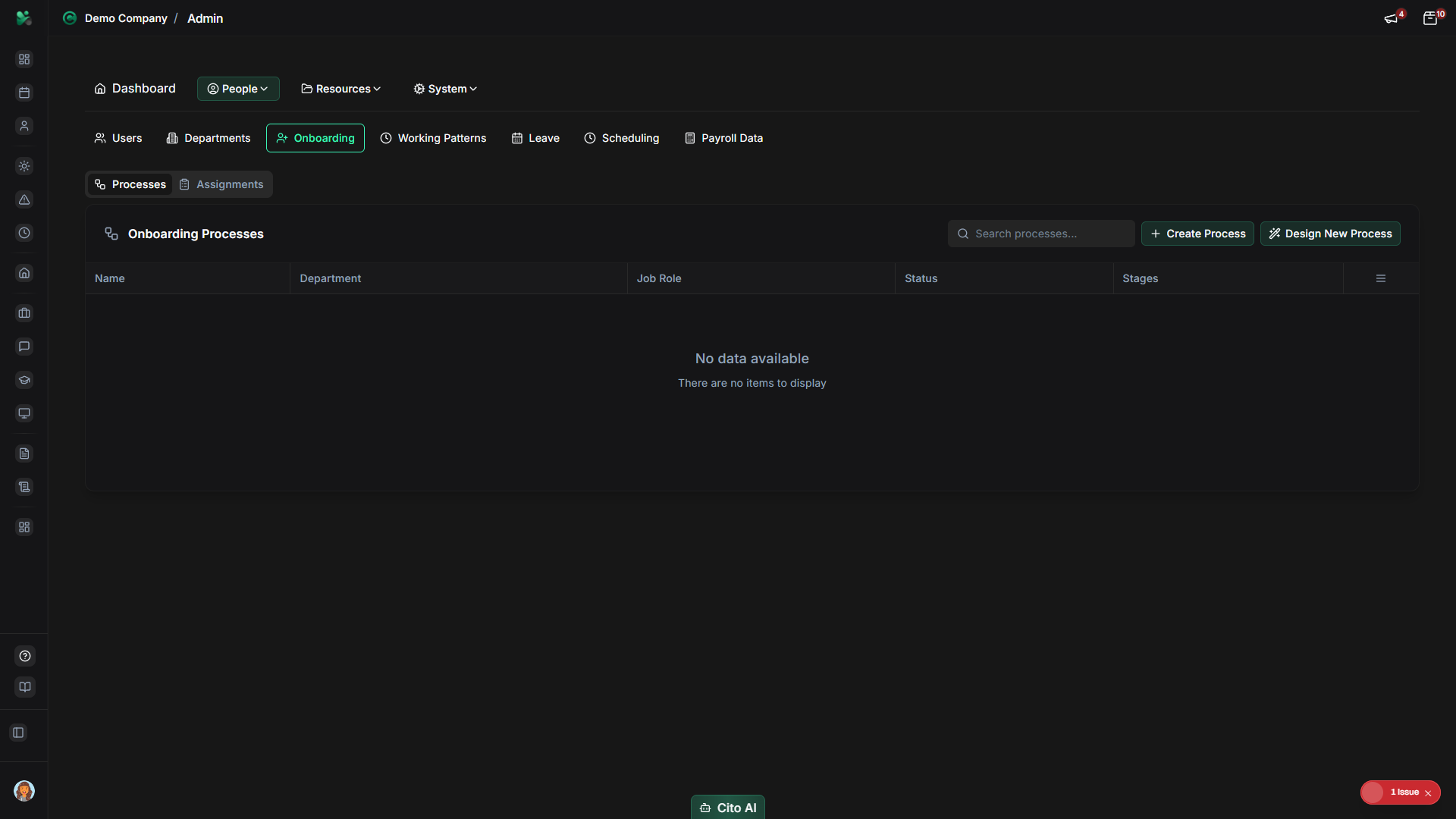
Creating an Onboarding Process
Create a reusable onboarding process template:
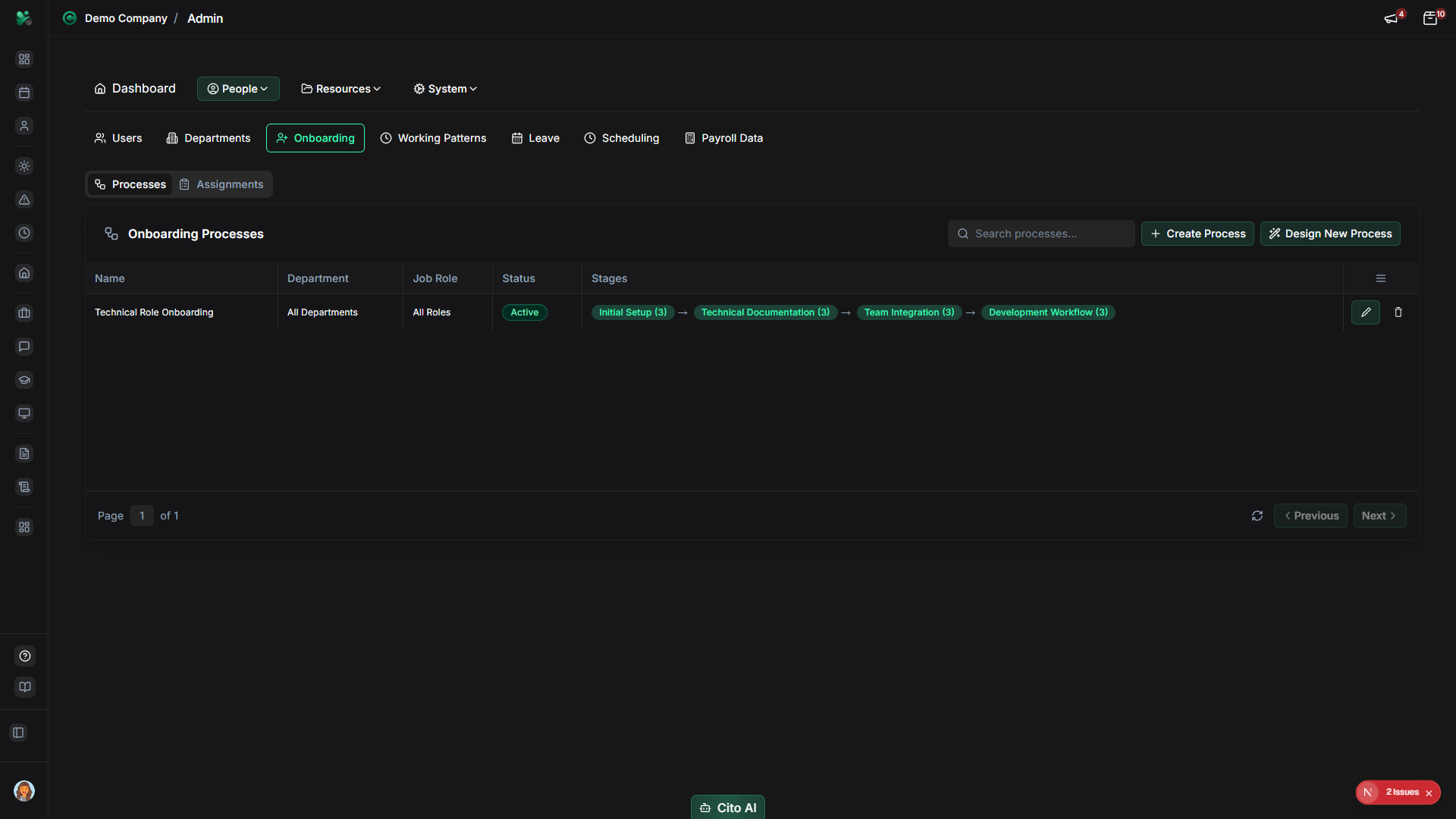
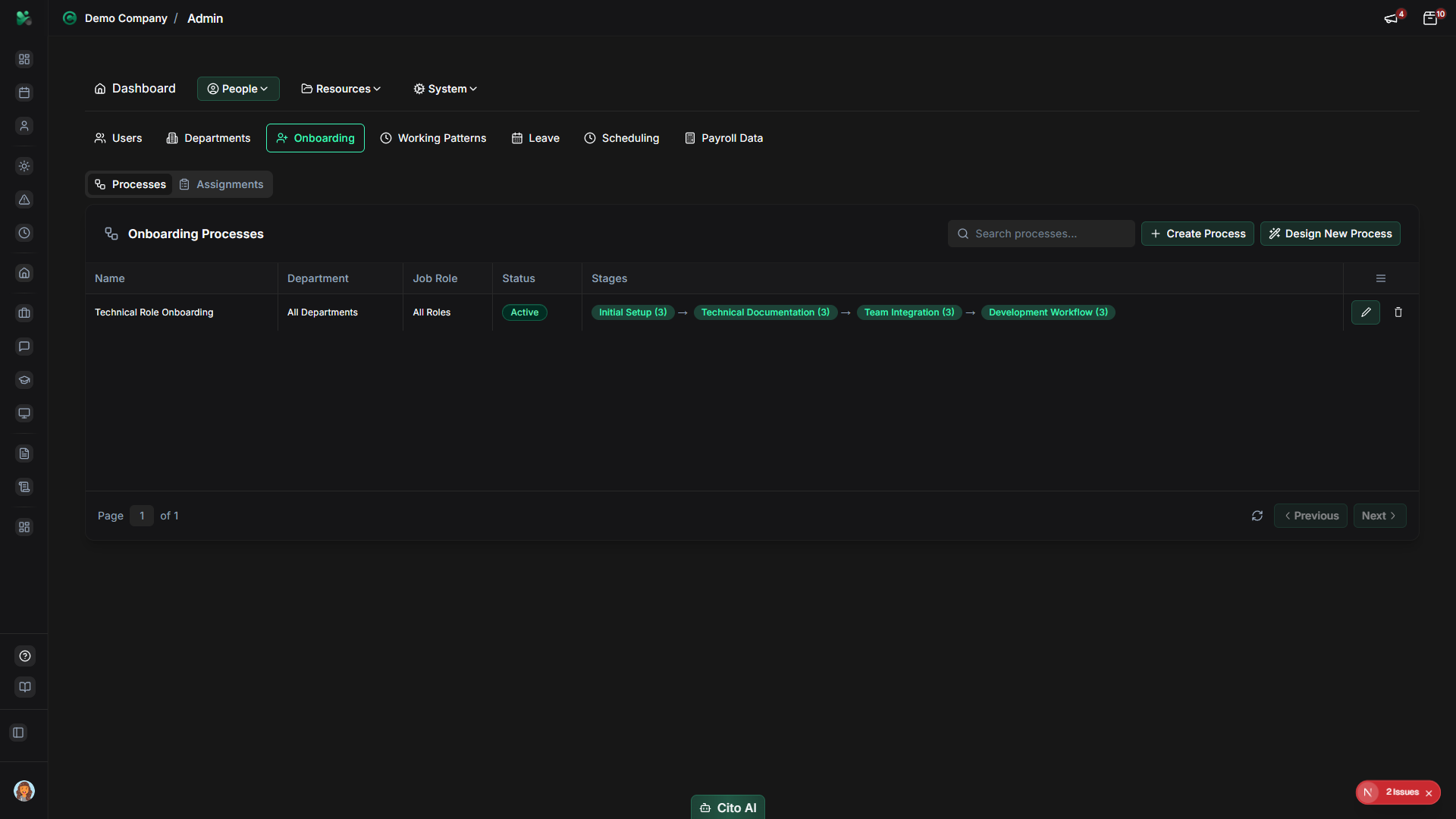
- Navigate to the Processes tab
- Click the "Create Process" or "Add Process" button
- Fill in the process details:
- Name - Enter a descriptive name for the process (e.g., "Standard Employee Onboarding", "Manager Onboarding")
- Description - Add an optional description explaining the process purpose
- Click "Create" or "Save"
- The new process will appear in the processes list
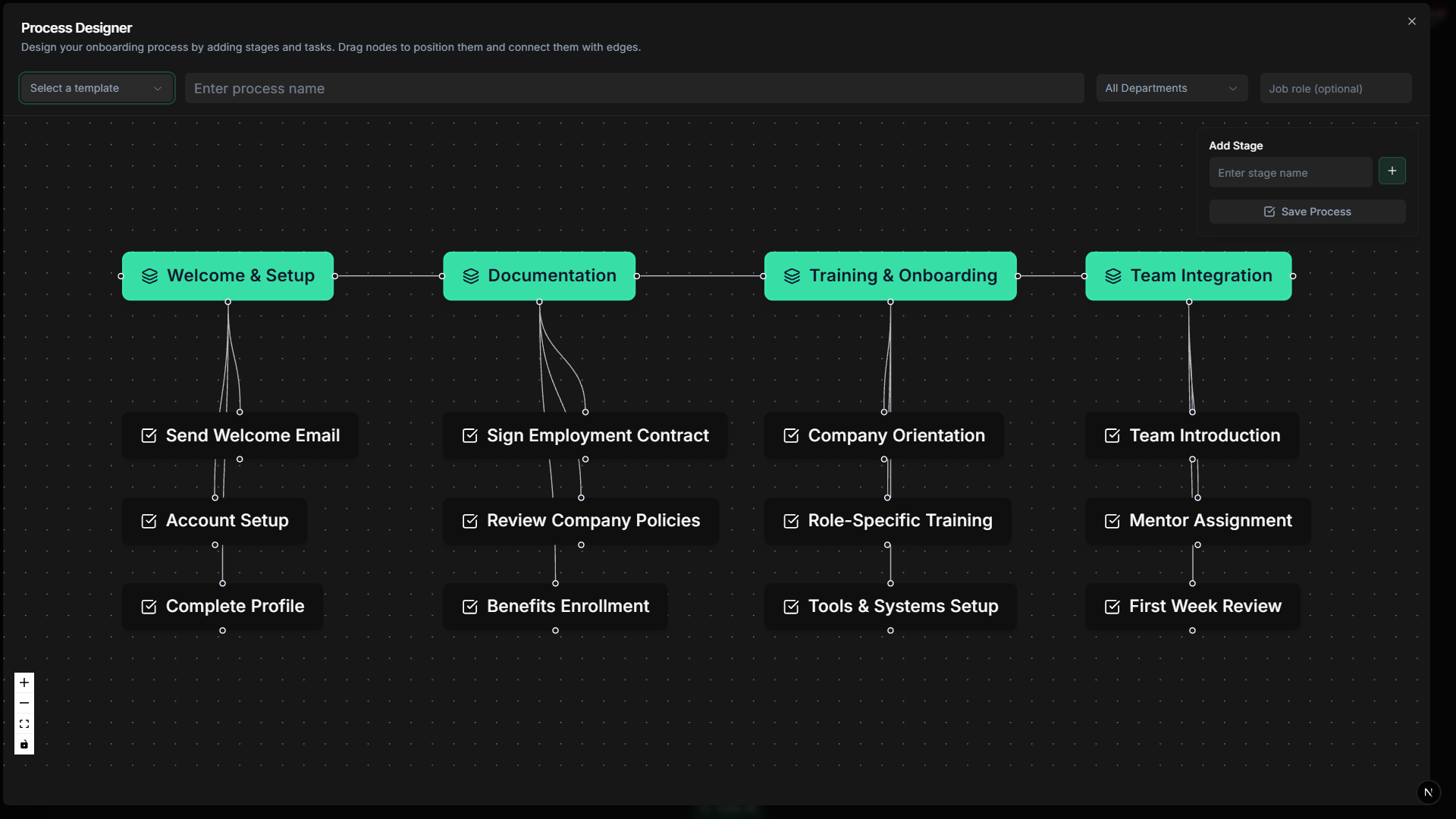
Adding Tasks to an Onboarding Process
Add tasks to your onboarding process:
- Find the onboarding process you want to edit in the Processes tab
- Click the "Edit" button or icon next to the process
- In the process editor, locate the Tasks section
- Click "Add Task" or the plus icon
- Fill in the task details:
- Task Name - Enter a clear name for the task (e.g., "Complete Employment Forms", "Review Company Handbook")
- Description - Add detailed instructions for completing the task
- Assignee - Select who should complete this task (the new employee, their manager, or HR)
- Click "Add Task" or "Save" to add the task to the process
- Repeat steps 4-6 to add more tasks to the process
- Click "Save Process" when finished
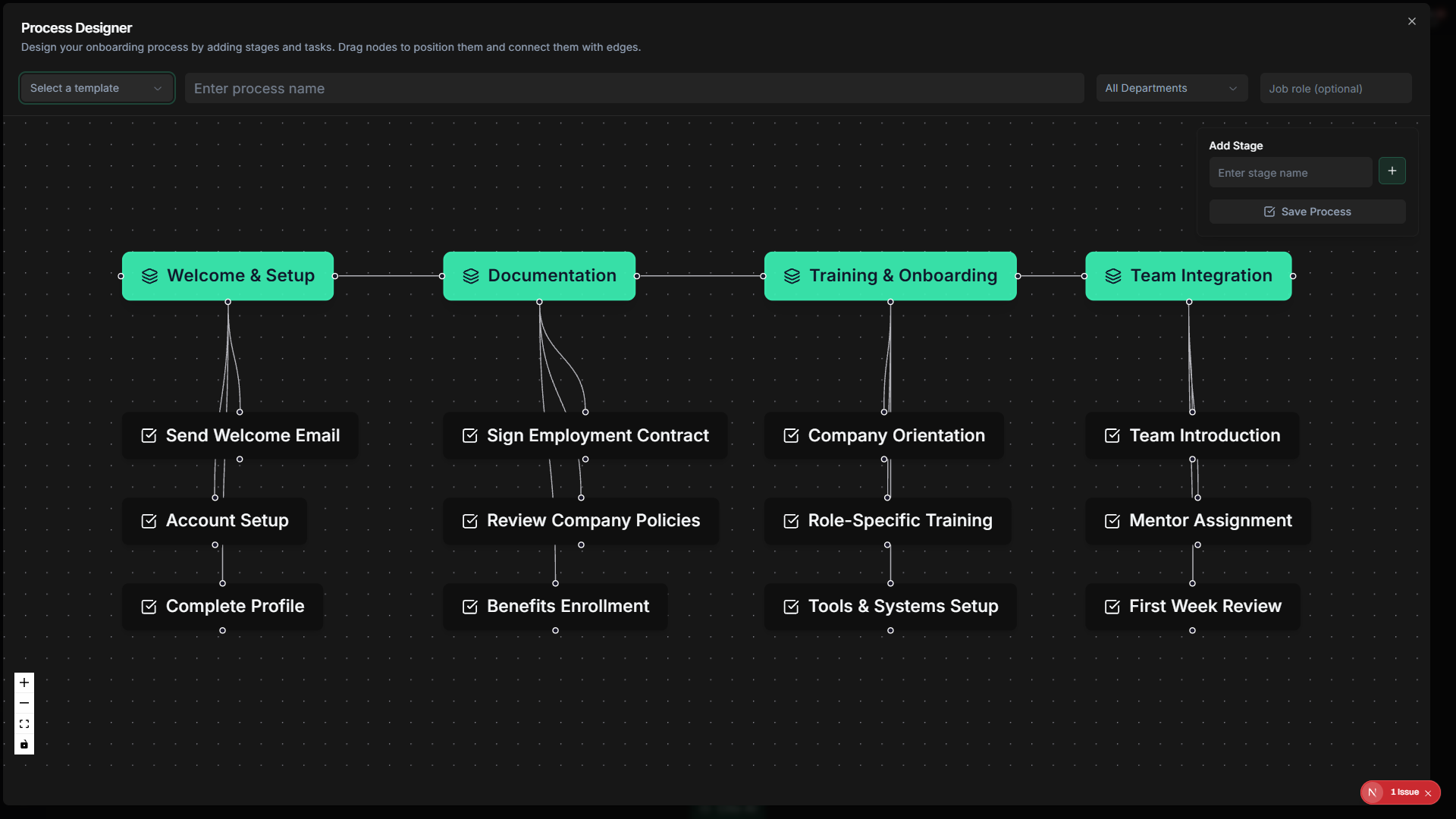
Tip
Editing an Onboarding Process
Update an existing onboarding process:
- Navigate to the Processes tab
- Find the process you want to edit
- Click the "Edit" button or icon
- Update the process name or description as needed
- To edit a task:
- Click the task you want to edit
- Modify the task name, description, or assignee
- Click "Save" to update the task
- To reorder tasks, drag and drop tasks to the desired position (if supported)
- Click "Save Process" to save all changes
Deleting an Onboarding Process
Remove an onboarding process:
- Navigate to the Processes tab
- Find the process you want to delete
- Click the "Delete" button or icon
- A confirmation dialog will appear
- Review the warning message carefully
- Click "Confirm" or "Delete" to proceed
- The process will be permanently removed
Warning
Assigning Onboarding to a User
Assign an onboarding process to a new employee:
- Navigate to Admin > Users
- Find and open the user profile for the employee who needs onboarding
- Look for the Onboarding section or tab
- Click "Assign Onboarding" or "Start Onboarding"
- Select the onboarding process from the dropdown list
- Optionally set a due date for completion
- Click "Assign" or "Start"
- The user will now see the onboarding tasks in their dashboard
Tip
Viewing Onboarding Assignments
Monitor all onboarding assignments:
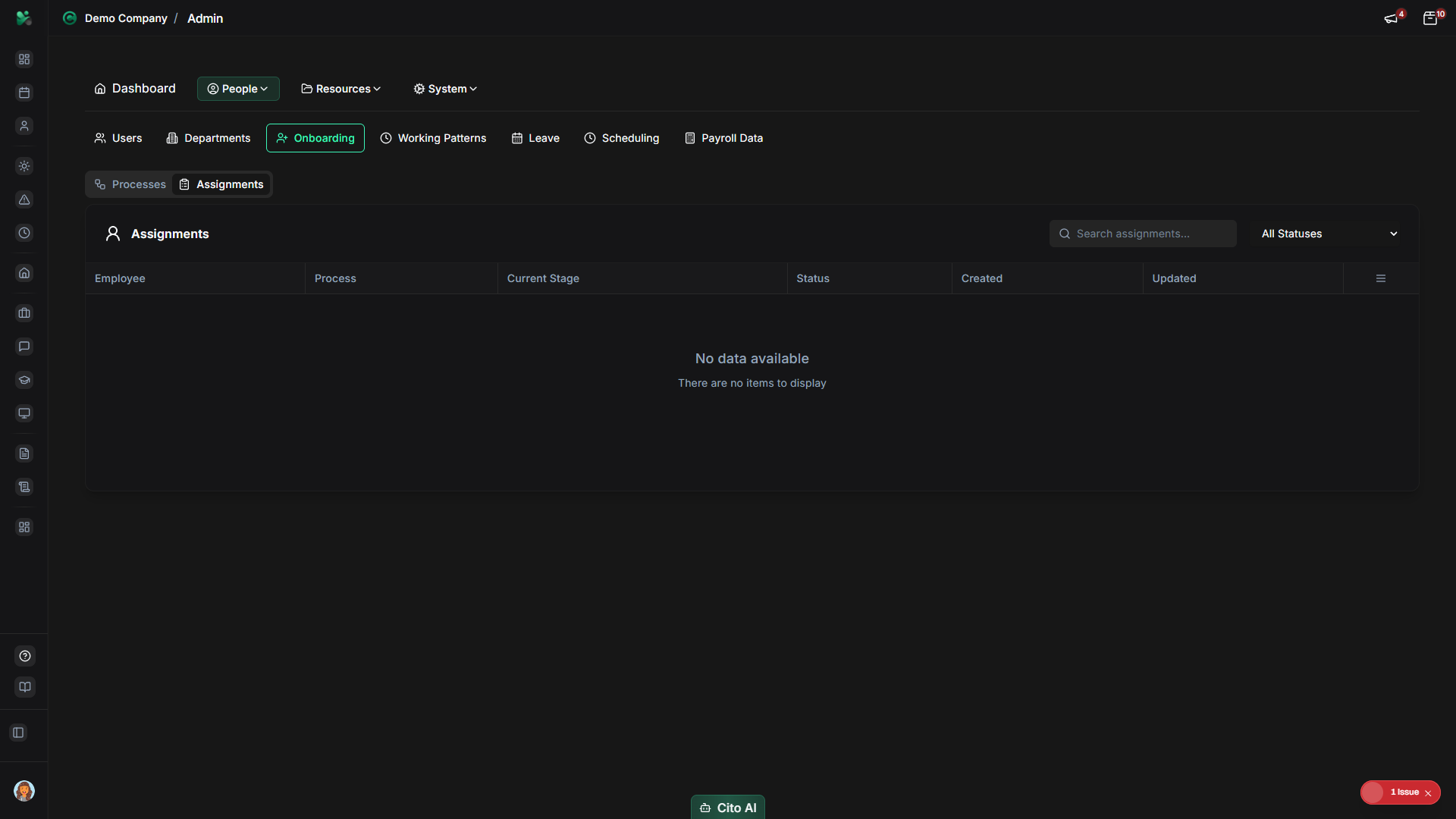
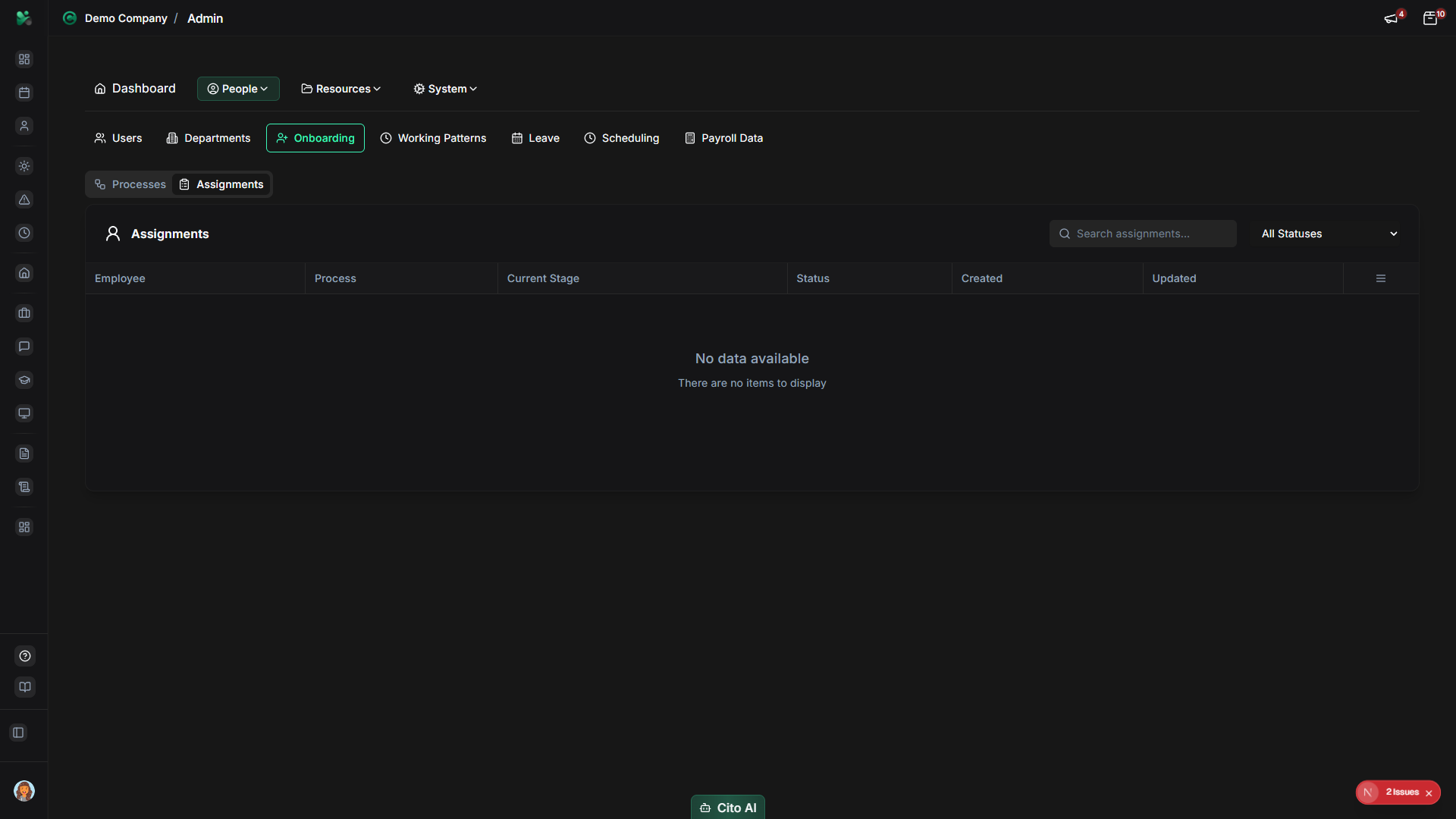
- Navigate to the Assignments tab
- You'll see a table or list showing all active onboarding assignments
- Each assignment shows:
- Employee name
- Onboarding process name
- Progress (e.g., "3 of 5 tasks completed")
- Start date
- Due date (if set)
- Status (In Progress, Completed, Overdue)
- Use filters or search to find specific assignments
- Click on an assignment to view detailed task completion status
Managing Onboarding Assignments
Update or remove onboarding assignments:
- Navigate to the Assignments tab
- Find the assignment you want to manage
- To view details:
- Click on the assignment row or the "View" button
- See all tasks in the process and their completion status
- View which tasks are completed, in progress, or not started
- To update a due date:
- Click "Edit" on the assignment
- Update the due date field
- Click "Save"
- To remove an assignment:
- Click the "Remove" or "Delete" button
- Confirm the removal in the dialog
- The assignment will be removed, but completed tasks remain in the user's history
Best Practices
- Create different onboarding processes for different roles (e.g., Standard Employee, Manager, Contractor)
- Include tasks covering all essential areas: paperwork, training, equipment, policies, and introductions
- Set clear due dates to ensure timely completion
- Regularly review and update onboarding processes based on feedback
- Monitor assignment progress in the Assignments tab to identify bottlenecks
- Assign onboarding immediately when creating new user accounts
- Use descriptive task names and detailed descriptions to guide employees
Related Features
- Users - Assign onboarding processes when creating or editing users
- Onboarding (Feature) - How employees complete onboarding tasks
- Training - Create training tasks as part of onboarding
- Documents - Share important documents during onboarding