
Admin: Document Management
Complete guide to uploading, organizing, and managing company documents in CitoHR.
Overview
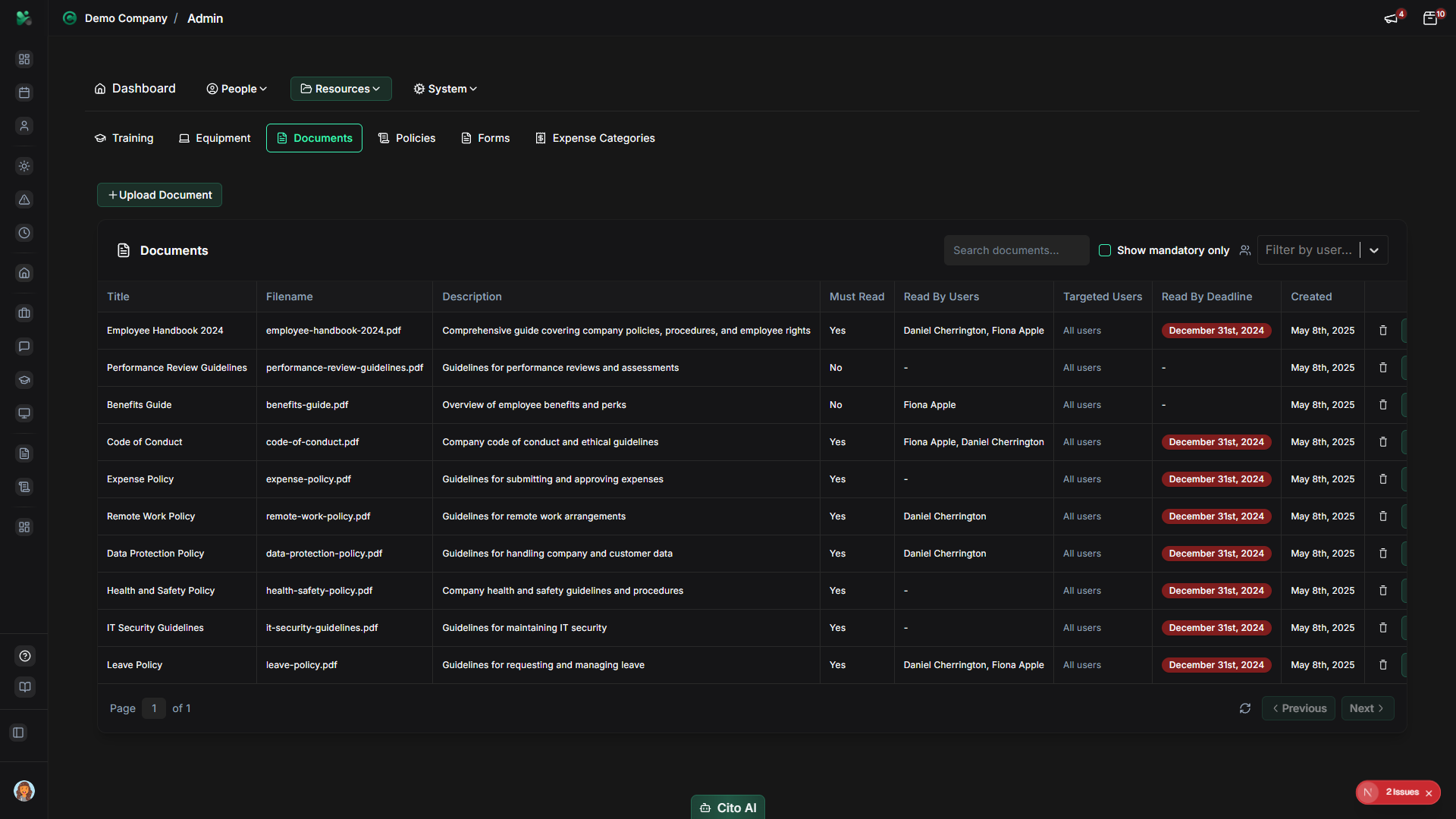
The Admin Documents section allows you to upload and manage company-wide documents such as handbooks, policies, forms, templates, and other important files. Documents can be organized by category and made available to all employees or specific groups. This centralizes document storage and ensures employees have access to the latest versions.
Prerequisites
- You must have ADMIN role to manage documents
Accessing Document Management
- Log in to your CitoHR account with Admin credentials
- Click on your organization name in the header
- Select "Resources" from the admin menu
- Click "Documents" from the Resources dropdown
- Or navigate directly to /admin/documents
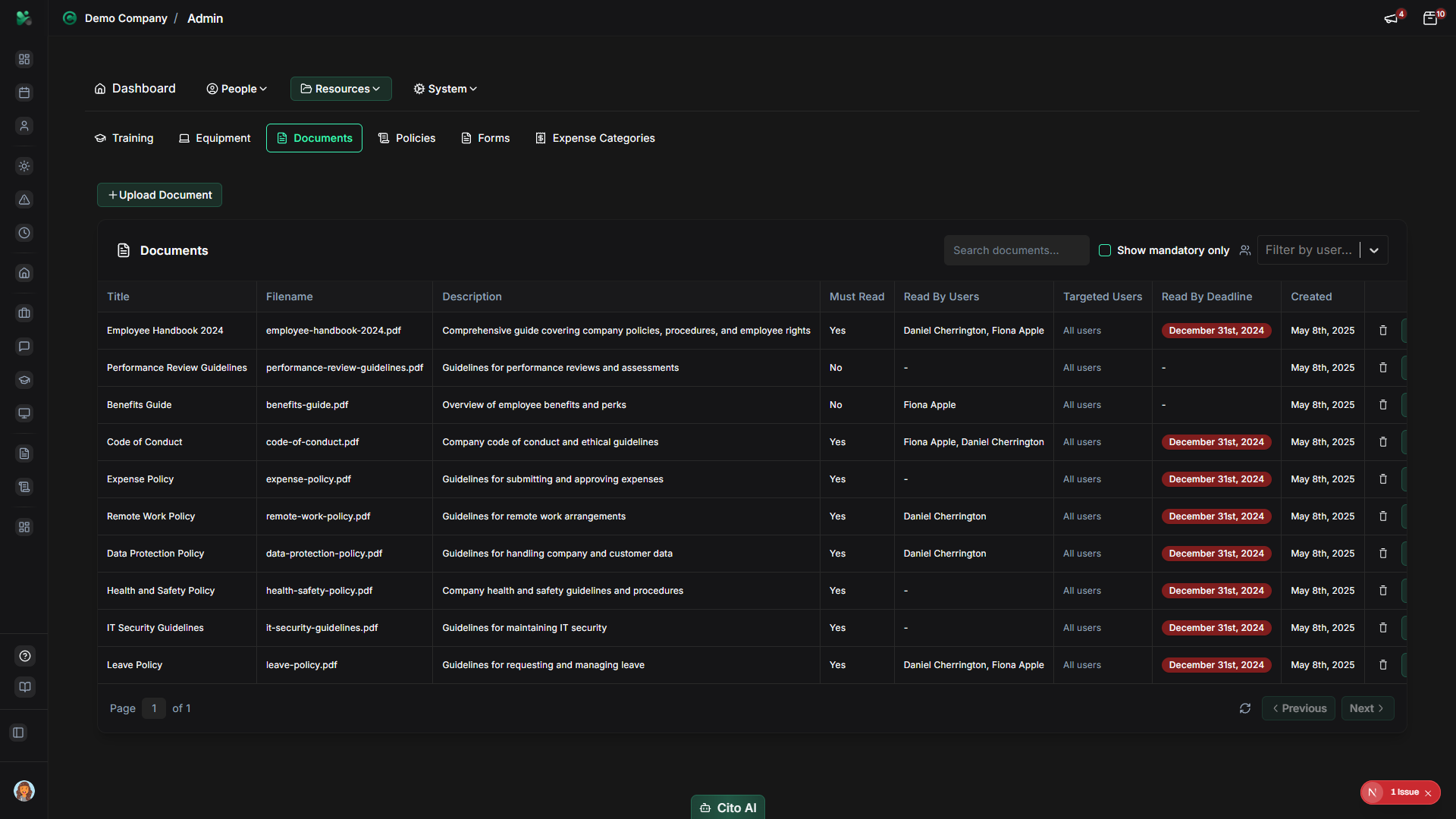
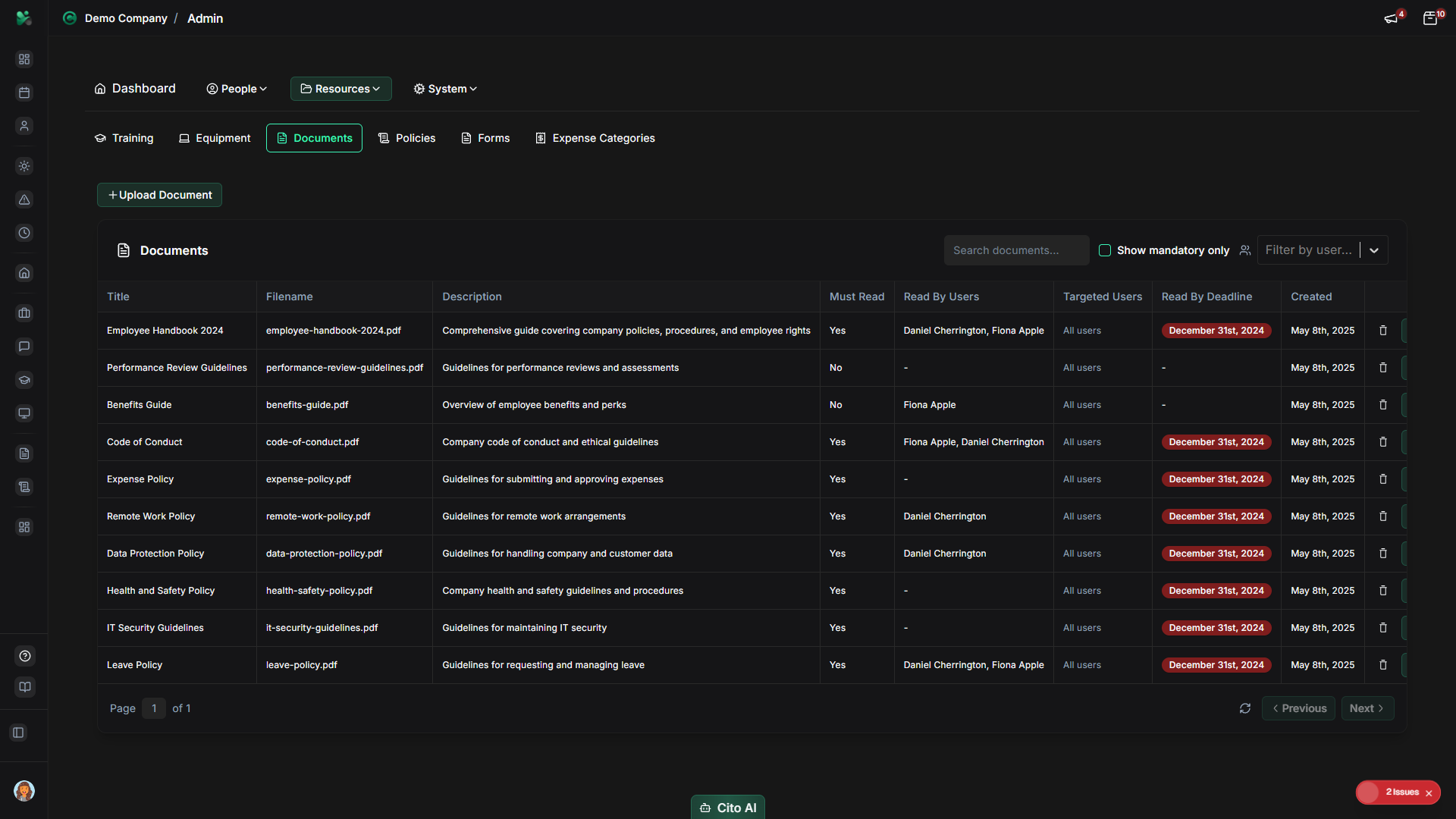
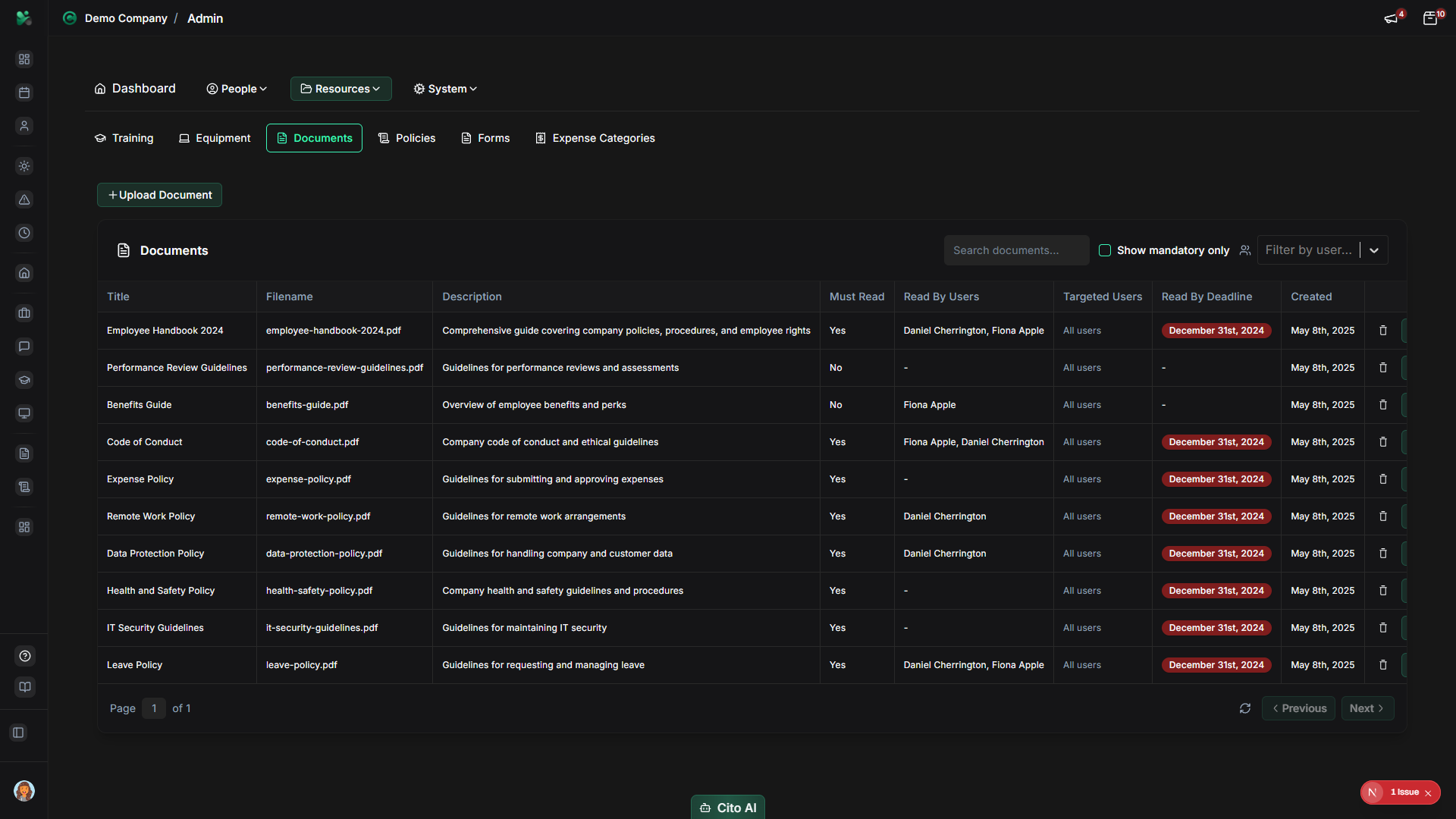
Viewing Documents
See all documents in your organization:
- On the Documents page, you'll see a list or grid of all uploaded documents
- Each document shows:
- Document name
- File type/icon
- File size
- Upload date
- Category (if organized)
- Actions (Download, Edit, Delete)
- Use the search bar to find specific documents
- Filter by category or file type if available
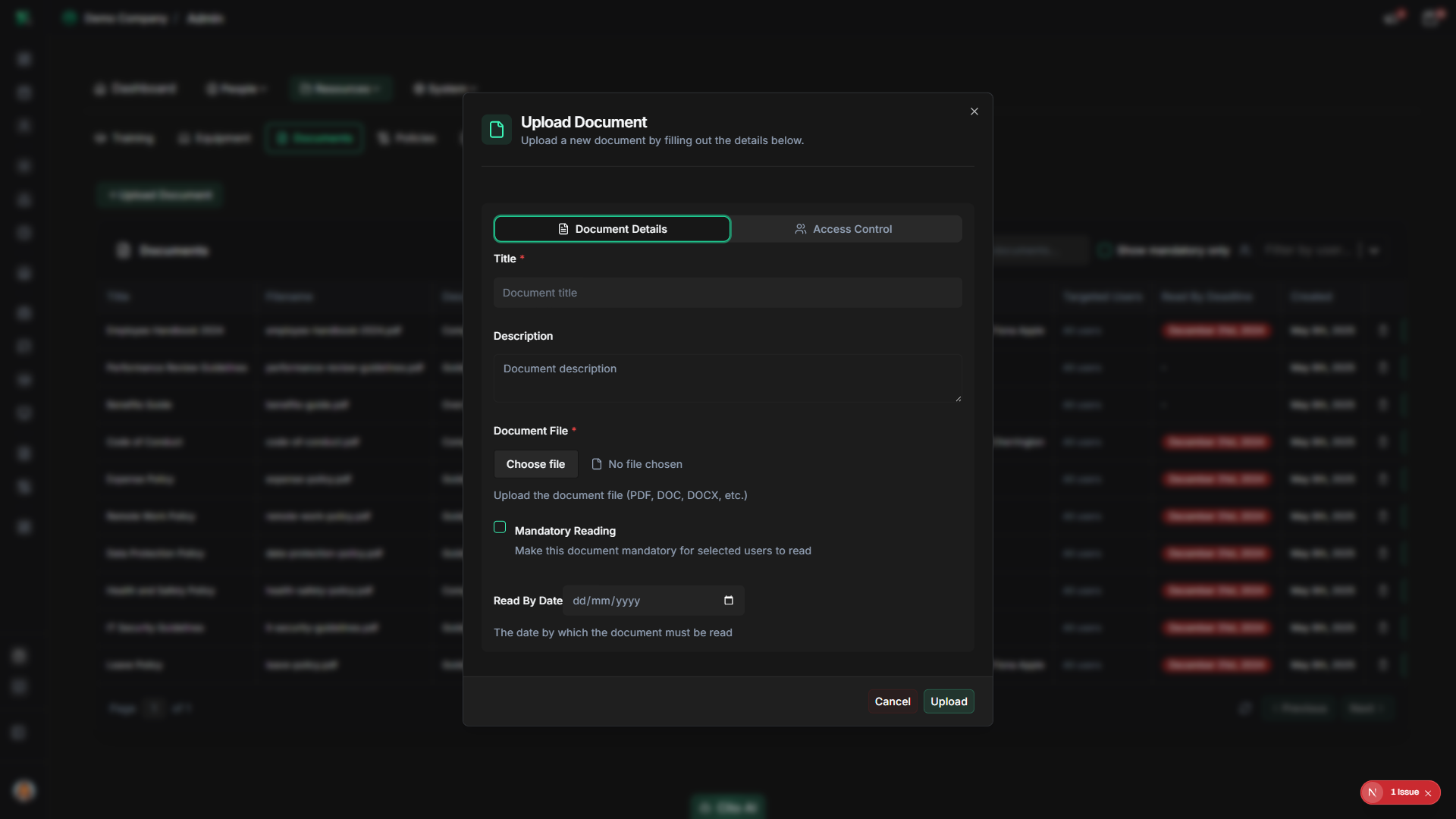
Uploading a Document
Upload a new document to the system:
- On the Documents page, click the "Upload Document" button (usually top right)
- The upload dialog will open
- Click "Choose File" or drag and drop a file into the upload area
- Select the file from your computer
- Fill in document details:
- Name - Enter a descriptive name for the document (may auto-fill from filename)
- Description - Add optional description or notes
- Category - Select or create a category (e.g., "Policies", "Forms", "Templates")
- Visibility - Choose who can access the document (All Employees, Specific Departments, etc.)
- Click "Upload" or "Save"
- The document will be uploaded and appear in the documents list
Tip
Use descriptive names and organize documents into categories to make them easy to find. Common categories include Policies,
Forms, Handbooks, Templates, and Training Materials.
Editing Document Information
Update document details:
- On the Documents page, find the document you want to edit
- Click the "Edit" button or icon
- The edit dialog will open with current document information
- Update any fields:
- Change the document name
- Update the description
- Change the category
- Modify visibility settings
- Click "Save" or "Update"
- The changes will be saved
Note
To replace a document file, you may need to delete the old document and upload a new one, or use a "Replace File" option if available.
Deleting a Document
Remove a document from the system:
- On the Documents page, find the document you want to delete
- Click the "Delete" button or icon
- A confirmation dialog will appear
- Review the warning message carefully
- Click "Confirm" or "Delete" to proceed
- The document will be permanently removed from the system
Warning
Deleting a document will remove it for all users. Make sure this is what you intend to do, especially for important documents
that employees may be referencing.
Organizing Documents
Use categories to organize documents:
- When uploading or editing a document, use the Category field
- Select an existing category from the dropdown, or
- Type a new category name to create it
- Use consistent category names for better organization:
- Policies
- Forms
- Handbooks
- Templates
- Training Materials
- Compliance
- Filter documents by category to find related documents quickly
Setting Document Visibility
Control who can access documents:
- When uploading or editing a document, use the Visibility settings
- Select visibility options:
- All Employees - Everyone in the organization can access
- Specific Departments - Only selected departments can access
- Managers Only - Only users with MANAGER or ADMIN roles
- Admins Only - Only users with ADMIN role
- Click "Save" to apply visibility settings
Tip
Use visibility settings to control access to sensitive documents. For example, salary information should be restricted to
admins, while company handbooks can be available to all employees.
Best Practices
- Use clear, descriptive document names that indicate the content
- Organize documents into logical categories
- Keep document descriptions up to date
- Set appropriate visibility based on document sensitivity
- Regularly review and update documents to ensure they're current
- Remove outdated documents to avoid confusion
- Use consistent naming conventions across similar documents
- Upload documents in commonly accessible formats (PDF, DOCX, etc.)
Related Features
- Documents (Feature) - How employees access and download documents
- Policies - Create and publish company policies
- Forms - Create custom forms that can be stored as documents