
Admin: Policy Management
Complete guide to creating, publishing, and managing company policies in CitoHR.
Overview
The Admin Policies section allows you to create, publish, and manage company policies. Policies can include employee handbooks, code of conduct, health and safety guidelines, remote work policies, and other important organizational rules. Employees can view and acknowledge policies, ensuring everyone is aware of company standards and requirements.
Prerequisites
- You must have ADMIN role to manage policies
Accessing Policy Management
- Log in to your CitoHR account with Admin credentials
- Click on your organization name in the header
- Select "Resources" from the admin menu
- Click "Policies" from the Resources dropdown
- Or navigate directly to /admin/policies
Viewing Policies
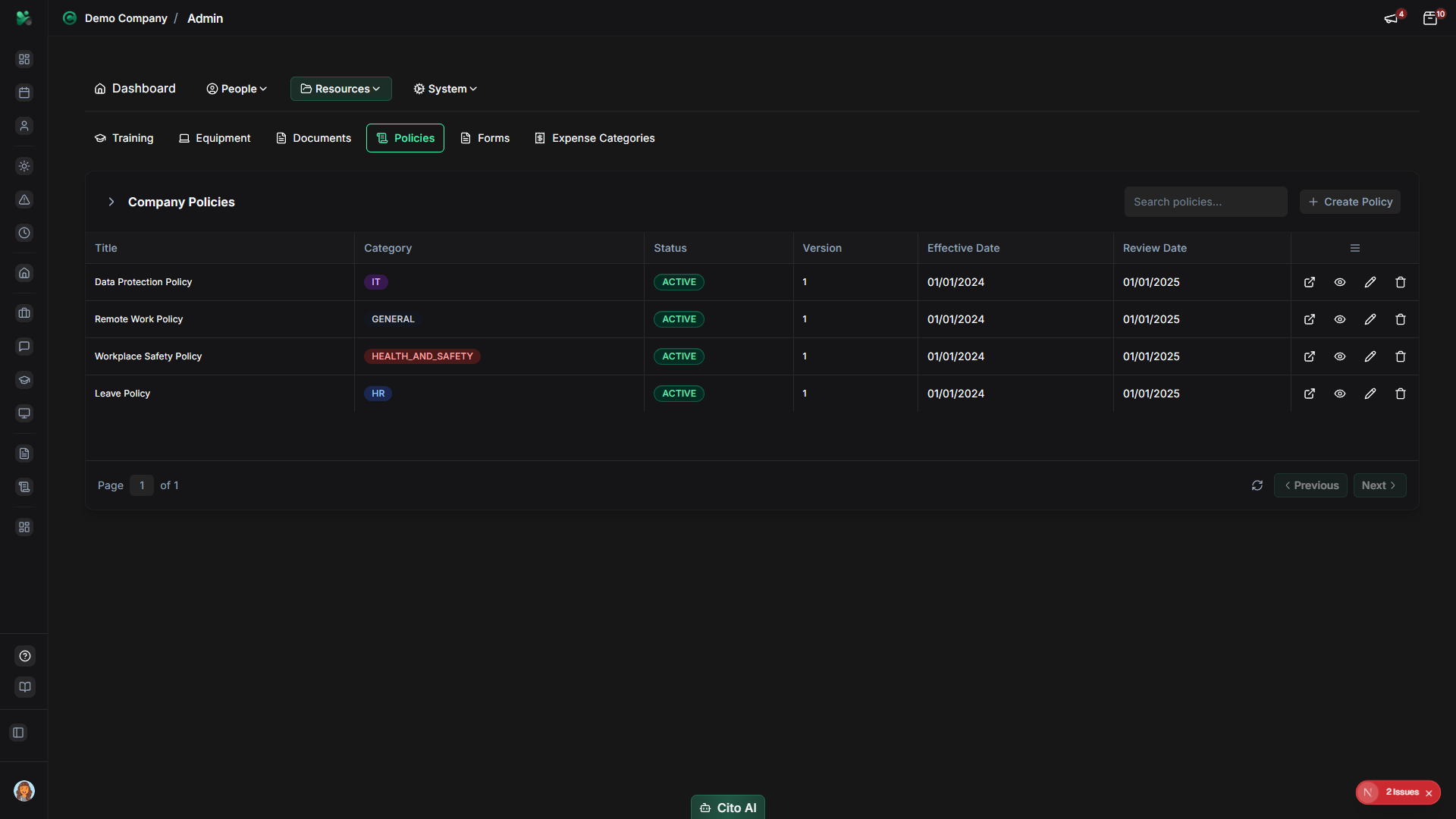
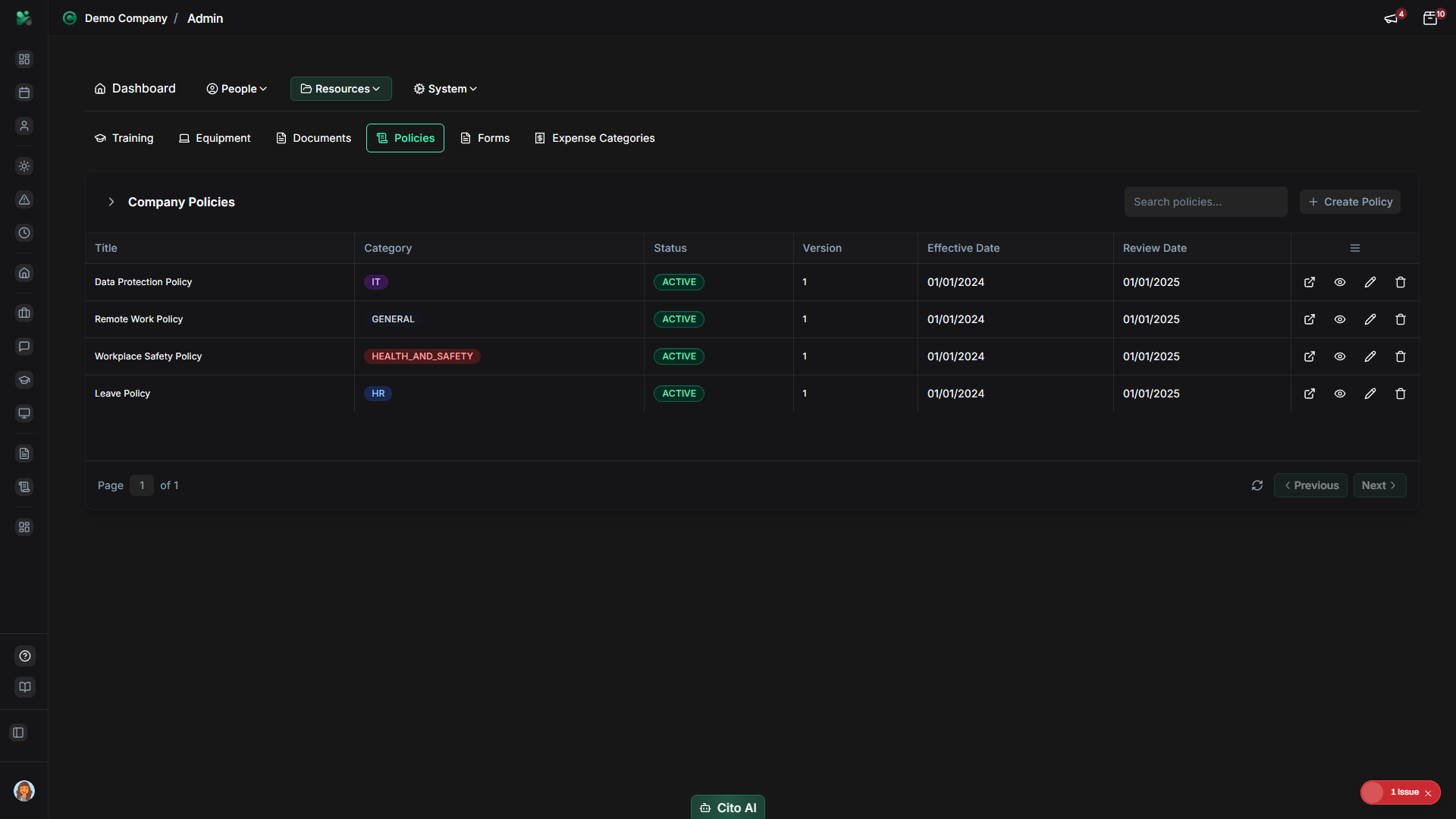
See all policies in your organization:
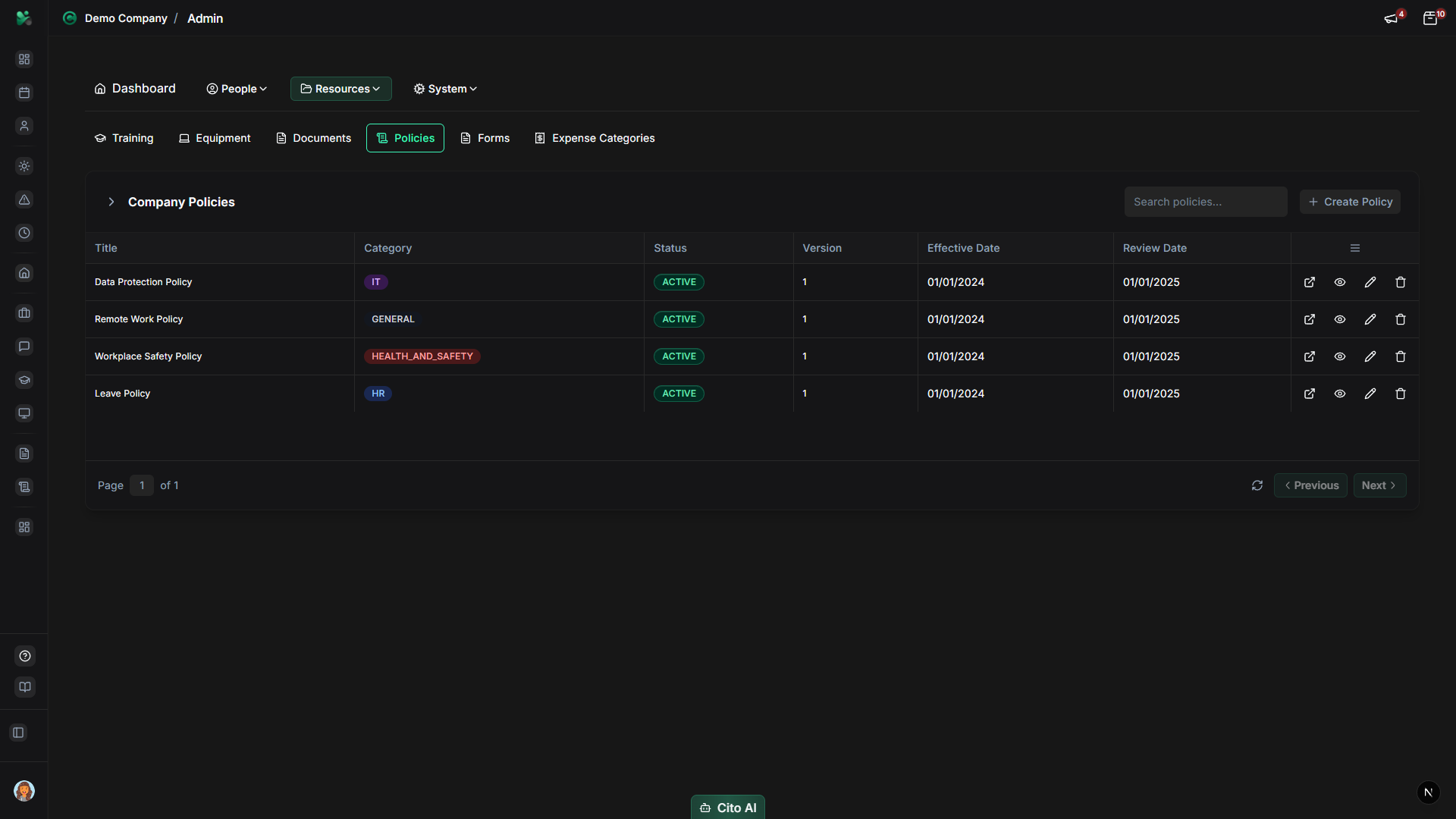
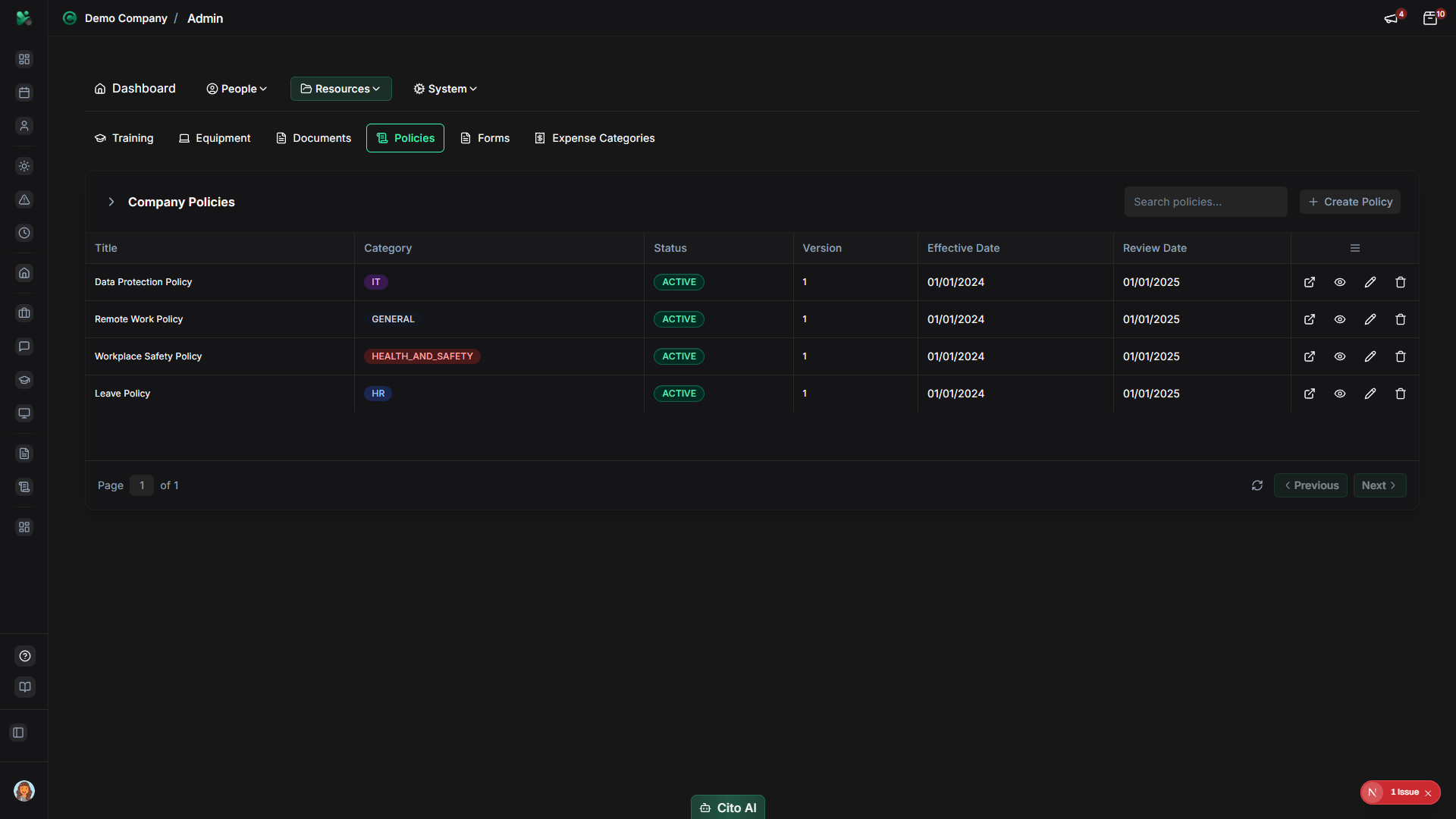
- On the Policies page, you'll see a table or list of all policies
- Each policy shows:
- Policy name/title
- Status (Draft, Published, Archived)
- Version number
- Created date
- Last updated date
- Actions (Edit, Publish, Delete)
- Use the search bar to find specific policies
- Filter by status if available
Creating a Policy
Create a new company policy:
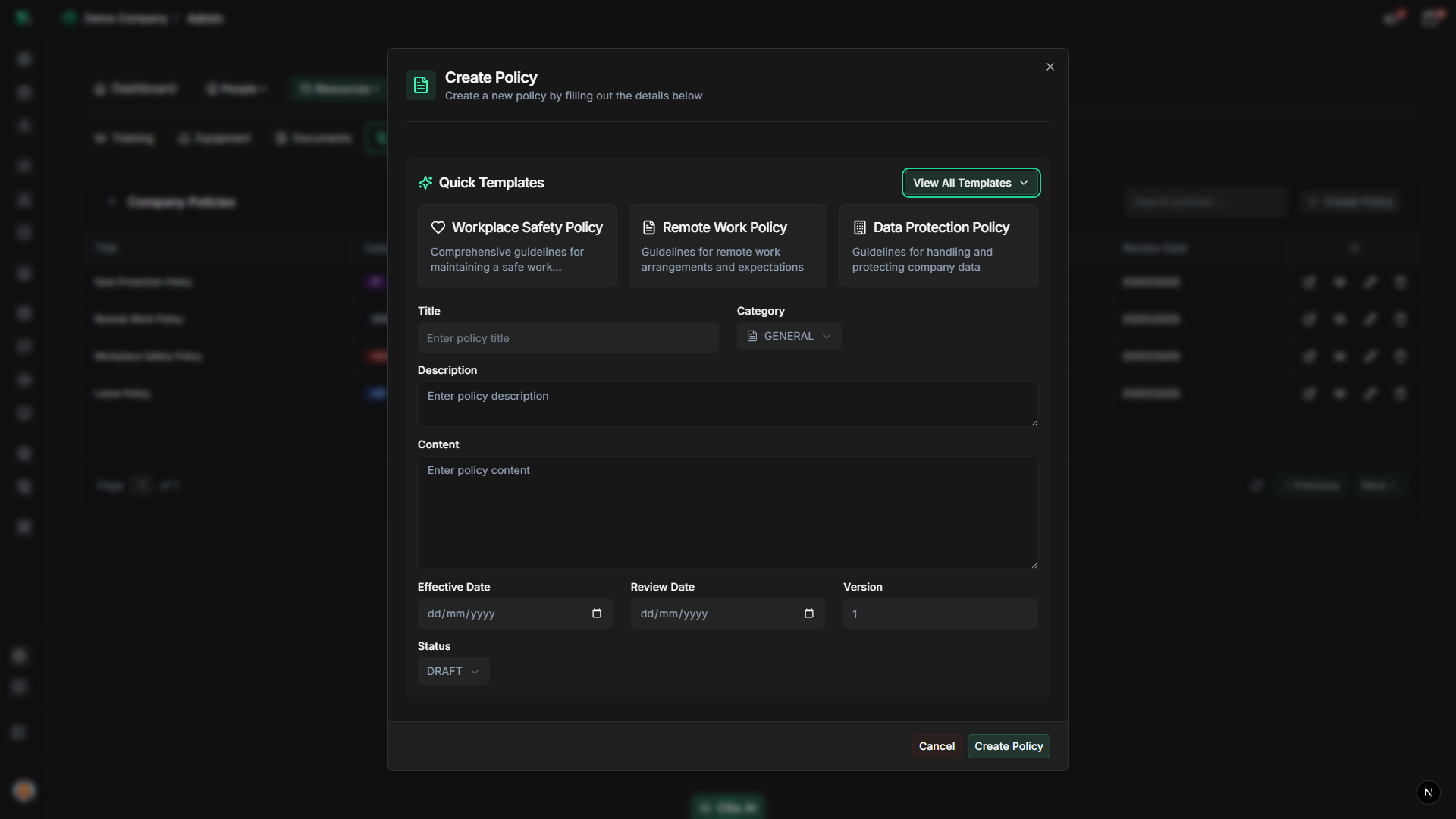
- On the Policies page, click the "Create Policy" button (usually top right)
- The policy creation dialog will open
- Fill in the policy details:
- Title - Enter a clear policy title (e.g., "Employee Handbook", "Remote Work Policy")
- Description - Add a brief description of what the policy covers
- Content - Enter or paste the full policy text/content
- Category - Select or create a category (e.g., "HR", "Safety", "IT")
- Require Acknowledgment - Toggle if employees must acknowledge reading the policy
- Status - Set initial status (usually "Draft")
- Click "Create" or "Save Draft"
- The policy will be created and appear in the policies list
Tip
Start with policies in "Draft" status, then publish them when ready. This allows you to review and refine policies before
making them available to employees.
Editing a Policy
Update an existing policy:
- On the Policies page, find the policy you want to edit
- Click the "Edit" button or icon
- The edit dialog will open with current policy information
- Update any fields:
- Modify the title or description
- Update the policy content
- Change the category
- Modify acknowledgment requirements
- Update the status
- If updating a published policy, consider creating a new version
- Click "Save" or "Update"
- The changes will be saved
Note
When updating published policies, the system may create a new version automatically. Employees may need to re-acknowledge
updated policies depending on your settings.
Publishing a Policy
Make a policy available to employees:
- On the Policies page, find the policy you want to publish
- If the policy is in Draft status, click the "Publish" button
- Or edit the policy and change the status to "Published"
- A confirmation dialog may appear
- Review the policy one more time
- Click "Publish" or "Confirm"
- The policy will become available to employees
- If acknowledgment is required, employees will be notified to read and acknowledge the policy
Archiving a Policy
Archive outdated policies:
- On the Policies page, find the policy you want to archive
- Click the "Archive" button or edit and change status to "Archived"
- Archived policies are no longer visible to employees but remain in the system for historical records
- You can unarchive policies later if needed
Tip
Archive policies instead of deleting them to maintain historical records. This is especially important for compliance and
audit purposes.
Deleting a Policy
Remove a policy from the system:
- On the Policies page, find the policy you want to delete
- Click the "Delete" button or icon
- A confirmation dialog will appear
- Review the warning message carefully
- Click "Confirm" or "Delete" to proceed
- The policy will be permanently removed
Warning
Deleting a policy will remove all acknowledgment records. Consider archiving instead of deleting to preserve historical data.
Policy Acknowledgment
Require employees to acknowledge policies:
- When creating or editing a policy, enable "Require Acknowledgment"
- When the policy is published, employees will be notified
- Employees must read and acknowledge the policy
- You can view acknowledgment status in the policy details or reports
- Track which employees have acknowledged each policy
Best Practices
- Use clear, descriptive policy titles
- Organize policies into logical categories
- Keep policy content up to date and review regularly
- Require acknowledgment for critical policies (handbook, code of conduct, safety)
- Use version numbers to track policy changes
- Archive outdated policies instead of deleting them
- Notify employees when important policies are updated
- Maintain a clear policy review schedule
Related Features
- Policies (Feature) - How employees view and acknowledge policies
- Documents - Upload policy documents as PDFs
- Reports - Generate policy acknowledgment reports