
Admin: Reports & Analytics
Complete guide to generating, viewing, and analyzing organizational reports in CitoHR.
Overview
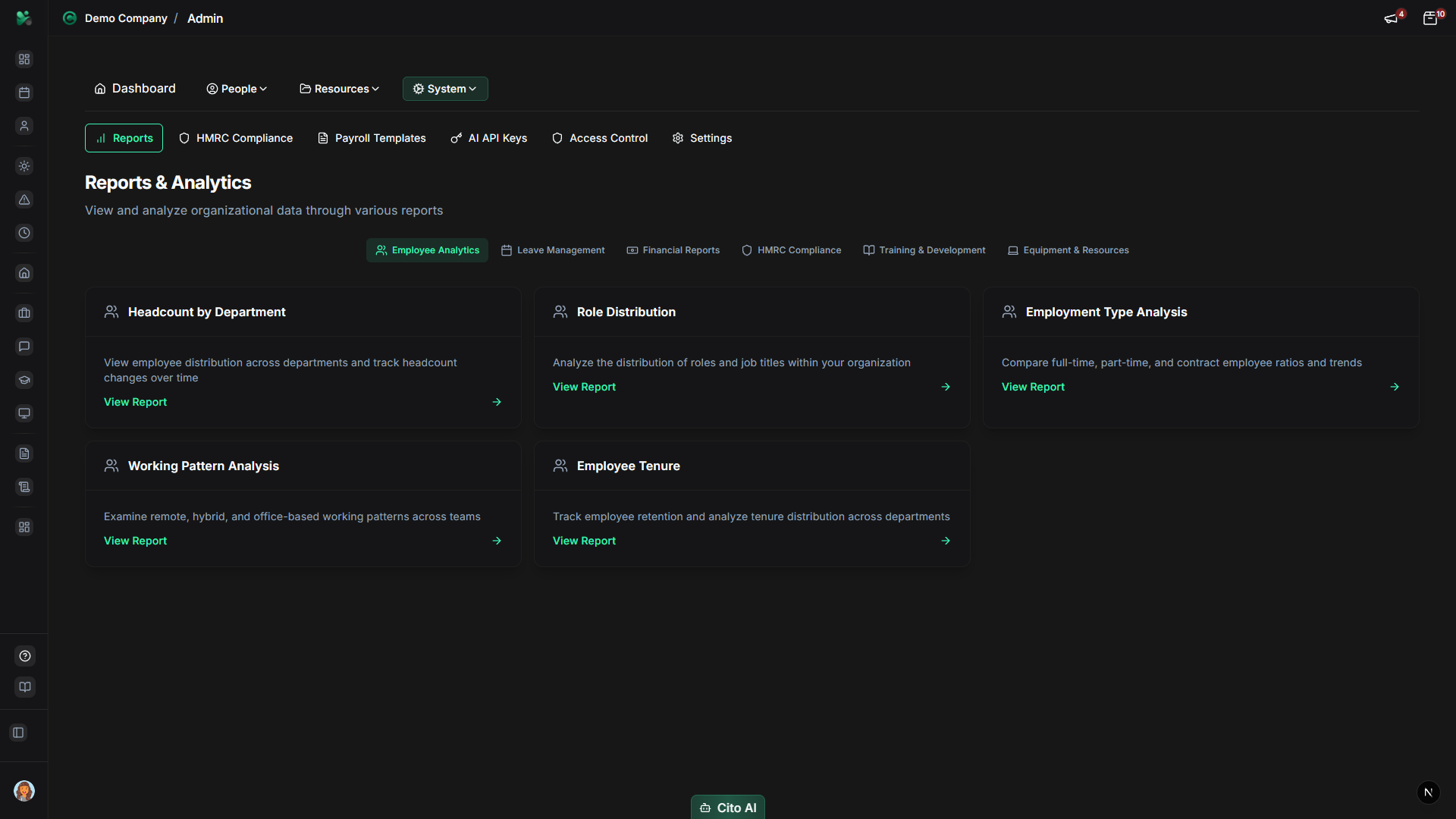
The Admin Reports section provides comprehensive reporting and analytics capabilities across all areas of your organization. Reports are organized into categories including Employee, Leave, Financial, Training, Equipment, Onboarding, and Compliance. These reports help you analyze trends, track metrics, and make data-driven decisions.
Note
Advanced Reporting is a Pro feature. Ensure your organization has a Pro subscription to access all reporting capabilities.
Prerequisites
- You must have ADMIN role to access reports
- Advanced Reporting is a Pro feature - ensure your organization has Pro subscription
Accessing Reports
- Log in to your CitoHR account with Admin credentials
- Click on your organization name in the header
- Select "System" from the admin menu
- Click "Reports" from the System dropdown
- Or navigate directly to /admin/reports
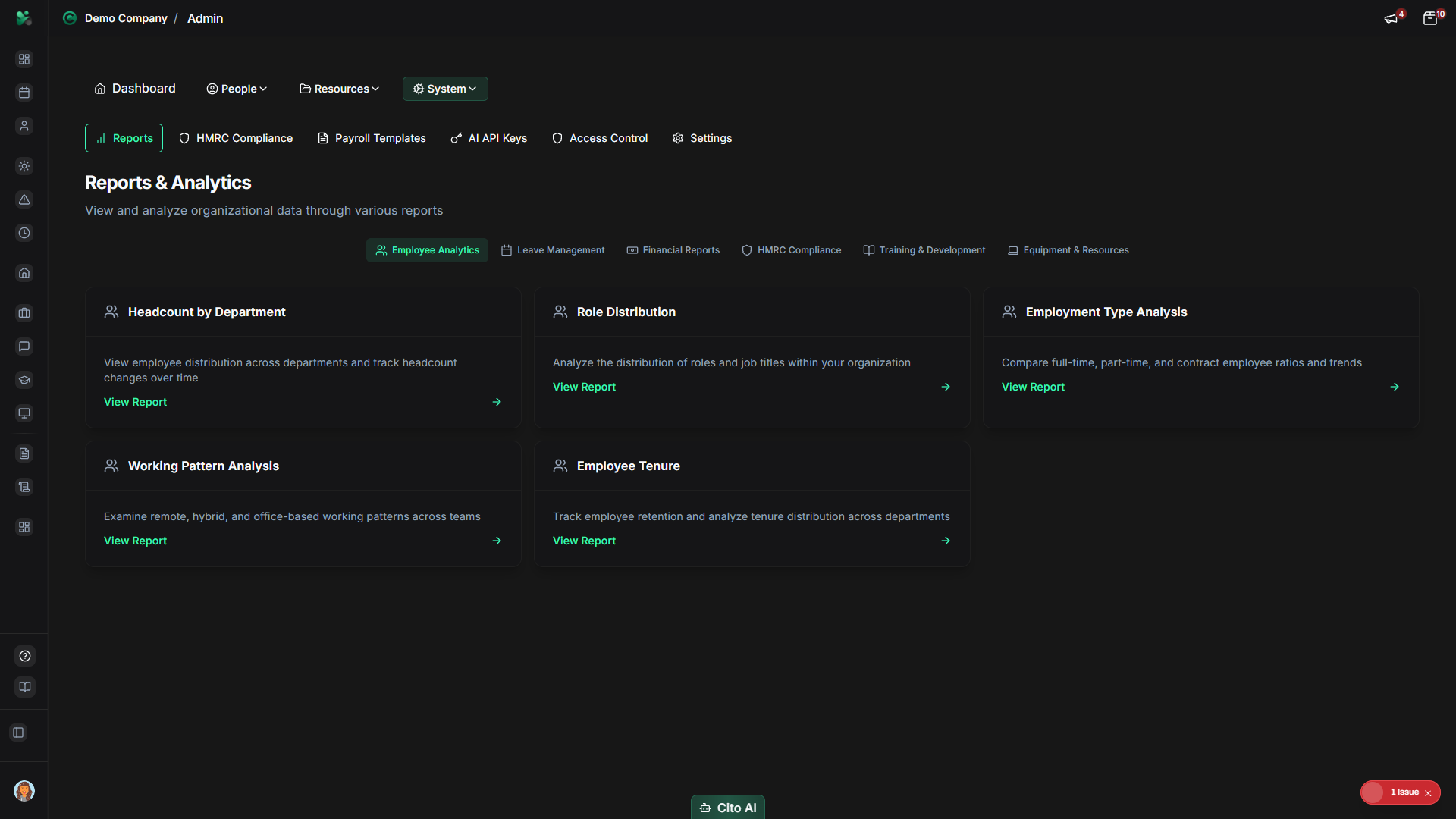
Report Categories
Reports are organized into the following categories:
- Employee - Headcount, distribution, tenure, employment status, working patterns
- Leave - Balance, usage, trends, approvals, requests
- Financial - Salary trends, expenses, approvals, changes
- Training - Completion, skills, ROI, costs, providers, outcomes
- Equipment - Allocation, costs, returns
- Onboarding - Completion, timeline, tasks
- Compliance - P60, P11D, auto-enrolment, working time, sponsored workers
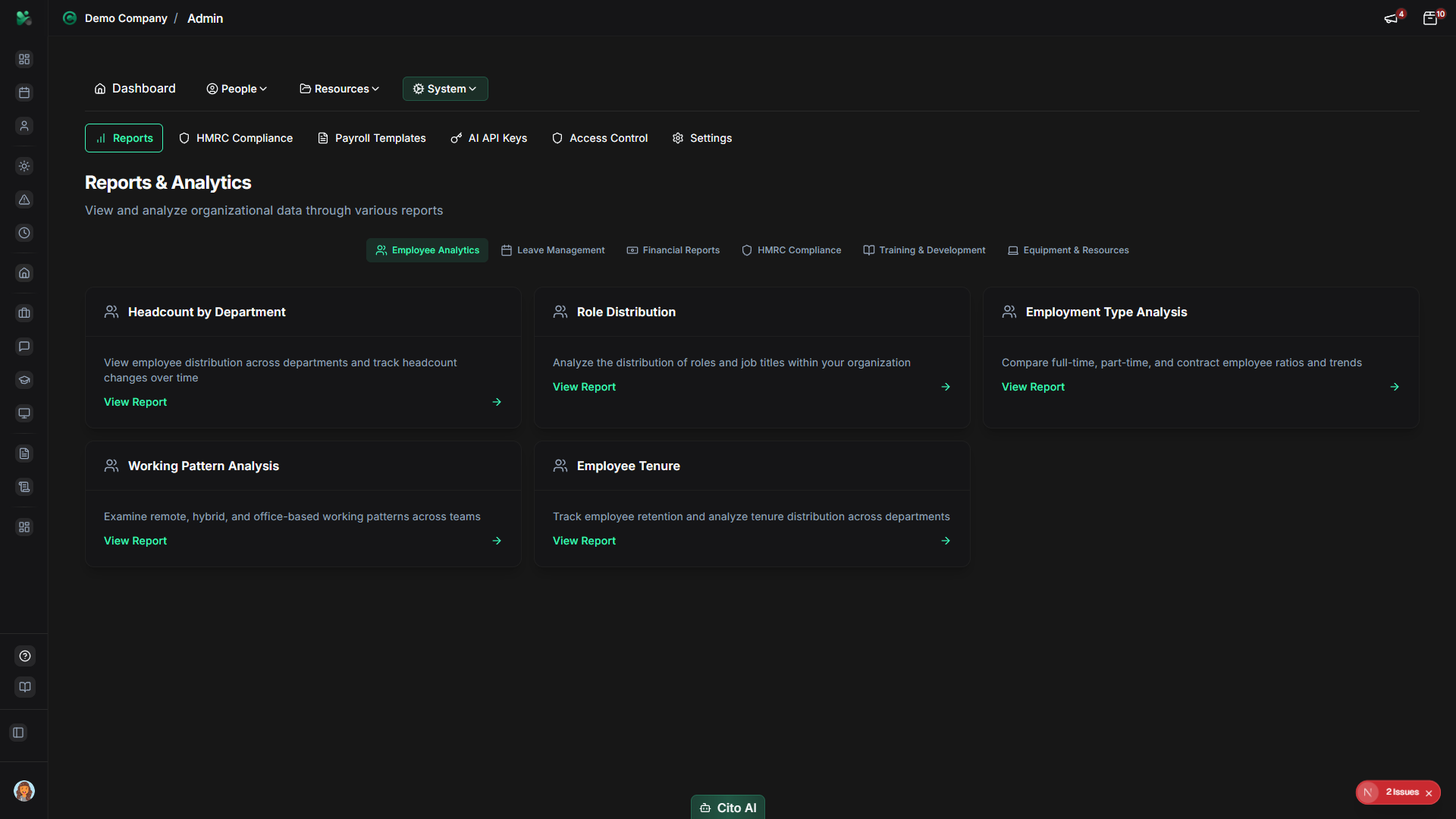
Viewing a Report
Open and view a specific report:
- On the Reports page, select the category tab (Employee, Leave, Financial, etc.)
- Browse the available reports in that category
- Click on a report card to open it
- The report will load showing:
- Data visualization (charts, graphs, tables)
- Summary statistics
- Filter options (date range, department, etc.)
- Export options
- Use filters to customize the report data
- View different time periods or date ranges
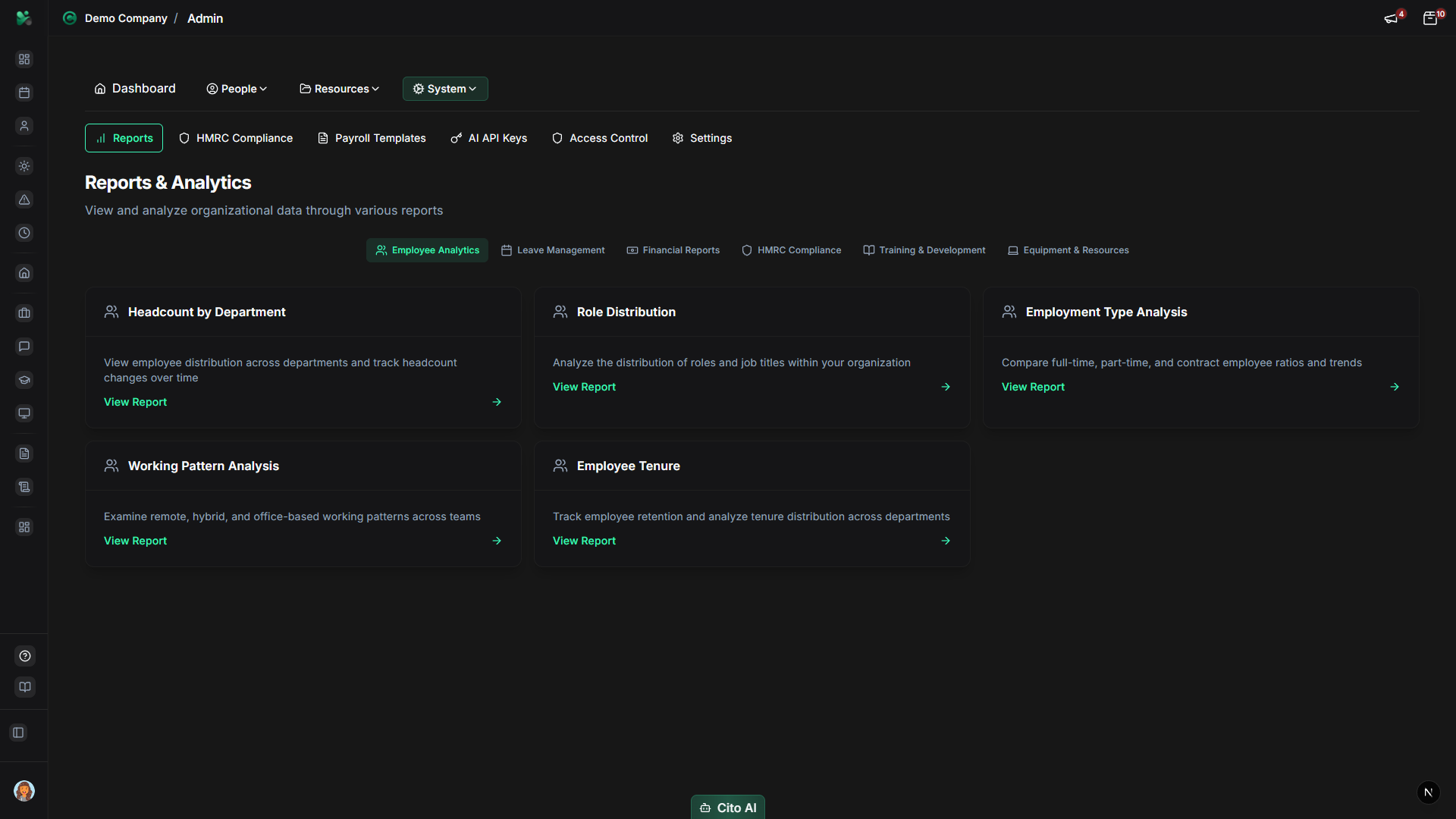
Filtering Reports
Customize report data using filters:
- Open a report
- Locate the filter controls (usually at the top of the report)
- Apply filters:
- Date Range - Select start and end dates
- Department - Filter by specific departments
- Employee - Filter by individual employees
- Status - Filter by status (Active, Inactive, etc.)
- Other report-specific filters
- Click "Apply Filters" or the report will update automatically
- The report data will refresh based on your filters
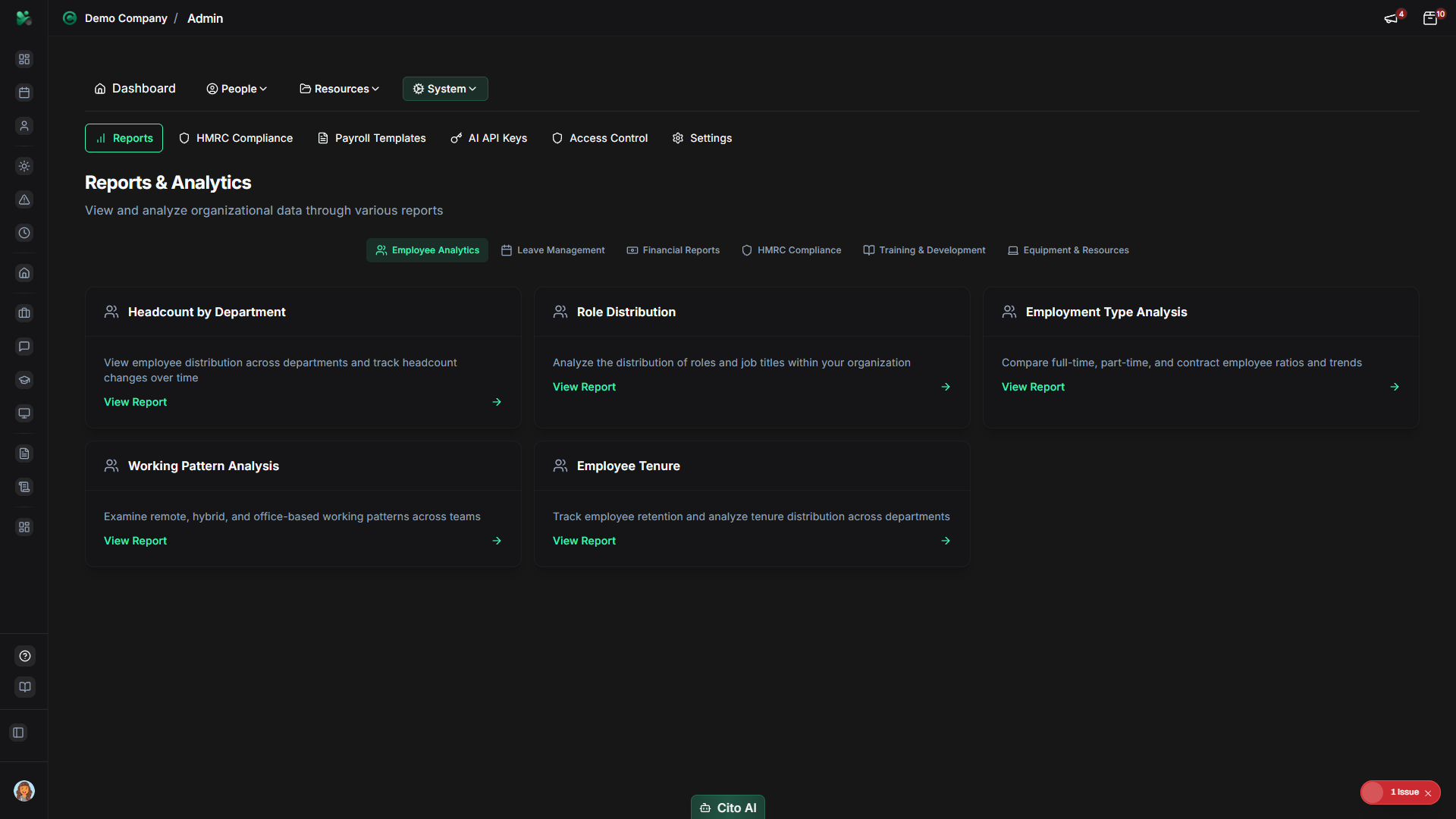
Exporting Reports
Export report data for external analysis:
- Open a report
- Apply any desired filters
- Click the "Export" button (usually top right)
- Select export format:
- CSV - For spreadsheet applications
- Excel - For Microsoft Excel
- PDF - For sharing and printing
- The file will download automatically
- Open the file in your preferred application
Common Reports
Frequently used reports:
- Employee Headcount - Total employees by department, status, or date
- Leave Balance - Current leave balances for all employees
- Leave Usage - Leave taken over time periods
- Expense Reports - Expenses by category, employee, or time period
- Training Completion - Training completion rates and status
- Onboarding Timeline - Average onboarding completion times
- Equipment Allocation - Equipment assigned to employees
Best Practices
- Run reports regularly to track trends and identify issues early
- Use date range filters to compare periods (month-over-month, year-over-year)
- Export reports for record-keeping and sharing with stakeholders
- Combine multiple reports for comprehensive analysis
- Schedule regular review of key metrics
- Use department filters to analyze specific teams
- Keep exported reports organized for easy reference
Related Features
- HMRC Compliance - Compliance-specific reports for UK requirements
- Payroll Data - Export payroll data for processing