
Admin: Leave Management
Complete guide to configuring leave policies, entitlements, accrual methods, and notification settings in CitoHR.
Overview
The Admin Leave Management section allows you to configure your organization's leave policies, entitlements, accrual methods, and notification settings. These settings determine how leave is calculated, when the leave year starts, what types of leave employees are entitled to, and how leave requests are processed.
Note
Prerequisites
- You must have ADMIN role to configure leave settings
- Understand your organization's leave policies and requirements
Accessing Leave Settings
- Log in to your CitoHR account with Admin credentials
- Click on your organization name in the header
- Select "People" from the admin menu
- Click "Leave" from the People dropdown
- Or navigate directly to /admin/leave
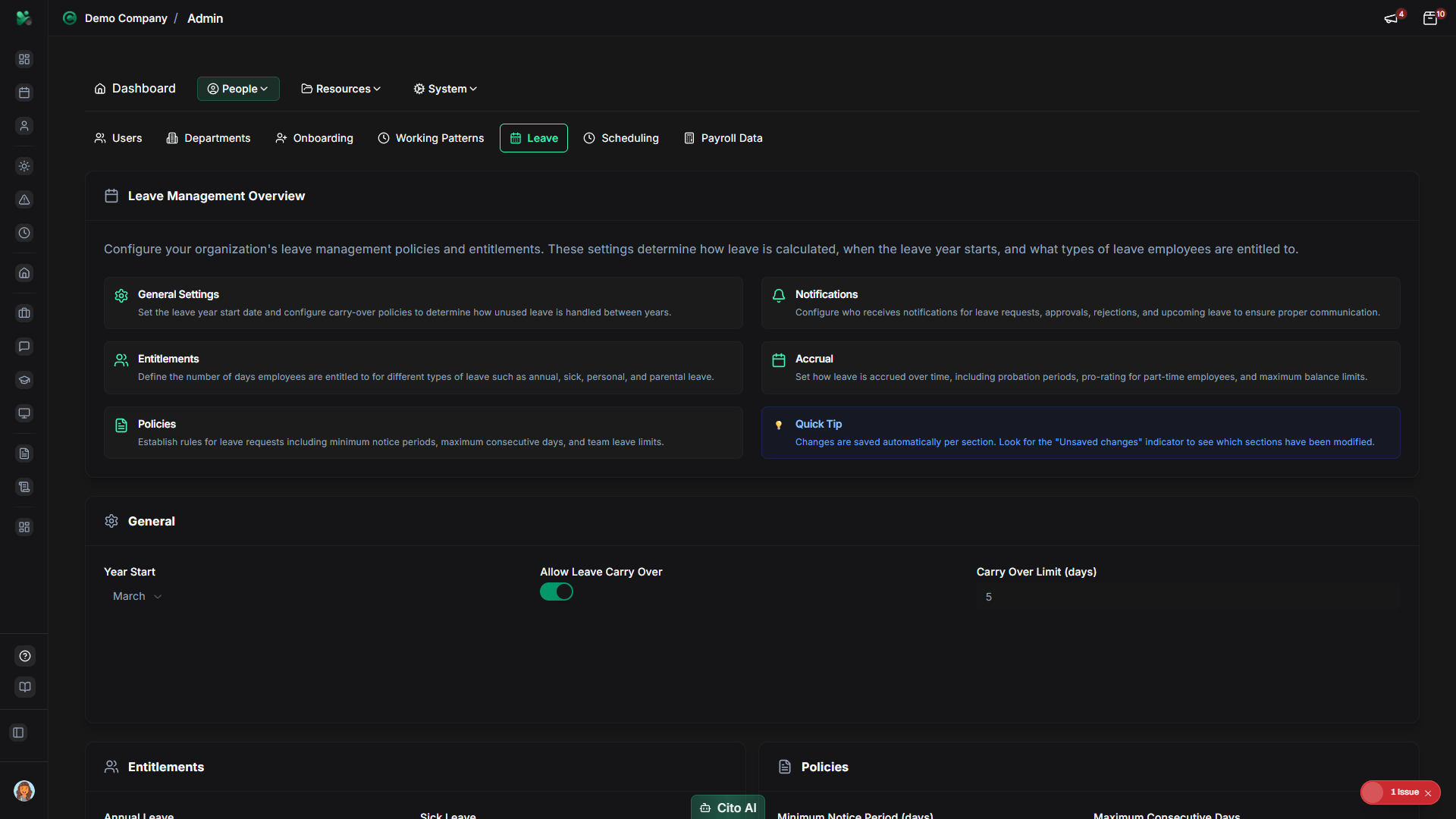
Leave Settings Sections
The Leave Management page is organized into several sections:
- General - Year start, carry-over policies
- Entitlements - Days allocated for each leave type
- Policies - Rules for leave requests (notice periods, limits, blackout dates)
- Notifications - Email notification preferences
- Accrual - How leave is earned over time
Configuring General Settings
Set up basic leave year configuration:
- Navigate to the General section
- Set the Year Start:
- Click the Year Start dropdown
- Select the month when your leave year begins (e.g., January, April, or your fiscal year start)
- Configure Allow Leave Carry Over:
- Toggle the switch to enable or disable carry-over of unused leave
- If enabled, set the Carry Over Limit (maximum days that can be carried over)
- Click "Save" in the General section
- A success message will confirm the settings were saved
Configuring Leave Entitlements
Set the number of days employees are entitled to for each leave type:
- Navigate to the Entitlements section
- Set entitlements for each leave type:
- Annual Leave - Enter the number of days (e.g., 20, 25, 30)
- Sick Leave - Enter the number of days
- Personal Leave - Enter the number of days
- Parental Leave - Enter the number of days
- Other Leave - Enter the number of days
- Click "Save" in the Entitlements section
- The entitlements will be applied to all employees (unless overridden at user level)
Tip
Configuring Leave Policies
Set rules and restrictions for leave requests:
- Navigate to the Policies section
- Configure policy settings:
- Minimum Notice Period - Enter days (e.g., 14) - how far in advance leave must be requested
- Maximum Consecutive Days - Enter the maximum days that can be taken in one request
- Maximum Team Leave (%) - Enter percentage (e.g., 30) - maximum percentage of team that can be on leave simultaneously
- Require Manager Approval - Toggle to require manager approval for all requests
- Allow Half-Day Leave - Toggle to allow half-day leave requests
- Blackout Dates - Click "Add Date" to add dates when leave cannot be taken
- For blackout dates:
- Click "Add Date"
- Select a date from the date picker
- Repeat to add multiple blackout dates
- Click the X icon to remove a blackout date
- Click "Save" in the Policies section
Configuring Notifications
Set up email notifications for leave-related events:
- Navigate to the Notifications section
- Toggle notification settings:
- Notify Manager on Request - Toggle to email managers when leave is requested
- Notify Employee on Approval - Toggle to email employees when leave is approved
- Notify Employee on Rejection - Toggle to email employees when leave is rejected
- Notify Team on Leave - Toggle to notify team members when someone takes leave
- Reminder Days Before Leave - Enter number of days (e.g., 3) to send reminder before leave starts
- Click "Save" in the Notifications section
Configuring Leave Accrual
Set how leave is earned over time:
- Navigate to the Accrual section
- Configure accrual settings:
- Accrual Method - Select from dropdown:
- Frontloaded - All leave granted at start of year
- Monthly - Leave earned each month
- Quarterly - Leave earned each quarter
- Probation Period (months) - Enter months (e.g., 3) before leave starts accruing
- Pro-Rated Accrual - Toggle to pro-rate leave for part-time employees
- Maximum Accrual Balance - Enter maximum days that can be accrued
- Allow Negative Balance - Toggle to allow employees to take leave before it's accrued
- Accrual Method - Select from dropdown:
- Click "Save" in the Accrual section
Tip
Saving Settings
Each section saves independently:
- Make changes to any section
- Look for the "Unsaved changes" indicator on the section
- Click the "Save" button in that section
- A success message will confirm the settings were saved
- The indicator will disappear once saved
Note
Best Practices
- Configure leave settings before creating users to ensure proper entitlements from the start
- Set blackout dates for busy periods (e.g., year-end, peak seasons)
- Enable manager approval to maintain control over leave requests
- Set appropriate notice periods based on your business needs
- Enable notifications to keep everyone informed about leave requests and approvals
- Review and update settings annually to reflect policy changes
- Consider your organization's leave year start date (calendar year vs fiscal year)
Related Features
- Users - Override leave entitlements for individual users
- Leave Management (Feature) - How employees request and manage leave
- Working Patterns - Working patterns affect leave accrual for part-time employees
- Reports - Generate leave usage and balance reports