
Admin: Equipment Management
Complete guide to tracking and managing company equipment, assigning equipment to employees, and monitoring equipment inventory in CitoHR.
Overview
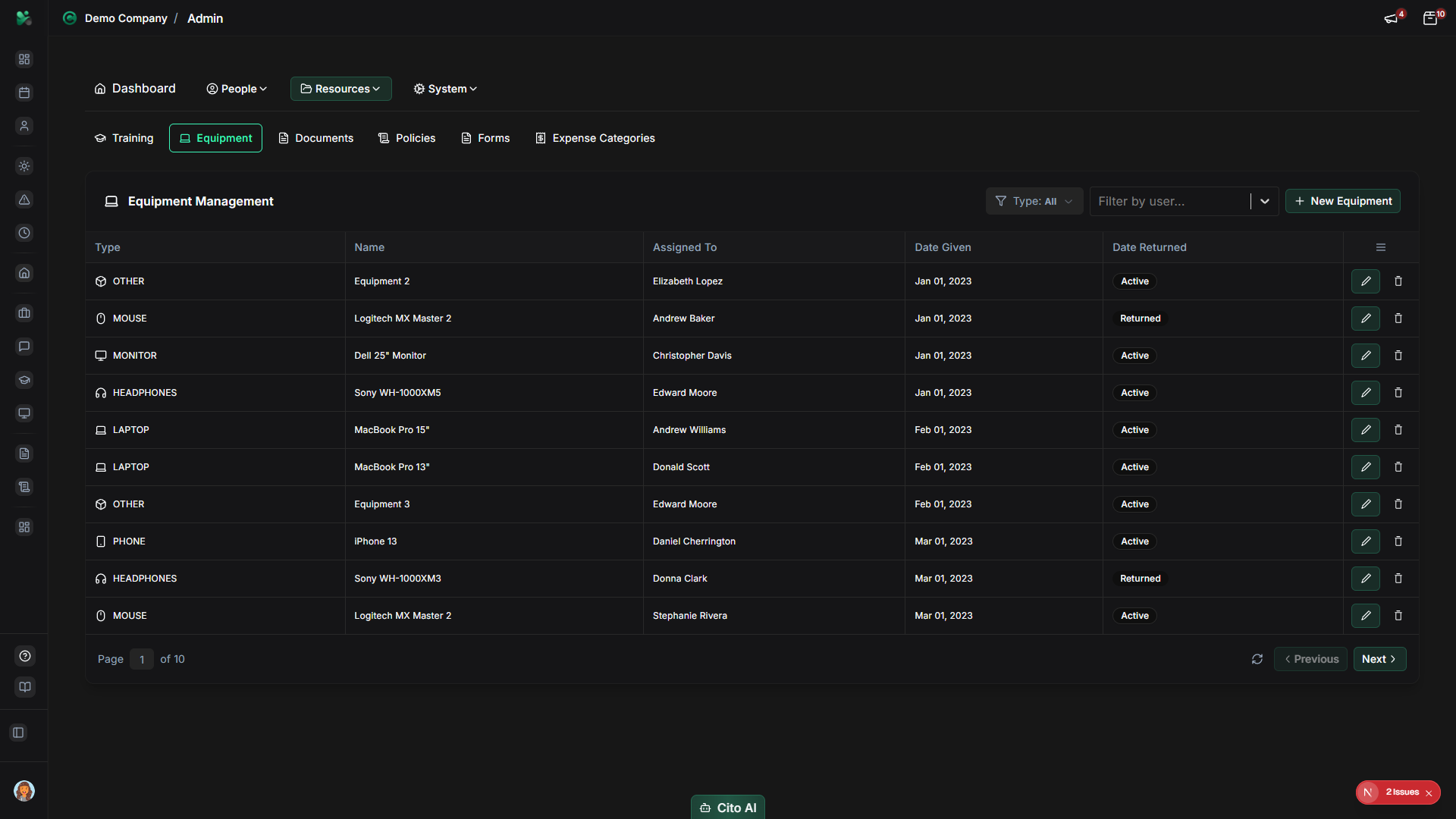
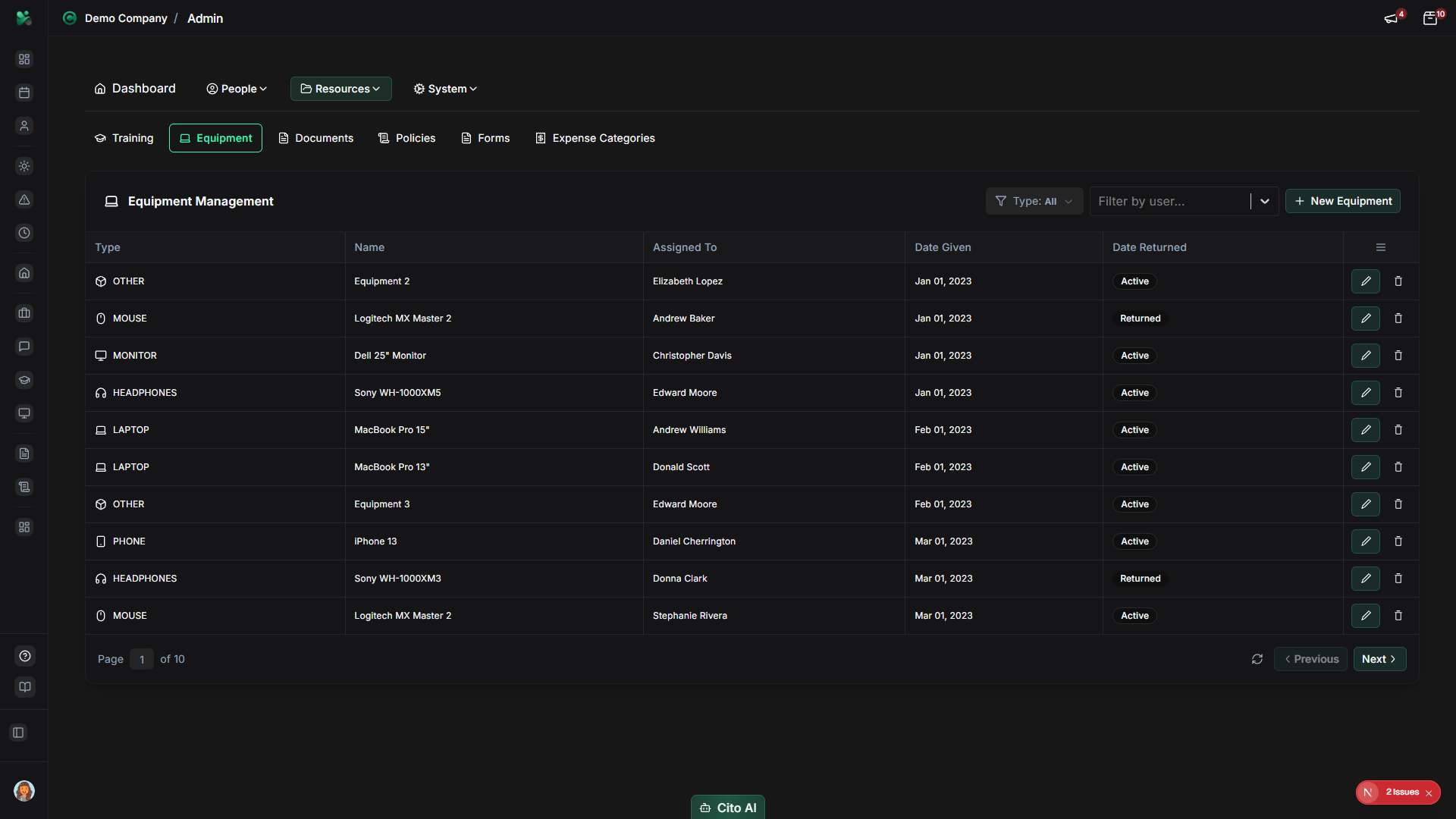
The Admin Equipment section allows you to track company equipment such as laptops, phones, tools, and other assets. You can create equipment records, assign equipment to employees, track equipment status, and manage returns. This helps maintain an accurate inventory and ensures accountability for company assets.
Prerequisites
- You must have ADMIN role to manage equipment
Accessing Equipment Management
- Log in to your CitoHR account with Admin credentials
- Click on your organization name in the header
- Select "Resources" from the admin menu
- Click "Equipment" from the Resources dropdown
- Or navigate directly to /admin/equipment
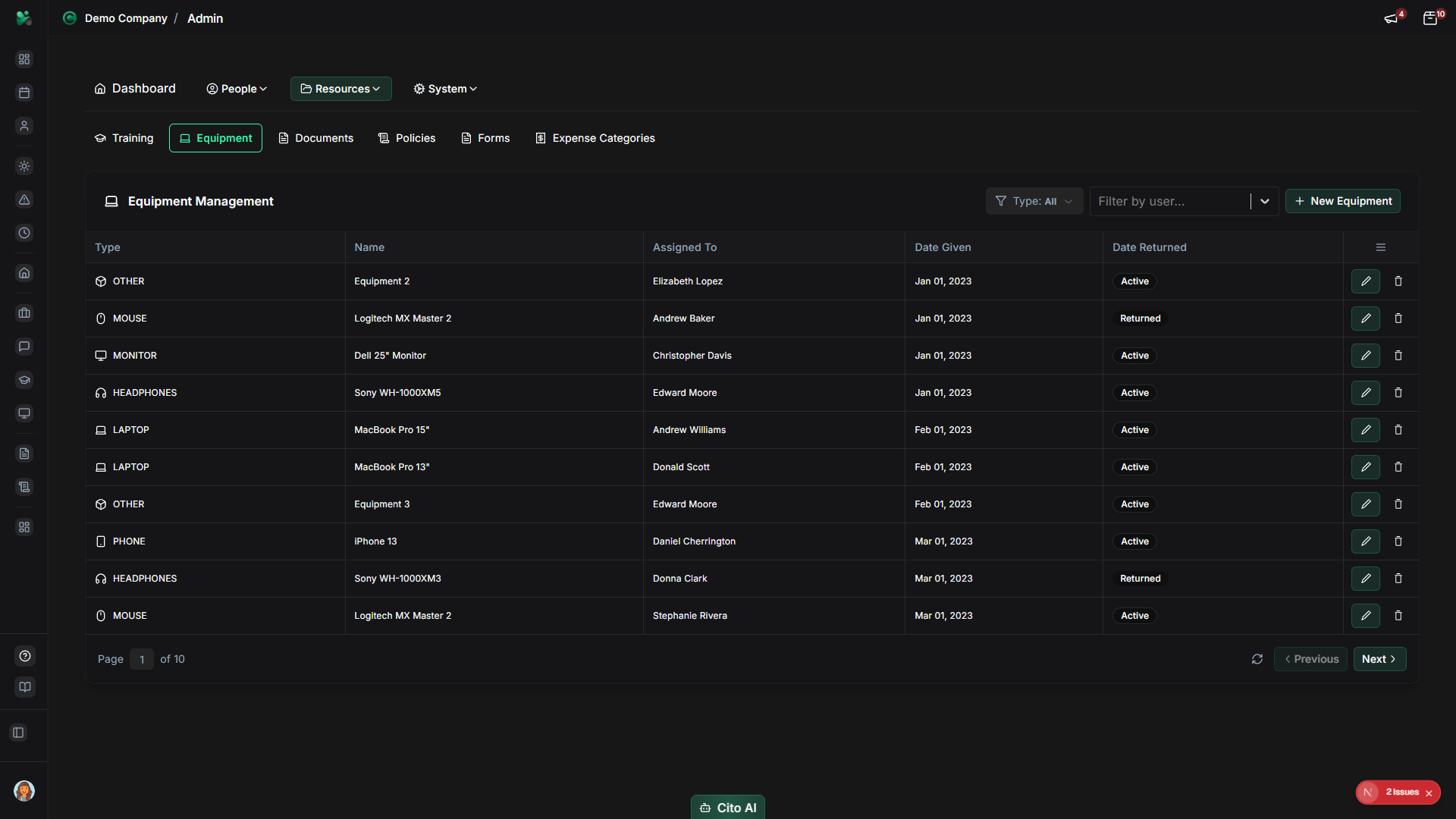
Viewing Equipment
See all equipment in your organization:
- On the Equipment page, you'll see a table listing all equipment items
- Each item shows:
- Equipment name/type
- Serial number or asset ID
- Assigned to (employee name)
- Status (Available, Assigned, Returned, Maintenance)
- Purchase date or assignment date
- Actions (Edit, Assign, Return, Delete)
- Use the search bar to find specific equipment
- Use filters to narrow results by status, type, or assigned employee
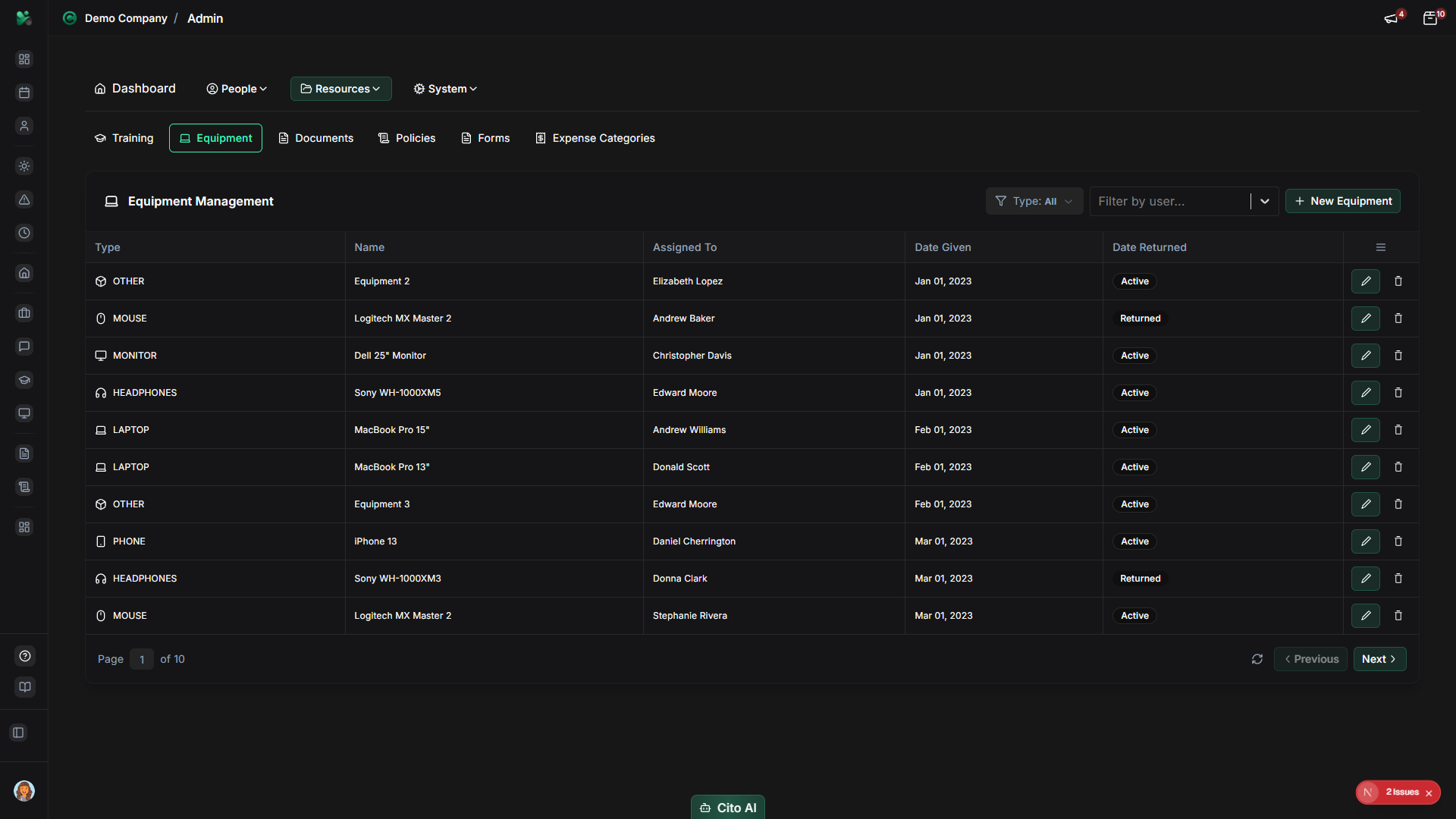
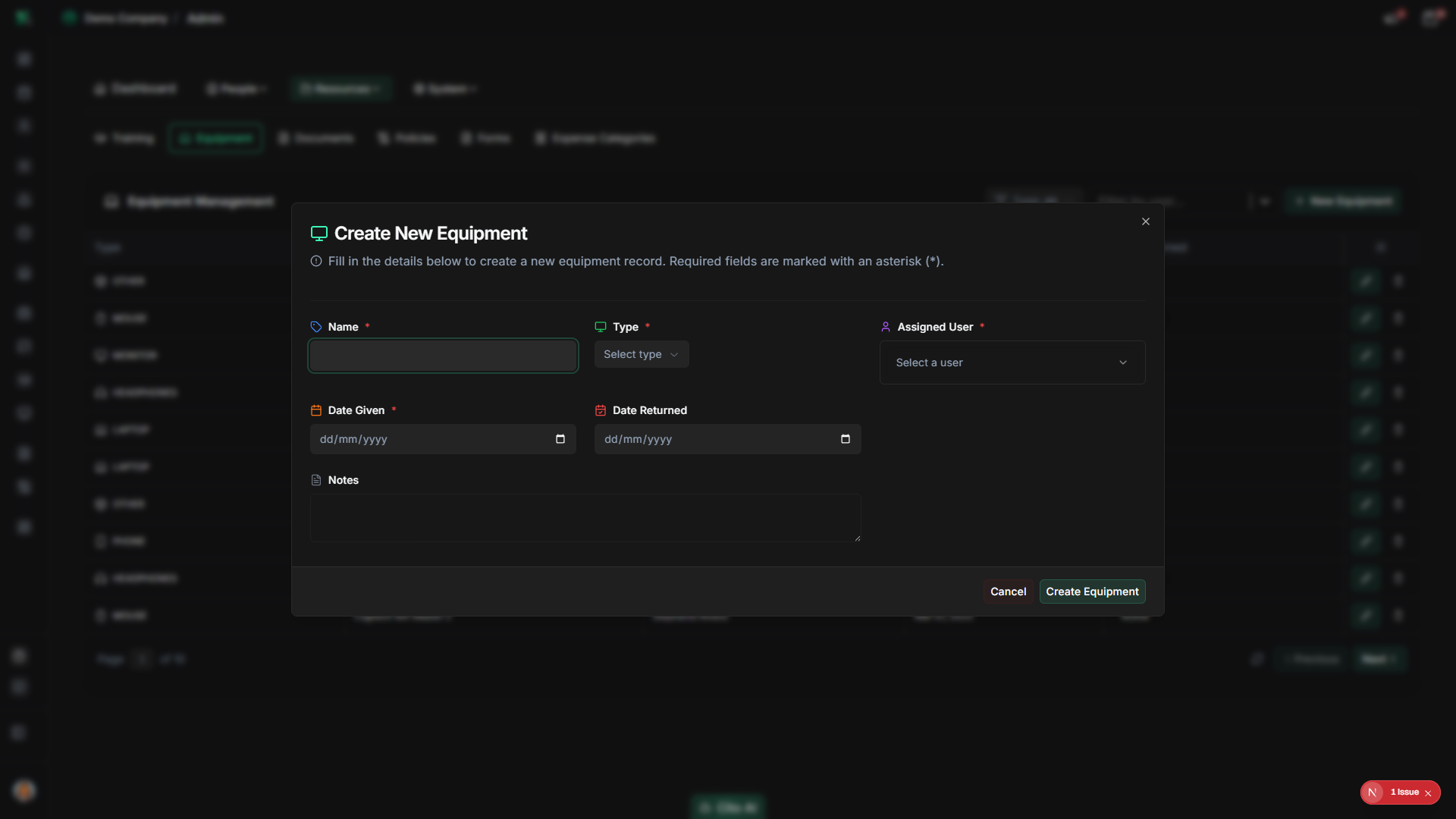
Adding Equipment
Add a new equipment item to your inventory:
- On the Equipment page, click the "Add Equipment" or "Create" button
- The equipment creation dialog will open
- Fill in the equipment details:
- Name/Type - Enter equipment name (e.g., "MacBook Pro 16", "iPhone 14", "Office Chair")
- Serial Number - Enter the serial number or asset ID
- Description - Add optional description or notes
- Purchase Date - Select when the equipment was purchased
- Purchase Cost - Enter the purchase price (optional)
- Status - Select initial status (usually "Available")
- Click "Create" or "Save"
- The equipment will be added to your inventory
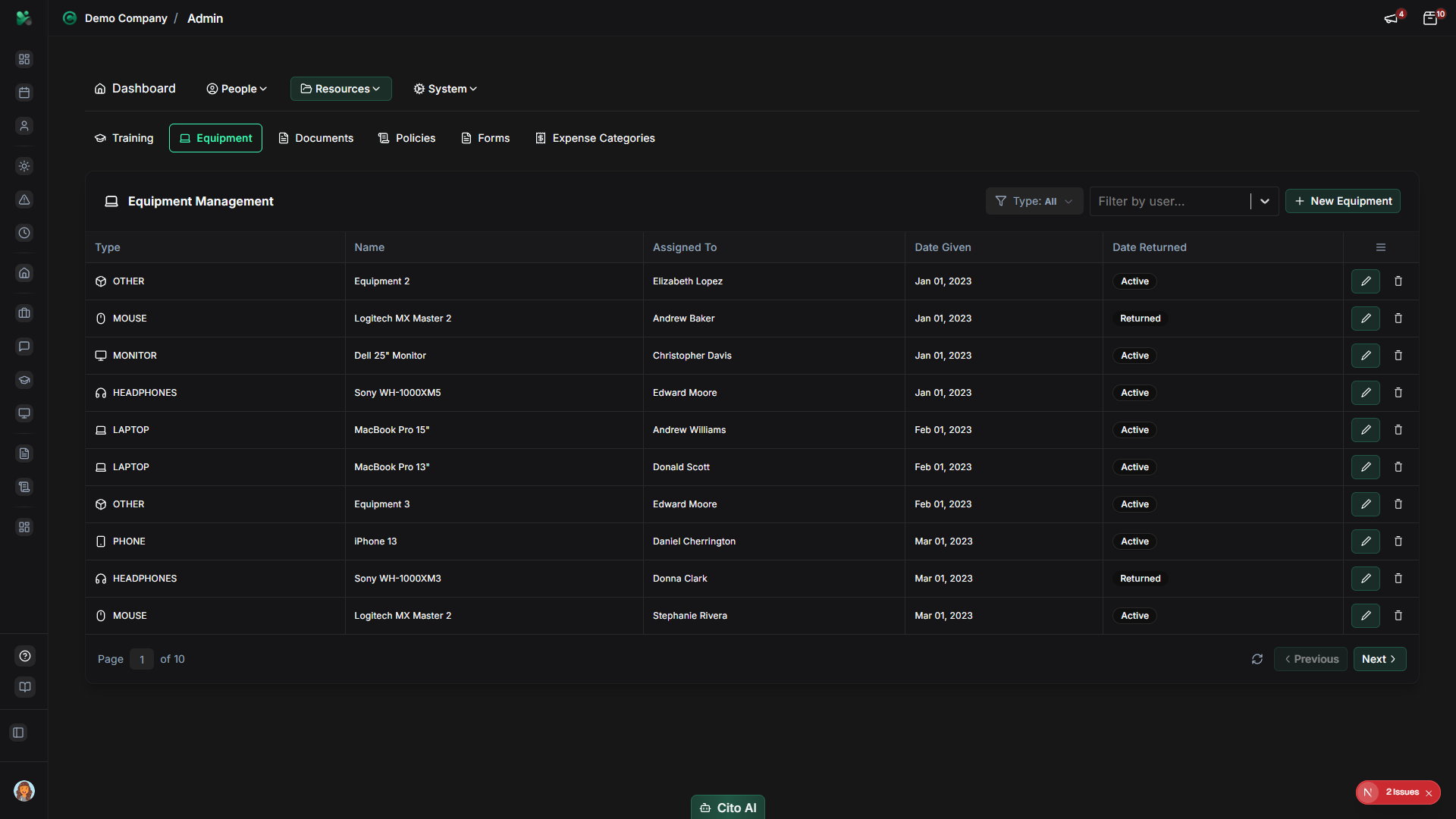
Assigning Equipment to an Employee
Assign equipment to an employee:
- On the Equipment page, find the equipment item you want to assign
- Click the "Assign" button or icon
- The assignment dialog will open
- Select the employee from the dropdown list
- Optionally set an assignment date (defaults to today)
- Add any notes about the assignment (optional)
- Click "Assign" or "Save"
- The equipment status will change to "Assigned" and show the employee's name
Tip
Returning Equipment
Mark equipment as returned when an employee no longer needs it:
- On the Equipment page, find the assigned equipment item
- Click the "Return" button or icon
- The return dialog will open
- Review the equipment details and current assignment
- Optionally set a return date (defaults to today)
- Add any notes about the return condition or reason (optional)
- Click "Return" or "Confirm"
- The equipment status will change to "Available" or "Returned"
Editing Equipment
Update equipment information:
- On the Equipment page, find the equipment item you want to edit
- Click the "Edit" button or icon
- The edit dialog will open with current equipment information
- Update any fields as needed:
- Change equipment name or description
- Update serial number
- Modify purchase date or cost
- Change status
- Click "Save" or "Update"
- The changes will be saved and reflected in the table
Deleting Equipment
Remove equipment from your inventory:
- On the Equipment page, find the equipment item you want to delete
- Click the "Delete" button or icon
- A confirmation dialog will appear
- Review the warning message carefully
- Click "Confirm" or "Delete" to proceed
- The equipment will be permanently removed from your inventory
Warning
Equipment Statuses
Understanding equipment statuses:
- Available - Equipment is available for assignment
- Assigned - Equipment is currently assigned to an employee
- Returned - Equipment has been returned and is available again
- Maintenance - Equipment is being repaired or serviced
- Retired - Equipment is no longer in use
Best Practices
- Add equipment to the system as soon as it's purchased
- Use consistent naming conventions for equipment types
- Record serial numbers for valuable equipment
- Assign equipment immediately when employees start or need new items
- Return equipment promptly when employees leave or no longer need it
- Regularly audit equipment assignments to ensure accuracy
- Use status updates to track equipment maintenance and repairs
- Keep purchase records for accounting and insurance purposes
Related Features
- Users - View equipment assigned to specific employees
- Equipment (Feature) - How employees view their assigned equipment
- Reports - Generate equipment allocation and cost reports