
Equipment
Complete guide to tracking and managing equipment assignments in CitoHR.
Overview
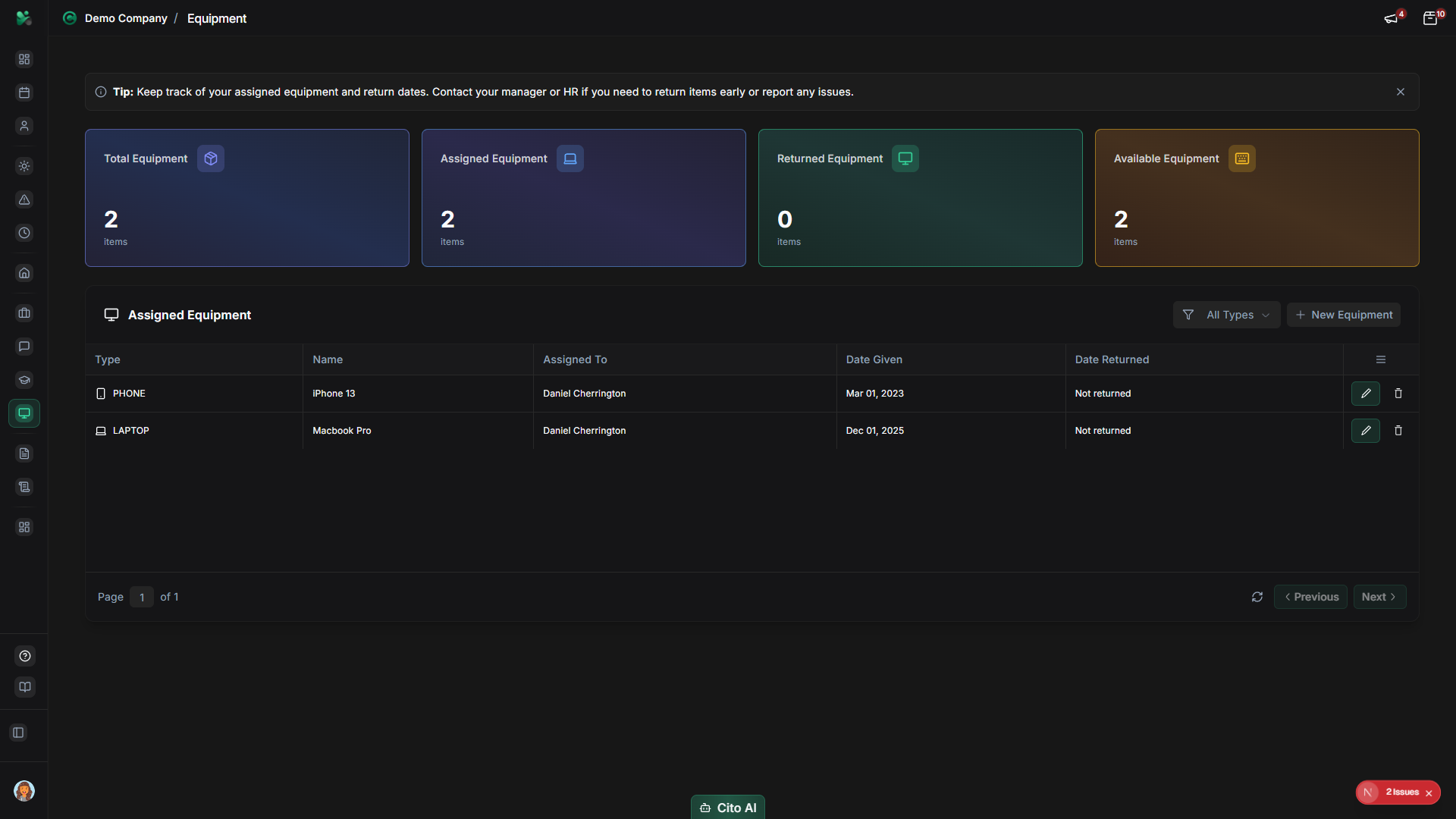
The Equipment feature allows you to track equipment assigned to employees, monitor equipment status, and manage equipment inventory. This helps organizations keep track of company assets like laptops, phones, monitors, and other equipment.
Prerequisites
- You must be logged in to your CitoHR account
- Equipment must be assigned to you by an administrator
Accessing Your Equipment
- Log in to your CitoHR account
- Click on Equipment in the main navigation menu
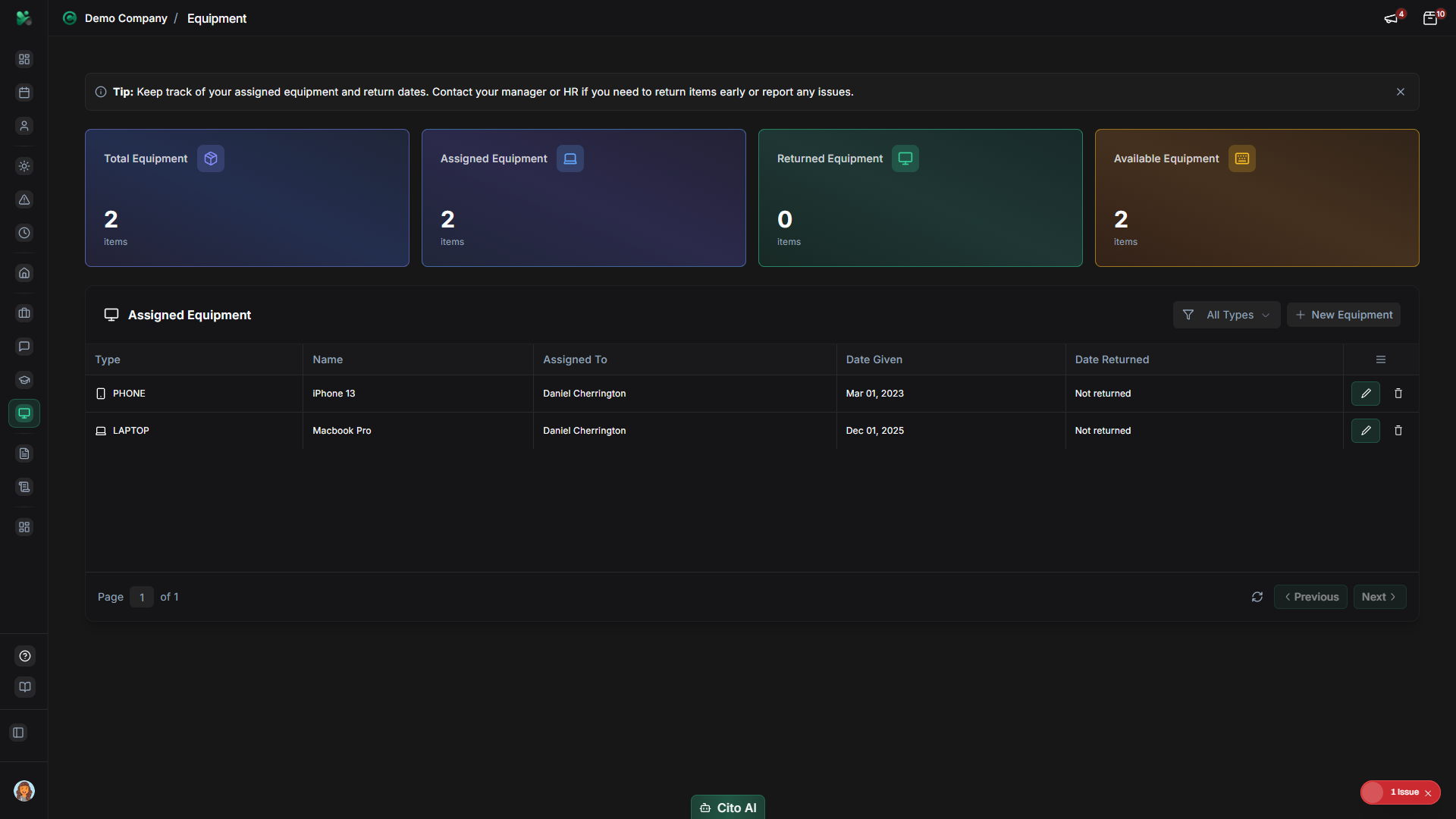
- You'll see a list of all equipment assigned to you
Viewing Your Assigned Equipment
See all equipment assigned to you:
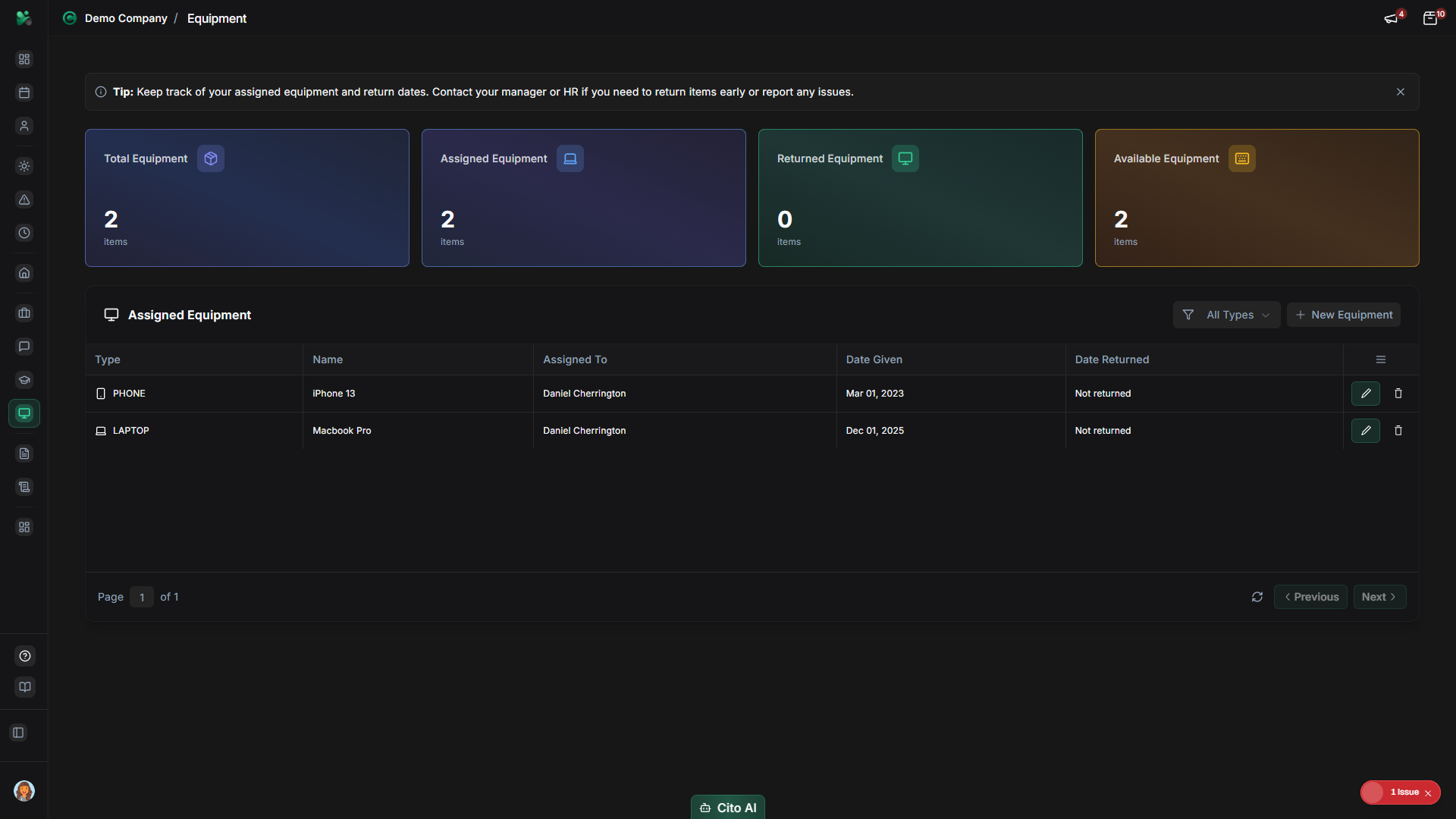
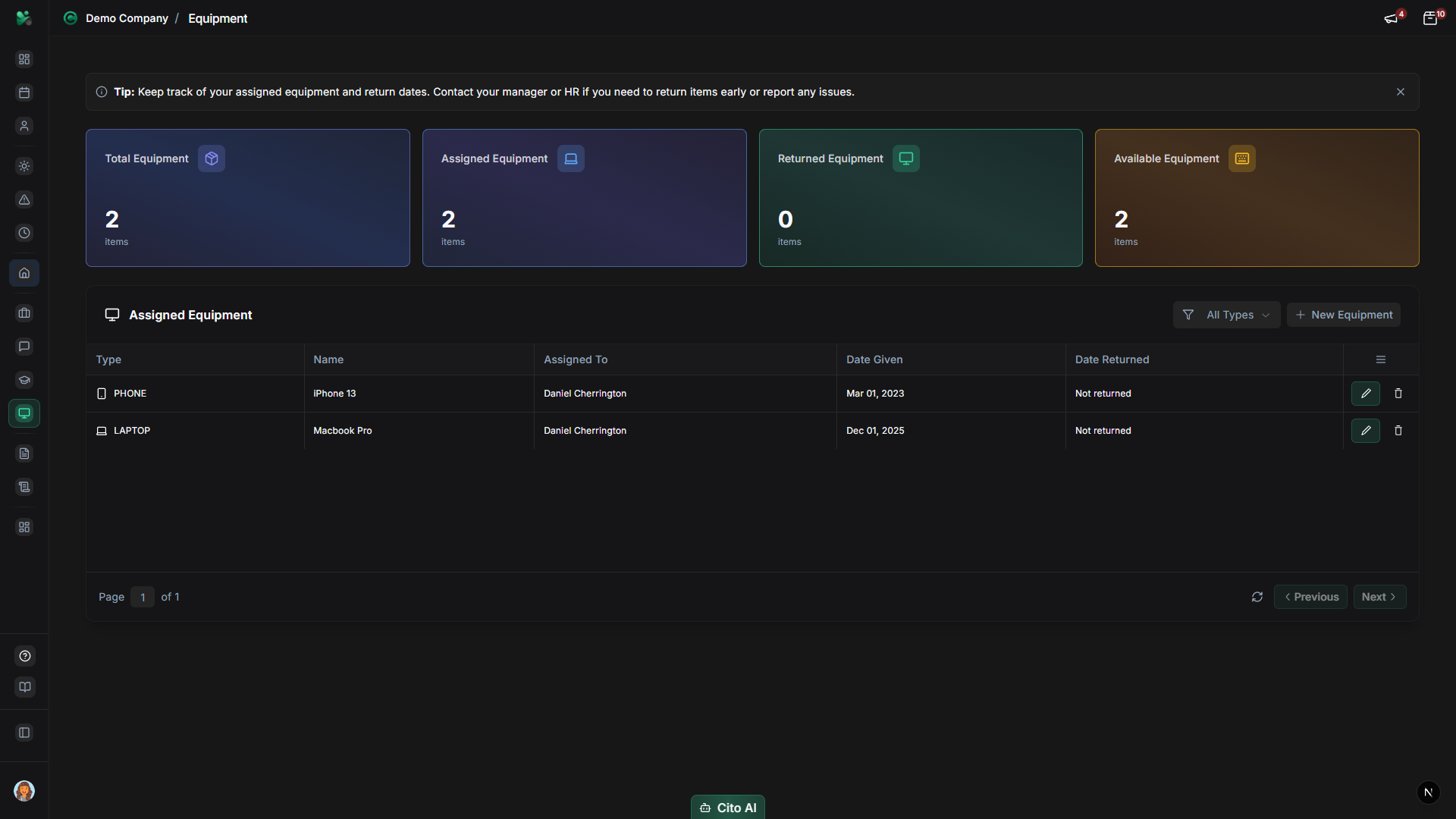
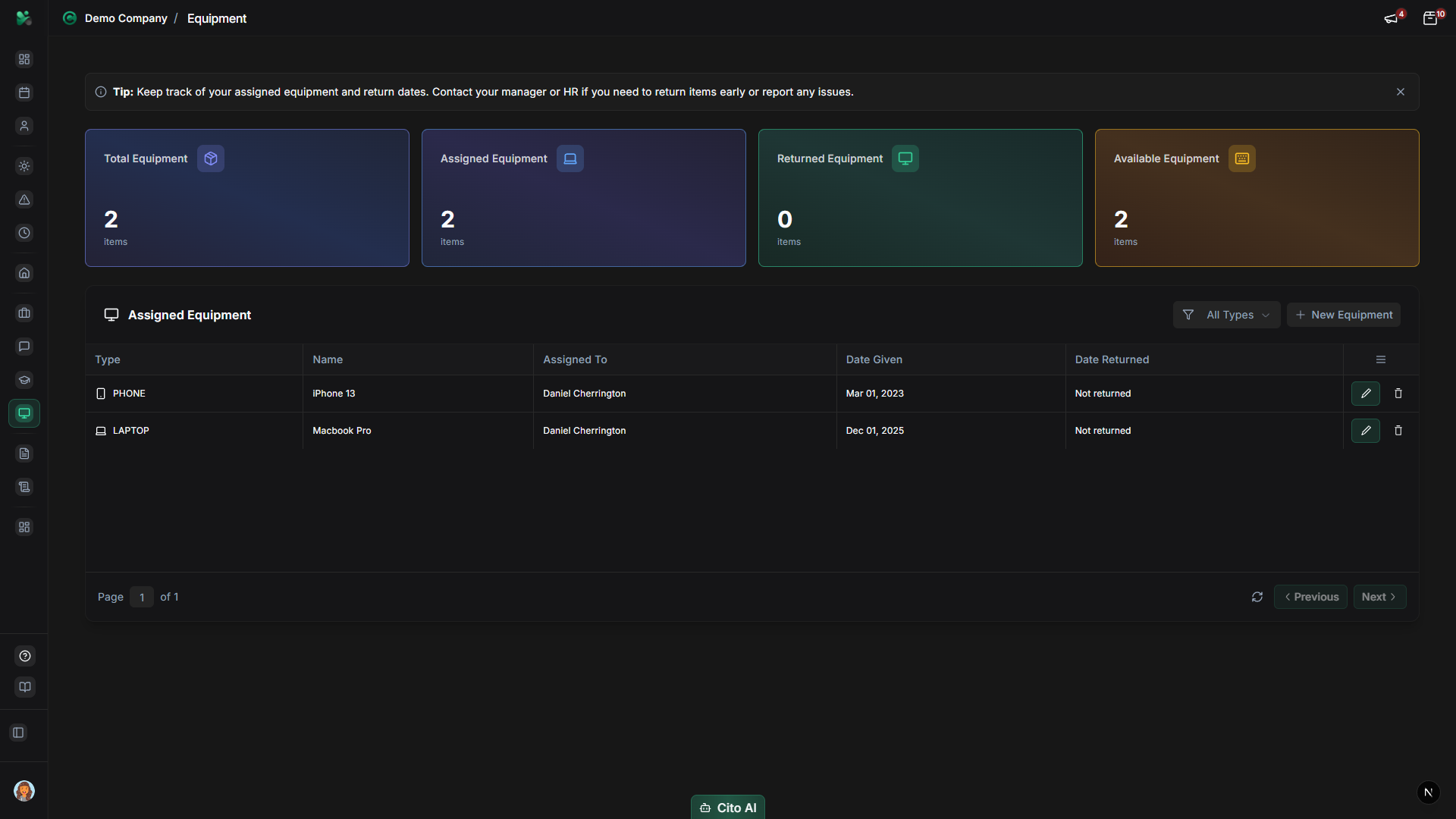
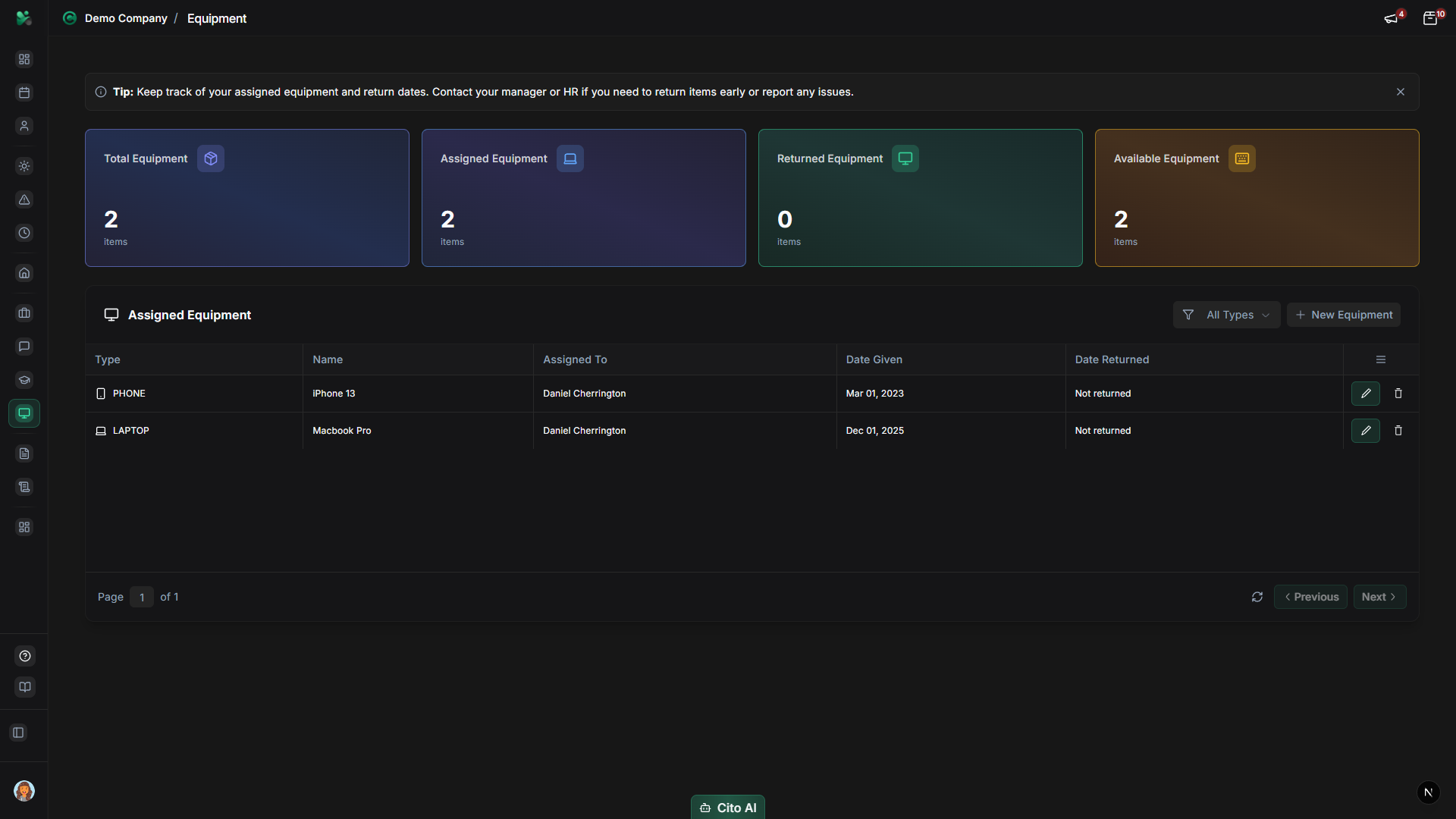
- On the Equipment page, you'll see a list showing:
- Equipment name and type
- Serial number or asset ID
- Brand and model
- Assignment date
- Status (Assigned, Returned, Maintenance, etc.)
- Condition
- Click on any equipment item to view full details
- Use filters to view:
- All equipment
- By equipment type (Laptop, Phone, Monitor, etc.)
- By status
Viewing Equipment Details
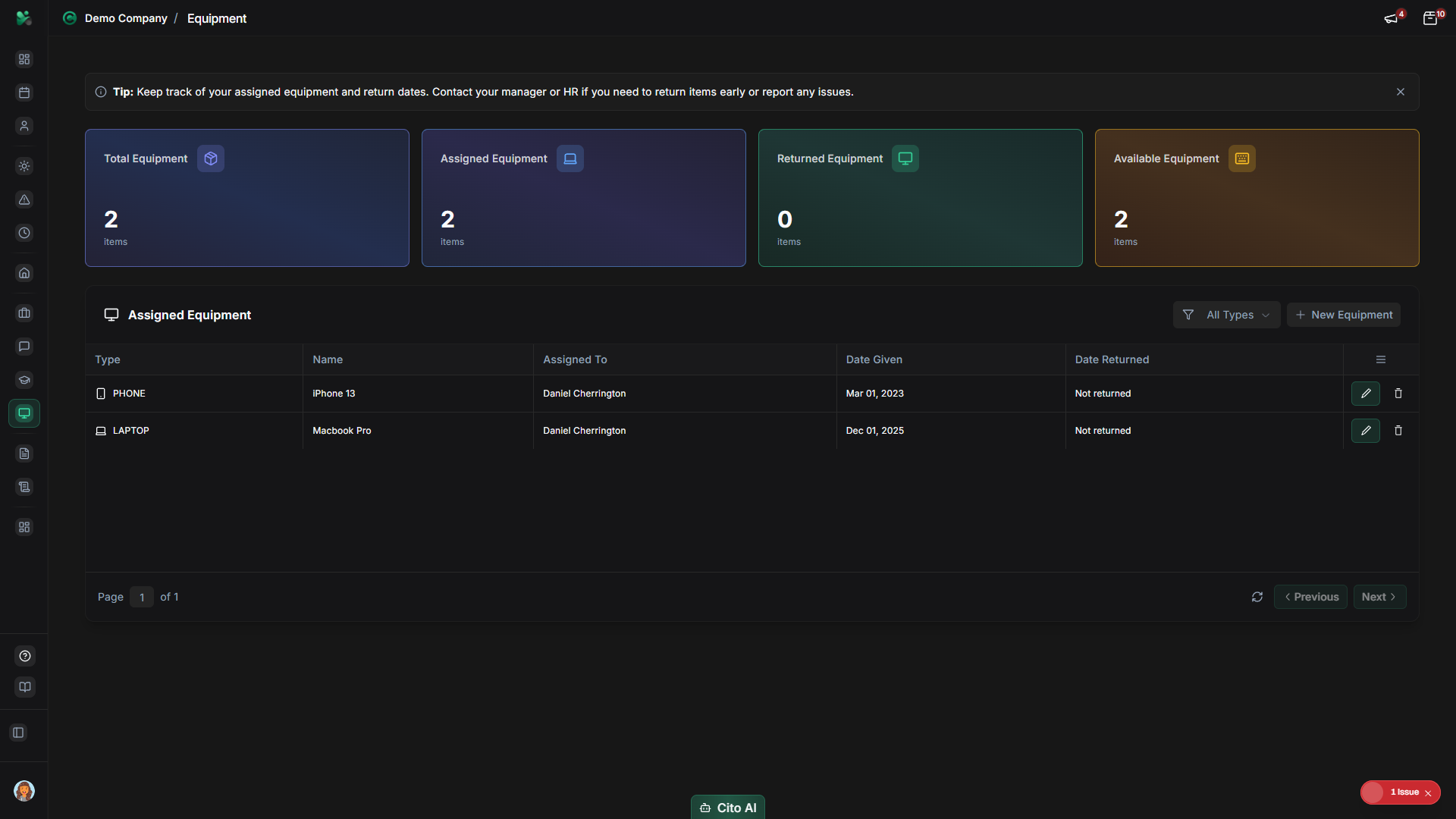
Get detailed information about a piece of equipment:
- Click on an equipment item in your list
- The equipment details panel will open showing:
- Full equipment specifications
- Purchase date and cost
- Warranty information
- Assignment history
- Maintenance records
- Condition notes
- Review any attached documents or manuals
Reporting Equipment Issues
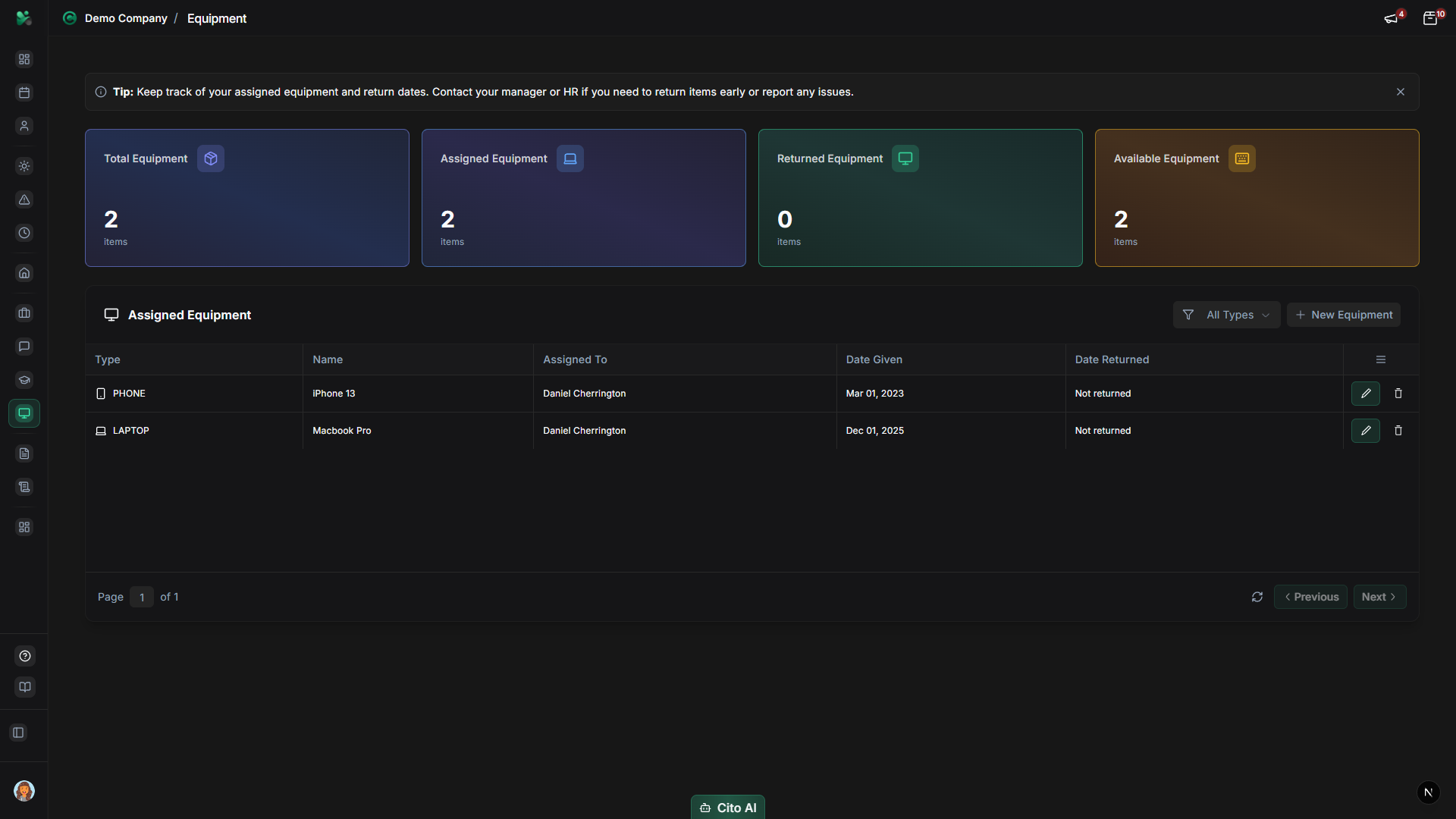
Report problems with assigned equipment:
- Open the equipment item that has an issue
- Click the "Report Issue" button
- Fill in the issue report:
- Issue Type - Select from dropdown (Broken, Damaged, Not Working, etc.)
- Description - Describe the problem in detail
- Priority - Select urgency level (Low, Medium, High, Critical)
- Upload photos if applicable
- Click "Submit Report"
- IT or administrators will be notified and can take action
Important
Report equipment issues as soon as you notice them. This helps IT address problems quickly and
ensures equipment is maintained properly.
Requesting Equipment
Request new equipment or replacements:
- On the Equipment page, click "Request Equipment"
- Fill in the request form:
- Equipment Type - Select from dropdown (Laptop, Phone, Monitor, etc.)
- Reason - Explain why you need the equipment
- Urgency - Select priority level
- Add any specific requirements or preferences
- Click "Submit Request"
- Your manager and IT will be notified
Adding Equipment to Inventory (Admin)
Add new equipment to the system:
- Navigate to Admin > Equipment
- Click "Add Equipment" or "New Equipment"
- Fill in equipment details:
- Equipment Type - Select type (Laptop, Phone, Monitor, Keyboard, Mouse, Headphones, Other)
- Name - Enter a descriptive name
- Brand - Equipment brand
- Model - Model number
- Serial Number - Unique serial number
- Asset ID - Company asset tag number
- Purchase Date - When equipment was purchased
- Purchase Cost - Original purchase price
- Warranty Expiry - Warranty expiration date
- Set initial status:
- Available - Ready to assign
- Assigned - Assign to an employee immediately
- Maintenance - Currently being serviced
- Click "Save Equipment" to add to inventory
Assigning Equipment to Employees (Admin)
Assign equipment to employees:
- Navigate to Admin > Equipment
- Find the equipment you want to assign (or add new equipment)
- Click the "Assign" button
- In the assignment dialog:
- Select the employee from the dropdown
- Set the assignment date
- Add any notes about the assignment
- Set condition (New, Good, Fair, Poor)
- Click "Assign Equipment"
- The employee will receive a notification about the assignment
Returning Equipment
Return equipment when you no longer need it:
- Open the equipment item you want to return
- Click the "Return Equipment" button
- In the return dialog:
- Confirm the return date
- Note the condition of the equipment
- Add any return notes
- Click "Return Equipment"
- The equipment will be marked as returned and available for reassignment
Tracking Equipment Inventory (Admin)
Monitor all equipment in the organization:
- Navigate to Admin > Equipment
- View the equipment dashboard showing:
- Total equipment count
- Assigned equipment
- Available equipment
- Equipment in maintenance
- Equipment by type
- Use filters to view:
- All equipment
- By status
- By type
- By assigned employee
- Export equipment reports if needed
Related Features
- User Management - View equipment assigned to users from their profiles
- My Profile - See your assigned equipment in your profile
- Onboarding - Equipment assignment can be part of onboarding processes