
How do I: Assign equipment to employees
Learn how to track and assign company equipment to employees.
Overview
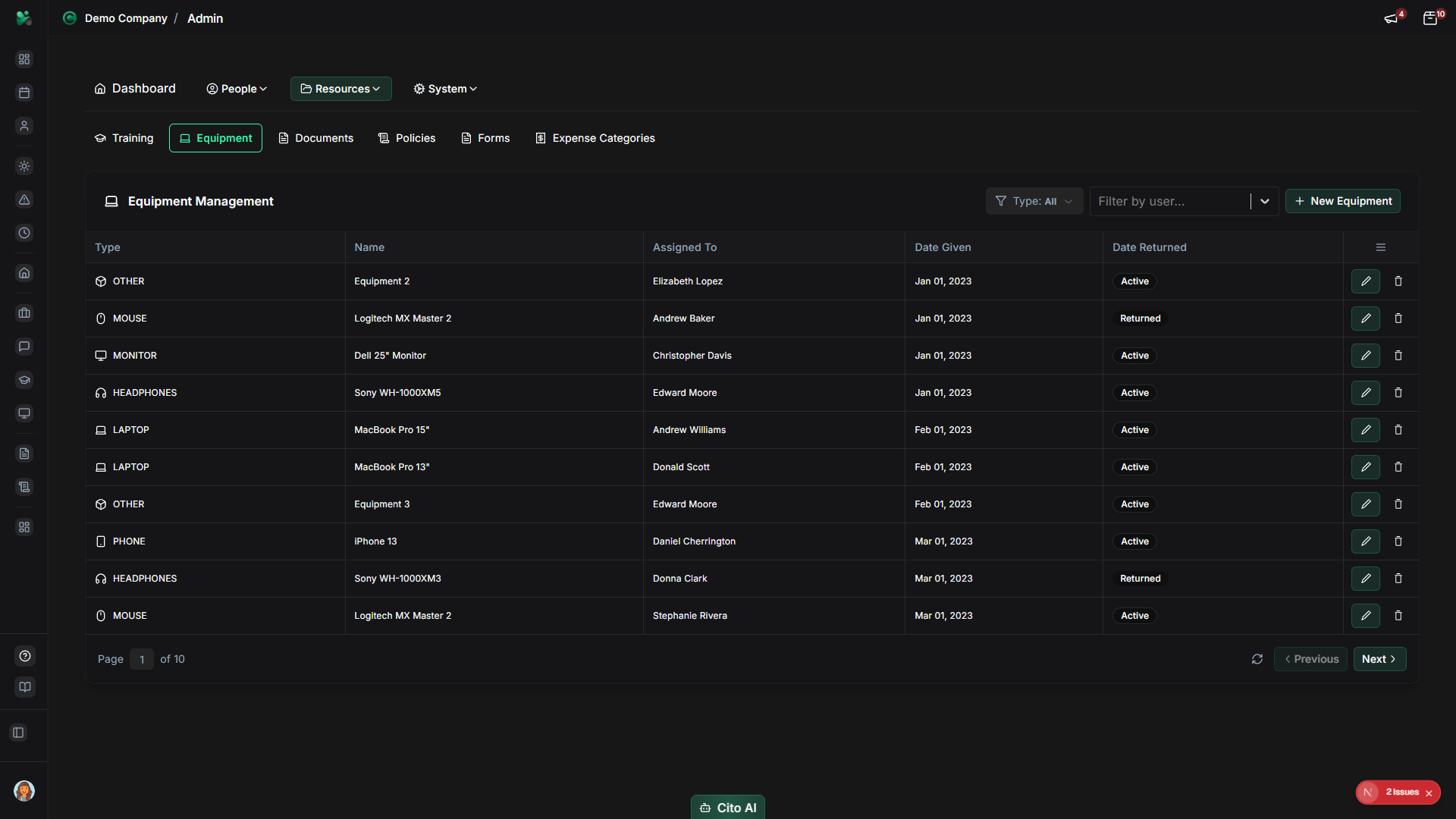
Equipment management helps you track company assets like laptops, phones, monitors, and other equipment assigned to employees. You can assign equipment when employees start, track who has what, and manage returns when employees leave or no longer need the equipment.
Accessing Equipment Management
To assign equipment:
- Navigate to Admin > Equipment
- You'll see a list of all equipment items in your inventory
Adding Equipment to Inventory (If Needed)
If the equipment isn't in your inventory yet, add it first:
- Click "Add Equipment" or "Create"
- Fill in the equipment details:
- Name/Type (e.g., "MacBook Pro 16", "iPhone 14")
- Serial Number or Asset ID
- Description (optional)
- Purchase Date
- Purchase Cost (optional)
- Set status to "Available"
- Click "Save"
Assigning Equipment to an Employee
To assign equipment to an employee:
- Find the equipment item in the list (it should have status "Available")
- Click the "Assign" button or icon
- In the assignment dialog:
- Select the employee from the dropdown list
- Set the assignment date (defaults to today)
- Add any notes about the assignment (optional)
- Click "Assign" or "Save"
- The equipment status will change to "Assigned" and show the employee's name
Tip
Assign equipment when employees start or when they need new equipment. This creates a record of who has what
equipment and when it was assigned.
Viewing Equipment Assignments
To see what equipment is assigned to whom:
- On the Equipment page, filter by status "Assigned"
- Or view an employee's profile:
- Navigate to Admin > Users
- Click on the employee
- Go to the "Equipment" section
- See all equipment assigned to that employee
Returning Equipment
When an employee no longer needs equipment:
- Find the assigned equipment item
- Click the "Return" button
- In the return dialog:
- Review the equipment details
- Set the return date (defaults to today)
- Add notes about condition or reason (optional)
- Click "Return" or "Confirm"
- The equipment status will change to "Available"
Related Documentation
- Admin: Equipment - Complete equipment management guide
- Features: Equipment - How employees view their equipment