
Feedback
Complete guide to giving, receiving, and managing feedback in CitoHR.
Overview
The Feedback feature enables employees to give and receive constructive feedback from colleagues, managers, and team members. This promotes continuous improvement and open communication within the organization.
Prerequisites
- You must be logged in to your CitoHR account
- You need to have colleagues or team members in your organization
Accessing Feedback
- Log in to your CitoHR account
- Click on Feedback in the main navigation menu
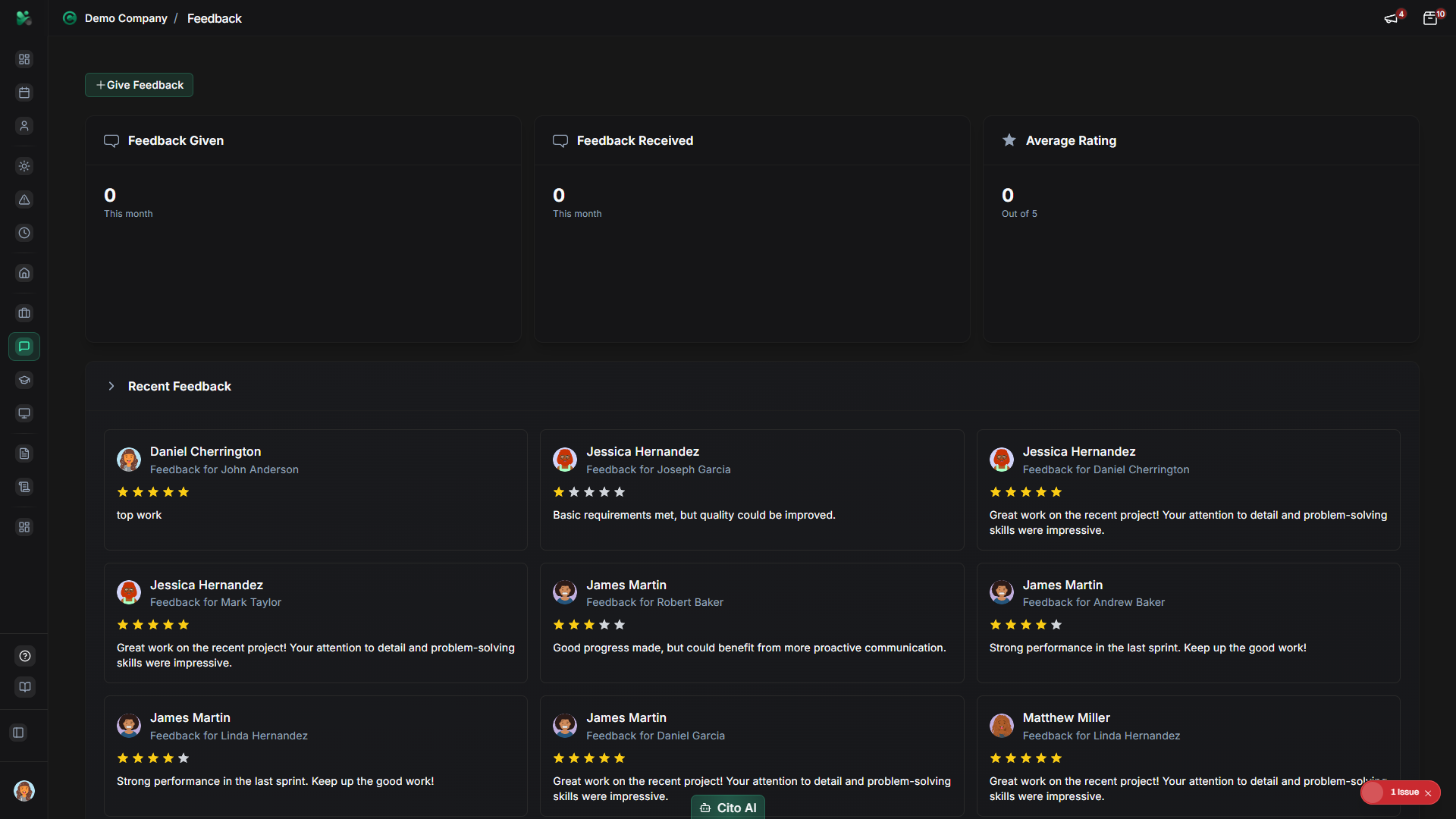
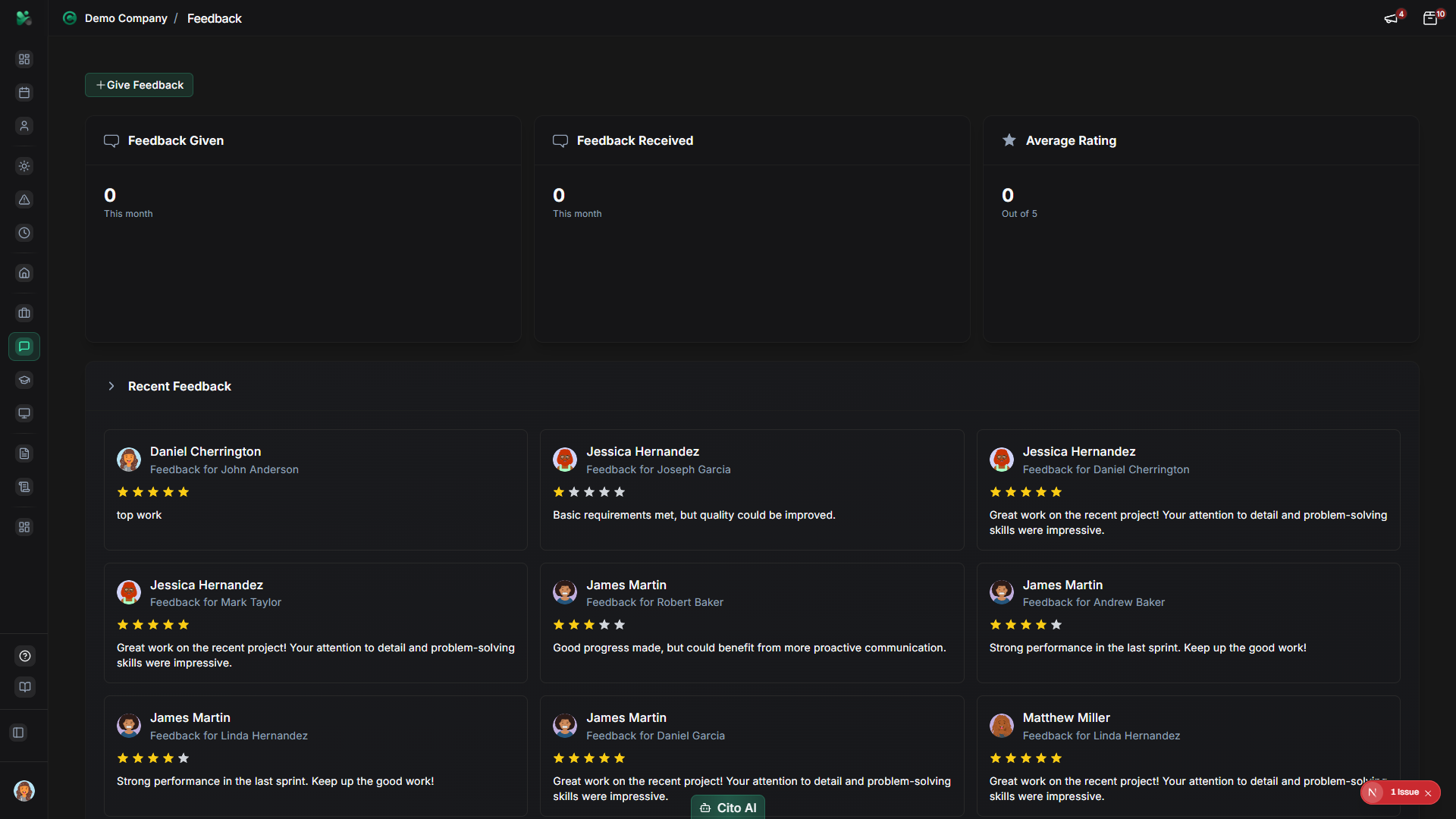
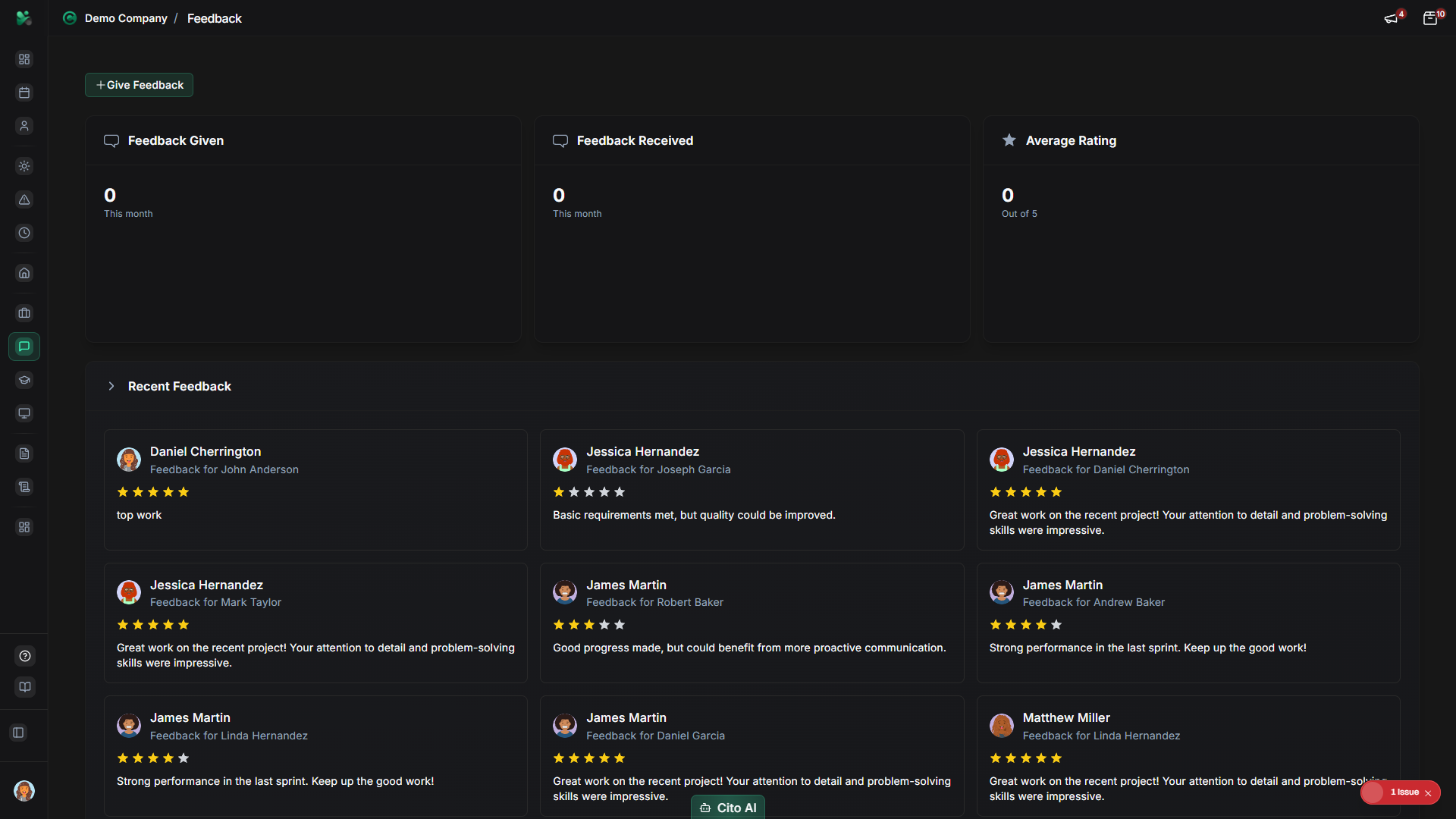
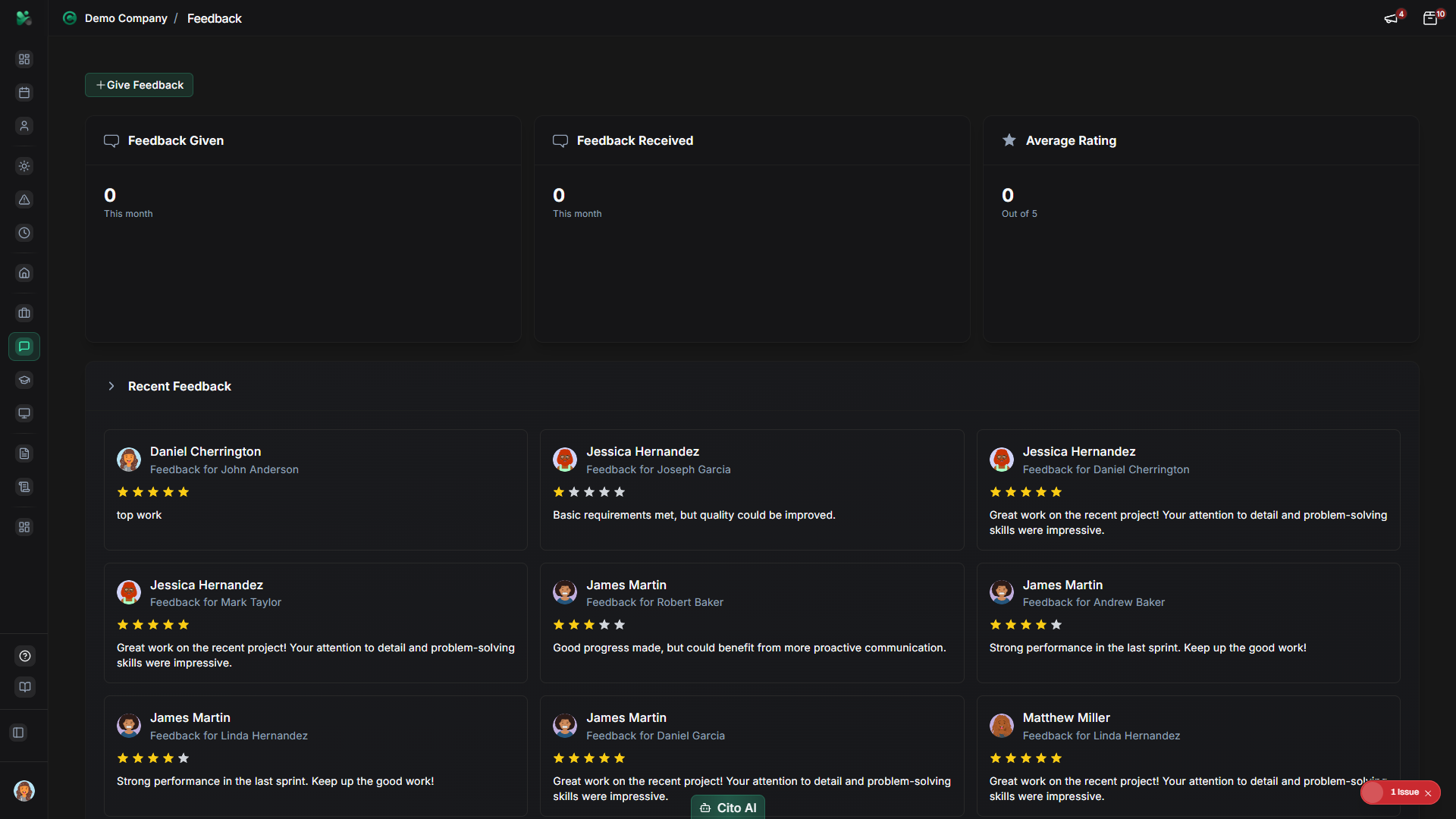
- You'll see your feedback dashboard showing received and given feedback
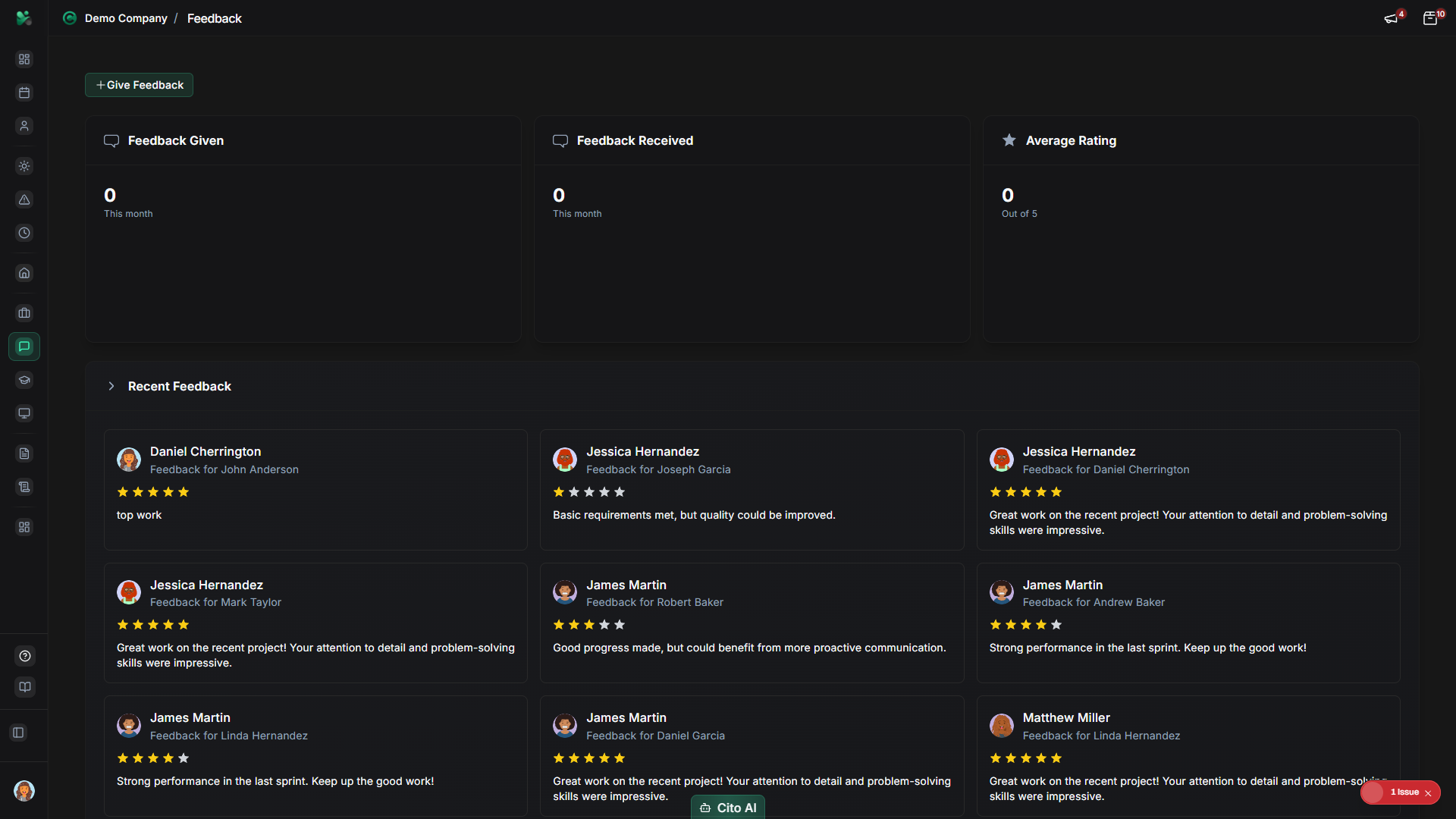
Viewing Received Feedback
See feedback that others have given you:
- On the Feedback page, click the "Received" tab
- You'll see a list of all feedback you've received, showing:
- Feedback giver's name and photo
- Feedback type (Positive, Constructive, General)
- Feedback message
- Date received
- Related context (project, task, or event if applicable)
- Click on any feedback item to view the full details
- Use filters to view:
- All feedback
- Positive only
- Constructive only
- Recent feedback (last 30 days)
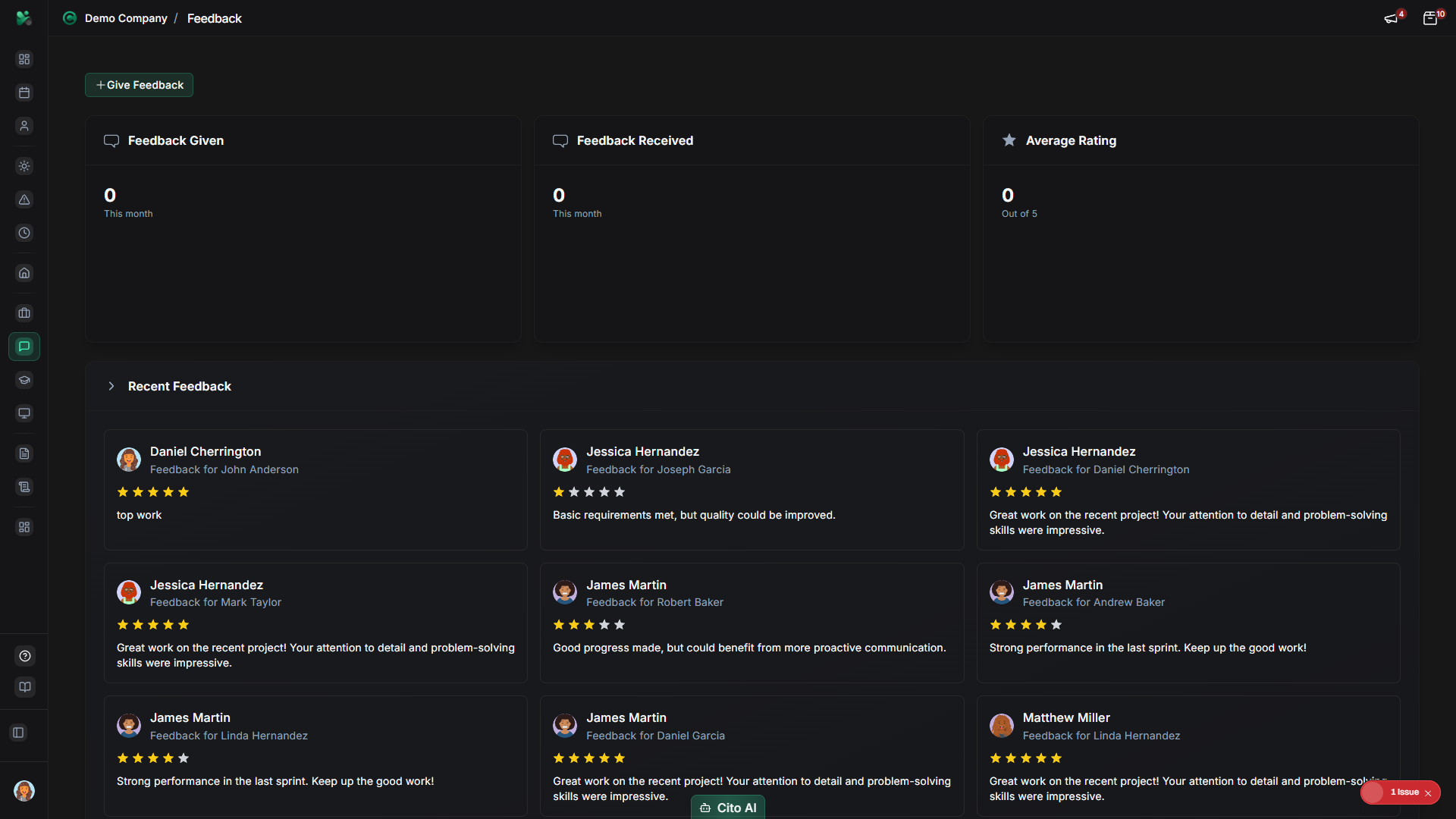
Giving Feedback to a Colleague
Provide feedback to a team member:
- On the Feedback page, click the "Give Feedback" button (usually top right)
- In the feedback form:
- Click the Recipient field
- Start typing the person's name or email
- Select the recipient from the dropdown list
- Select the Feedback Type:
- Positive - Recognition and praise
- Constructive - Suggestions for improvement
- General - General observations or comments
- Enter your feedback message in the text area:
- Be specific and constructive
- Provide examples when possible
- Focus on behaviors and outcomes, not personal attributes
- For constructive feedback, include suggestions for improvement
- Optionally, add context:
- Link to a specific project or task (if applicable)
- Add tags for categorization
- Choose visibility:
- Private - Only visible to the recipient
- Manager - Visible to recipient and their manager
- Team - Visible to the recipient's team
- Click "Send Feedback" to submit
- The recipient will receive a notification about your feedback
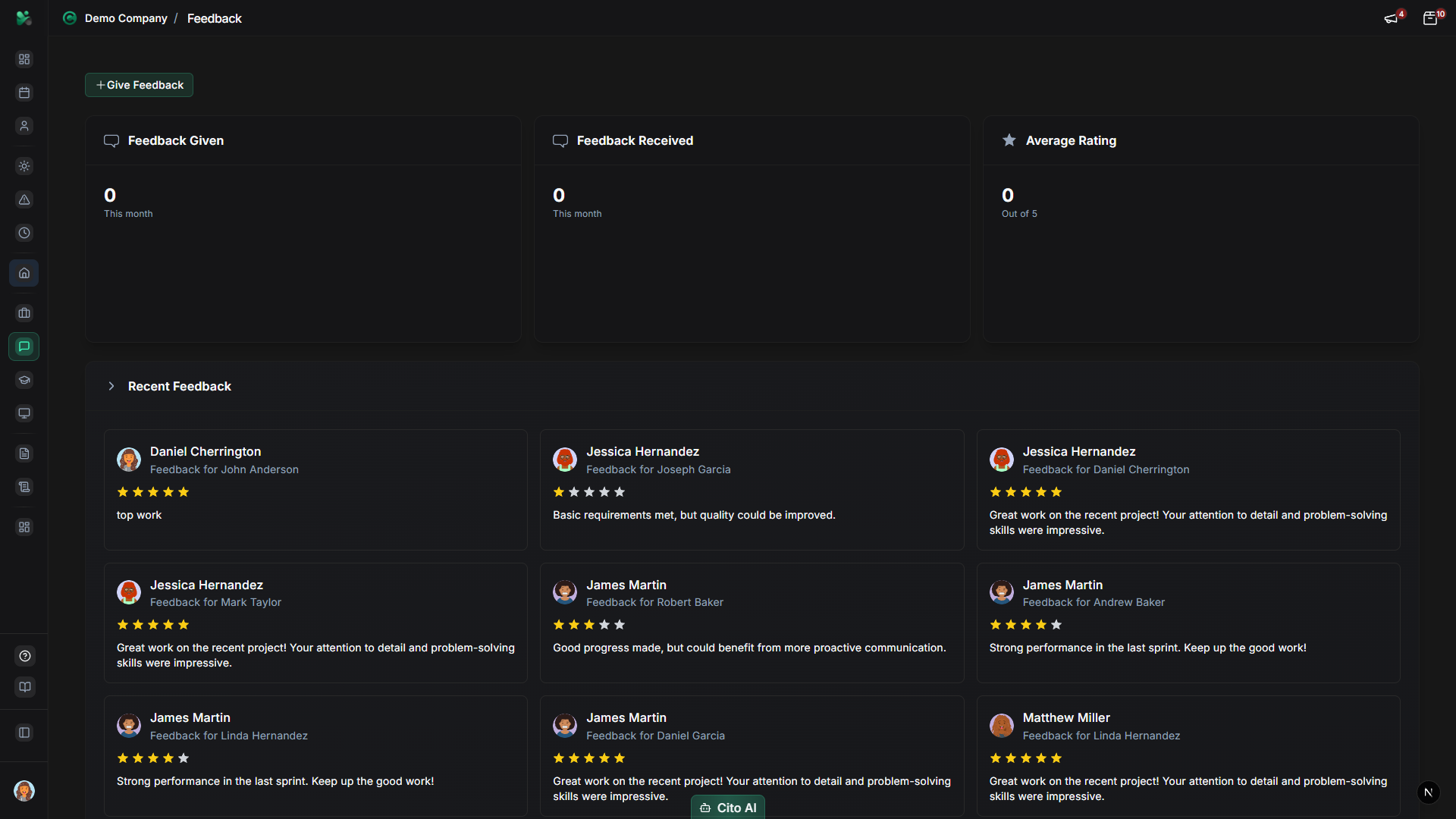
Tip
When giving constructive feedback, use the SBI (Situation-Behavior-Impact) model: describe the situation,
the specific behavior you observed, and the impact it had. This makes feedback more actionable and less personal.
Important
Feedback should always be professional and respectful. Avoid personal attacks or inappropriate language.
Focus on work-related behaviors and outcomes.
Viewing Feedback You've Given
Review feedback you've provided to others:
- On the Feedback page, click the "Given" tab
- You'll see a list of all feedback you've given, showing:
- Recipient's name
- Feedback type
- Your message
- Date sent
- Visibility setting
- Click on any feedback item to view full details
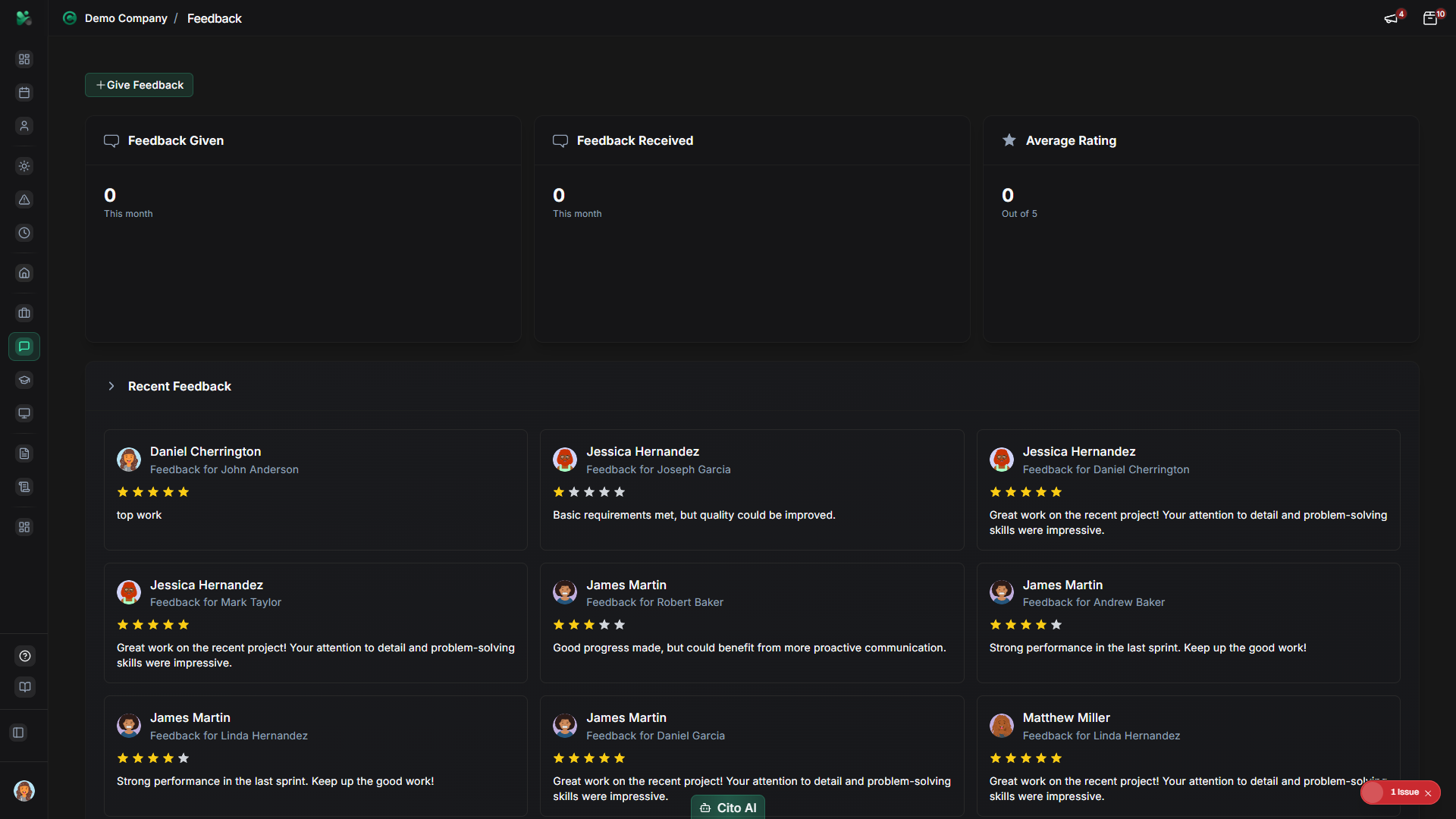
Responding to Feedback
Acknowledge and respond to feedback you've received:
- Open a feedback item from your "Received" list
- Read the feedback carefully
- Click the "Respond" button
- Type your response in the text area:
- Thank the person for their feedback
- Acknowledge the points raised
- Share your thoughts or action plan (if applicable)
- Click "Send Response"
- Your response will be visible to the feedback giver
Tip
Responding to feedback, especially constructive feedback, shows professionalism and a growth mindset.
It also encourages others to continue providing valuable feedback.
Requesting Feedback
Ask for feedback from colleagues or managers:
- On the Feedback page, click "Request Feedback"
- Fill in the request form:
- Select who you want feedback from (can select multiple people)
- Specify what you'd like feedback on:
- Recent project or task
- Specific skill or area
- General performance
- Add any specific questions you'd like them to address
- Set a deadline (optional)
- Click "Send Request"
- The selected people will receive a notification with your feedback request
Managing Feedback Settings
Configure your feedback preferences:
- On the Feedback page, click the Settings icon (usually top right)
- Configure your preferences:
- Email Notifications - Toggle to receive email notifications for new feedback
- Default Visibility - Set default visibility for feedback you give
- Feedback Reminders - Enable reminders to give feedback regularly
- Click "Save Settings" to apply changes
Viewing Team Feedback (Managers)
Managers can view feedback for their team:
- Navigate to the Feedback page
- Click the "Team Feedback" tab
- You'll see feedback for all team members, showing:
- Team member name
- Feedback received (count and summary)
- Feedback given (count and summary)
- Recent feedback activity
- Click on a team member to view their detailed feedback
- Use filters to view:
- All team members
- Only those with recent feedback
- By feedback type
Related Features
- Performance Reviews - Feedback can be incorporated into formal performance reviews
- User Management - View user profiles to understand context when giving feedback
- Employee Directory - Find colleagues to give feedback to