
Calendar
Complete guide to using the CitoHR calendar to view leave, events, and schedule information.
Overview
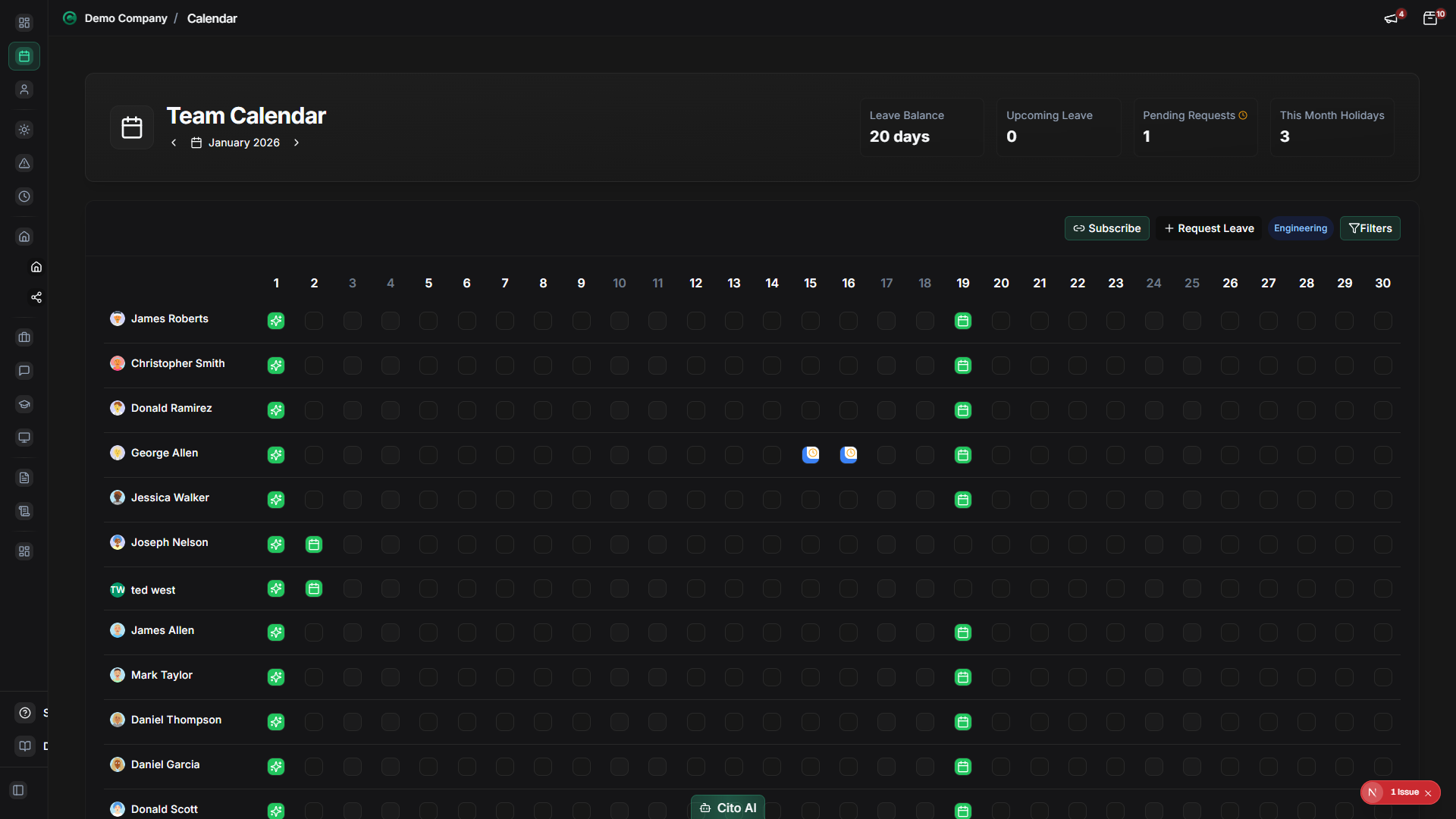
The Calendar provides a visual overview of all leave, events, and important dates. You can view your personal calendar, team leave, company events, and switch between different calendar views (month, week, day).
Accessing the Calendar
- Log in to your CitoHR account
- Click on Calendar in the main navigation menu
Switching Between Calendar Views
The calendar supports multiple view types:
- On the Calendar page, look for the view selector buttons (usually at the top)
- Click to switch between:
- Month View - See the entire month at a glance
- Week View - Detailed week view with time slots
- Day View - Detailed single day view
- Agenda View - List of upcoming events
- The calendar will update to show the selected view
Navigating the Calendar
Move between different time periods:
- Use the arrow buttons (← →) to move backward or forward
- Click "Today" to jump to the current date
- In month view, click on a date to see details
- Use the date picker to jump to a specific date
Viewing Your Personal Calendar
See your own leave, events, and schedule:
- On the Calendar page, ensure "My Calendar" is selected
- You'll see:
- Your approved leave dates
- Your pending leave requests
- Personal events (if configured)
- Training sessions assigned to you
- Click on any event to view details
Viewing Team Leave (Managers)
As a manager, view your team's leave on the calendar:
- On the Calendar page, select "Team Calendar" or "Team Leave"
- You'll see all your team members' leave displayed on the calendar
- Different team members' leave may be color-coded
- Hover over or click on leave blocks to see:
- Employee name
- Leave dates
- Leave type
- Status (Approved, Pending)
Tip
Use the team calendar to identify potential coverage gaps and plan around team absences.
Viewing Company Events
See company-wide events and holidays:
- On the Calendar page, ensure "Company Events" is enabled in the filter
- You'll see:
- Public holidays - automatically shown based on your configured region
- Company-wide events
- Department events (if applicable)
- Training sessions
- Public holidays are automatically displayed based on your configured region in your profile settings
- Company events are typically displayed in a different color or style
Filtering Calendar Events
Show or hide specific types of events:
- Look for the filter options or legend on the calendar
- Toggle on/off different event types:
- Personal leave
- Team leave
- Company events
- Public holidays
- Training sessions
- Other events
- The calendar will update to show only selected event types
Viewing Event Details
Get more information about calendar events:
- Click on any event or date on the calendar
- A popup or sidebar will show event details:
- Event title/description
- Date and time
- Event type
- Related person (for leave events)
- Status
- For leave events, you may see options to approve/reject (if you're a manager)
Exporting Calendar
Export your calendar to external calendar applications:
- On the Calendar page, look for the "Export" or "Subscribe" button
- Click to get a calendar link (iCal format)
- Copy the calendar URL
- Add it to your external calendar application:
- Google Calendar: Settings > Add calendar > From URL
- Outlook: Add calendar > Subscribe from web
- Apple Calendar: File > New Calendar Subscription
- Your CitoHR calendar will sync with your external calendar
Note
The exported calendar will automatically update when new events are added in CitoHR.
Your external calendar application will sync periodically.
Related Features
- Leave Management - Create leave requests that appear on the calendar
- Dashboard - Quick calendar overview on the dashboard
- Scheduling - View and manage your work schedule