
Admin: Expense Categories
Complete guide to creating and managing expense categories for organizing employee expense submissions in CitoHR.
Overview
The Admin Expense Categories section allows you to create and manage categories for employee expenses. Categories help organize expense submissions, enable better reporting, and ensure expenses are properly classified for accounting and tax purposes. Common categories include Travel, Meals, Office Supplies, Training, and Equipment.
Prerequisites
- You must have ADMIN role to manage expense categories
Accessing Expense Categories
- Log in to your CitoHR account with Admin credentials
- Click on your organization name in the header
- Select "Resources" from the admin menu
- Click "Expense Categories" from the Resources dropdown
- Or navigate directly to /admin/expense-categories
Viewing Expense Categories
See all expense categories:
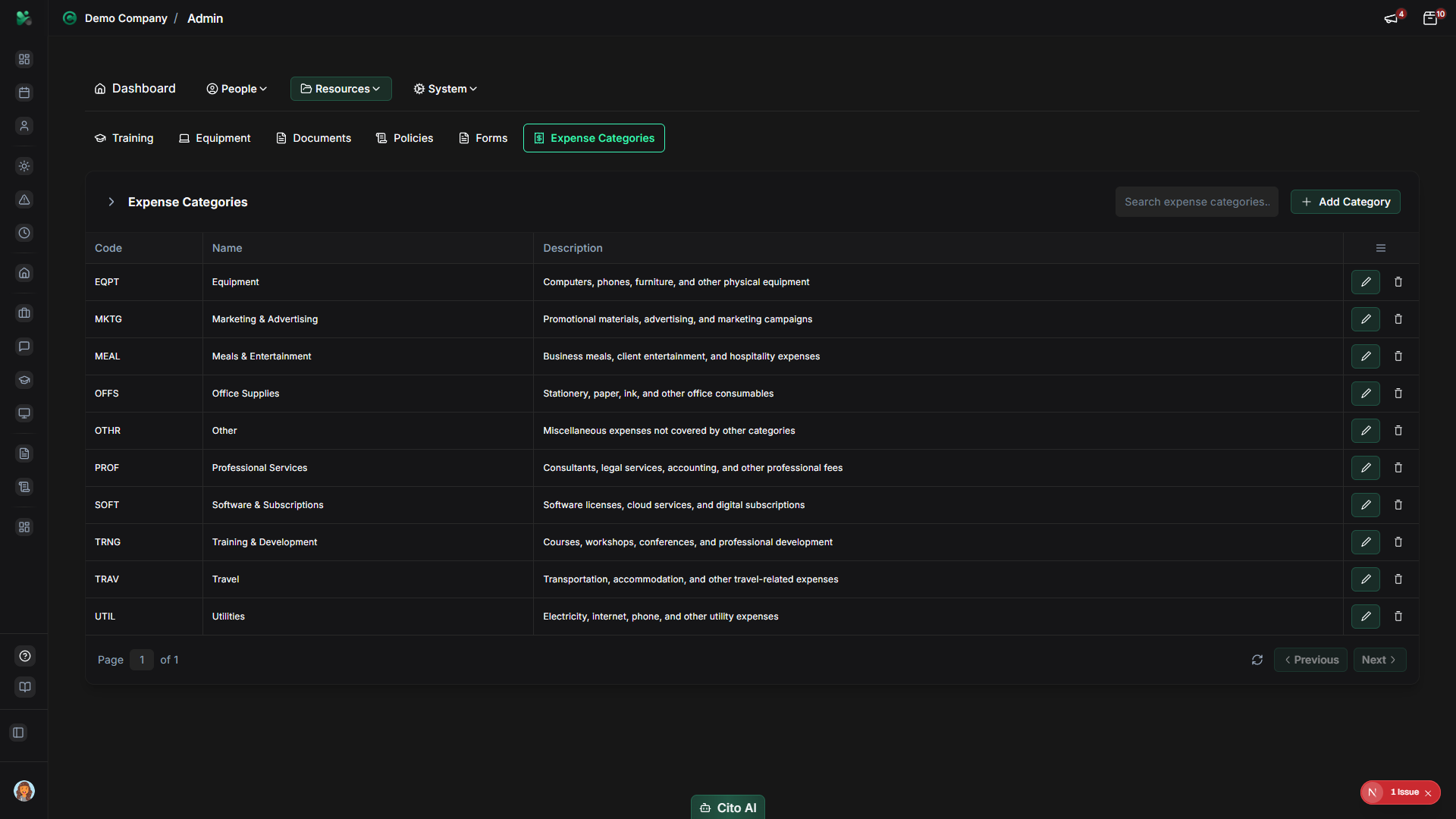
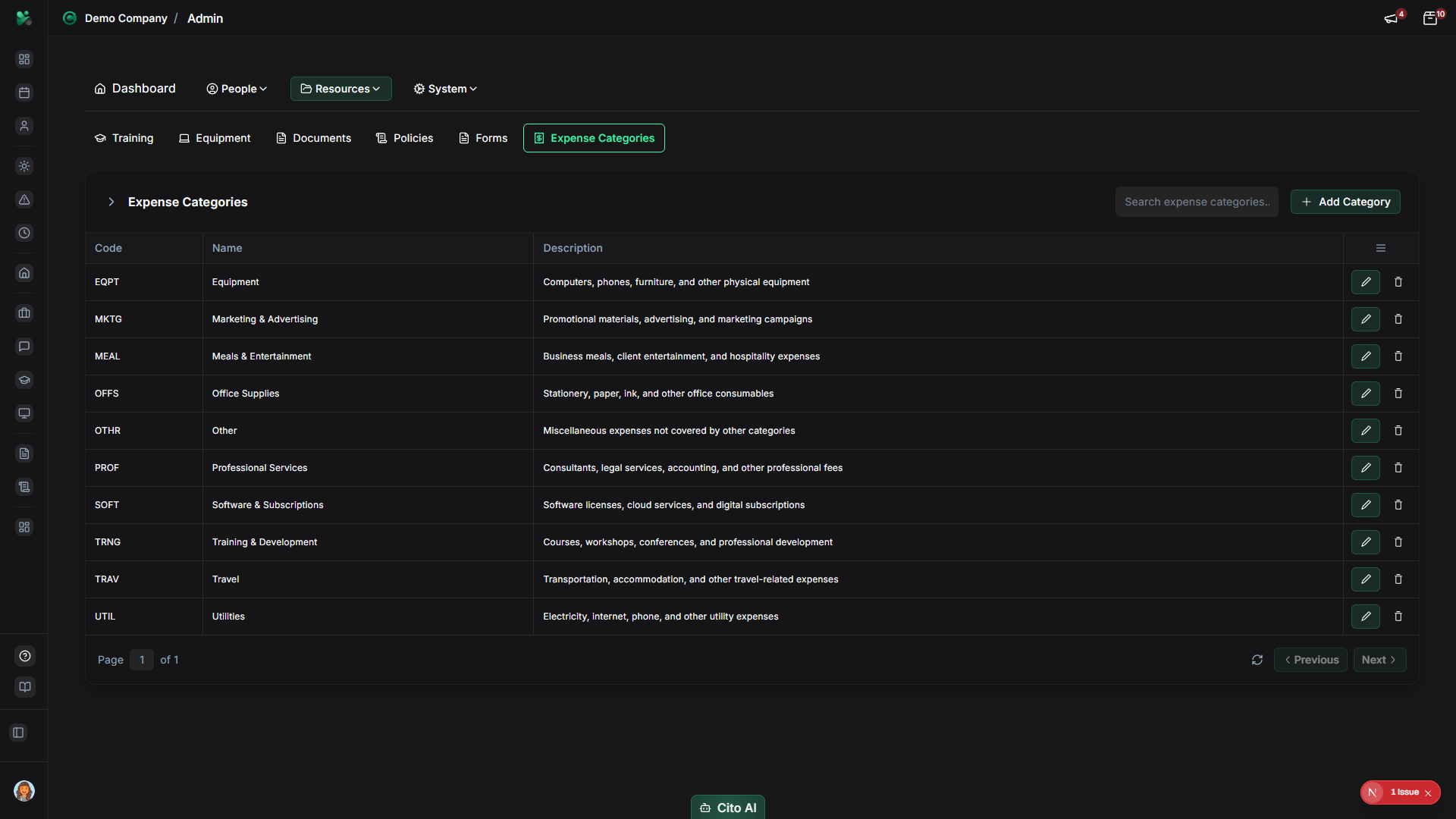
- On the Expense Categories page, you'll see a table listing all categories
- Each category shows:
- Category name
- Description
- Actions (Edit, Delete)
- Use the search bar to find specific categories
Creating an Expense Category
Add a new expense category:
- On the Expense Categories page, click the "Add Category" or "Create" button (usually top right)
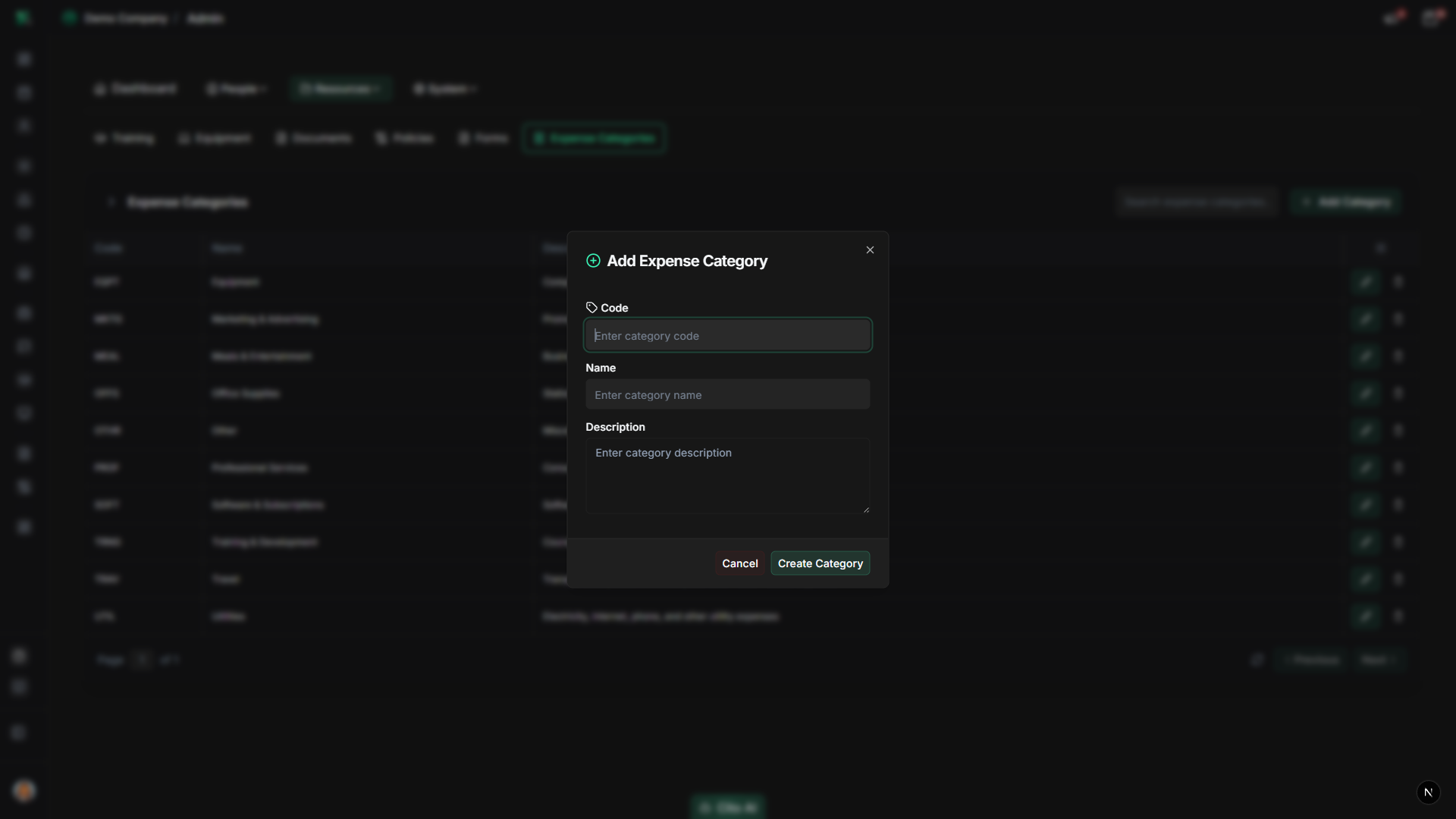
- The category creation dialog will open
- Fill in the category details:
- Name - Enter a clear category name (e.g., "Travel", "Meals & Entertainment", "Office Supplies", "Training")
- Description - Add an optional description explaining what expenses belong in this category
- Click "Create" or "Save"
- A success message will confirm the category was created
- The new category will appear in the categories list
Tip
Create expense categories before employees start submitting expenses. Common categories include Travel, Meals, Accommodation,
Office Supplies, Training, Equipment, and Miscellaneous.
Editing an Expense Category
Update an existing expense category:
- On the Expense Categories page, find the category you want to edit
- Click the "Edit" button or icon next to the category
- The edit dialog will open with the current category information
- Update the category name or description as needed
- Click "Save" or "Update"
- The changes will be saved and reflected immediately
Deleting an Expense Category
Remove an expense category:
- On the Expense Categories page, find the category you want to delete
- Click the "Delete" button or icon next to the category
- A confirmation dialog will appear asking you to confirm the deletion
- Review the warning message carefully
- Click "Confirm" or "Delete" to proceed
- The category will be permanently removed
Warning
Deleting an expense category may affect existing expense submissions that use that category. Make sure to reassign expenses
to other categories before deleting, or be aware that expenses may need to be recategorized.
Best Practices
- Create expense categories before employees start submitting expenses
- Use clear, descriptive category names that employees will understand
- Align categories with your accounting system for easier reconciliation
- Create categories that match common expense types in your organization
- Add descriptions to help employees select the correct category
- Regularly review categories and consolidate similar ones if needed
- Avoid creating too many categories - keep it simple and manageable
Common Expense Categories
Typical expense categories used by organizations:
- Travel - Flights, trains, taxis, parking
- Accommodation - Hotels, Airbnb, other lodging
- Meals & Entertainment - Business meals, client entertainment
- Office Supplies - Stationery, equipment, materials
- Training & Development - Courses, conferences, certifications
- Equipment - Hardware, software, tools
- Communication - Phone, internet, subscriptions
- Miscellaneous - Other expenses that don't fit other categories
Related Features
- Expenses (Feature) - How employees submit expenses using these categories
- Reports - Generate expense reports by category