
Admin: AI API Keys Management
Complete guide to managing AI service API keys for integrations with AI services in CitoHR.
Overview
The Admin AI API Keys section allows you to configure and manage API keys for AI service integrations such as OpenAI, Anthropic, and Google AI. These keys enable AI-powered features in CitoHR, such as intelligent content generation, automated responses, and AI-assisted workflows.
Note
AI API Keys is a Pro feature. Ensure your organization has a Pro subscription to access AI integrations.
Prerequisites
- You must have ADMIN role to manage AI API keys
- AI API Keys is a Pro feature - ensure your organization has Pro subscription
- API keys from the AI service provider (OpenAI, Anthropic, Google AI, etc.)
Accessing AI API Keys
- Log in to your CitoHR account with Admin credentials
- Click on your organization name in the header
- Select "System" from the admin menu
- Click "AI API Keys" from the System dropdown
- Or navigate directly to /admin/ai-keys
Viewing AI API Keys
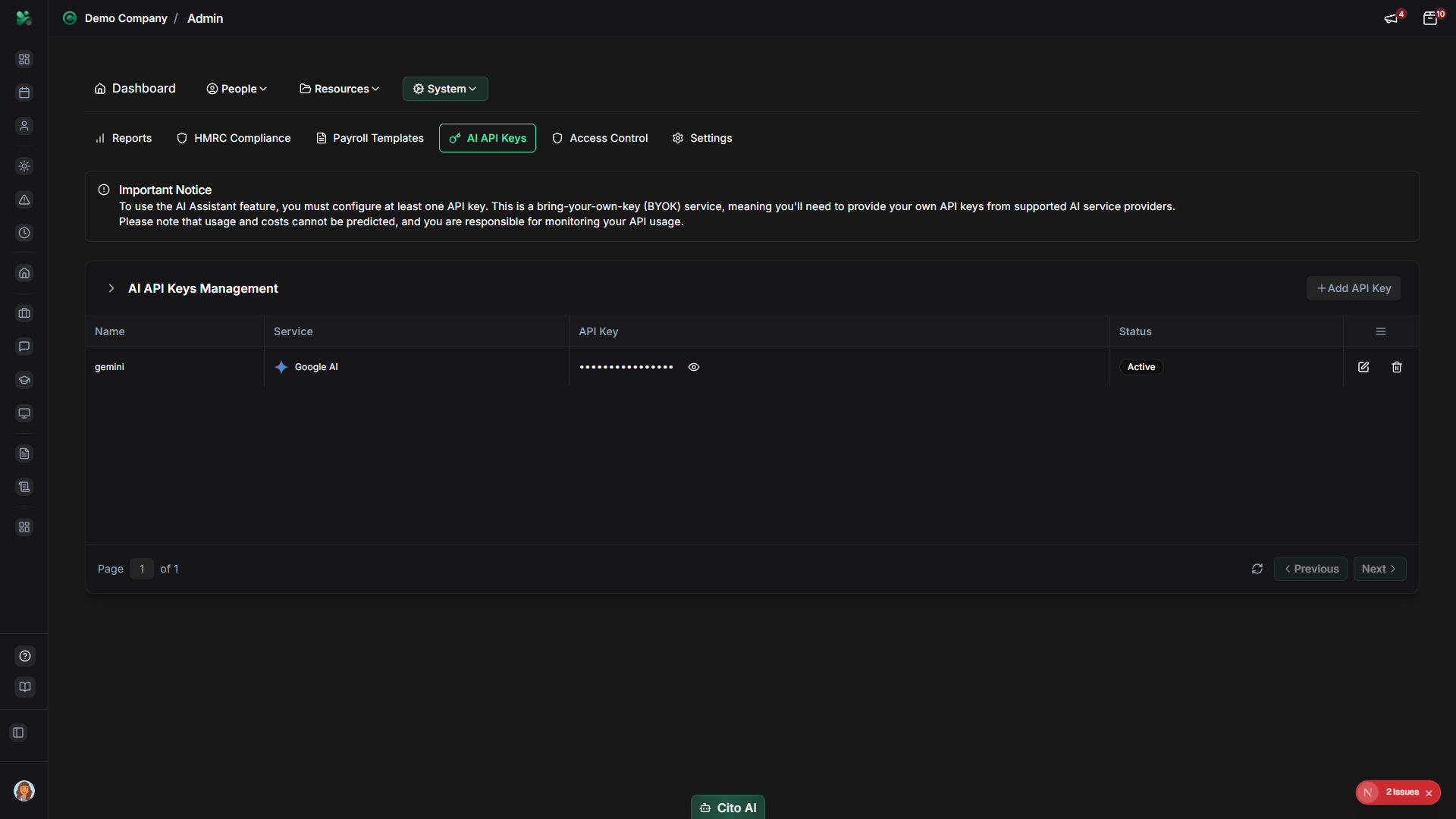
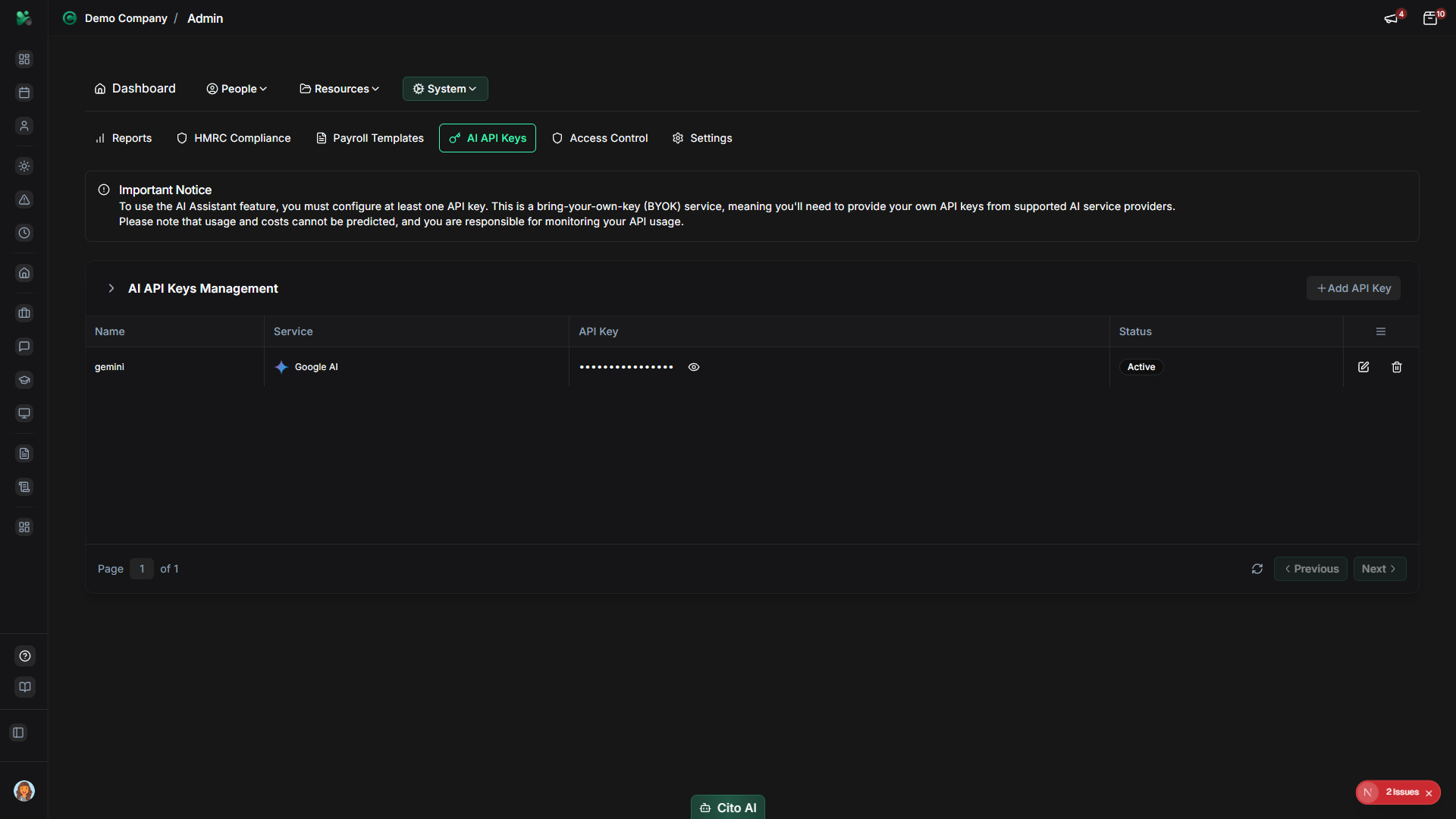
See all configured AI API keys:
- On the AI API Keys page, you'll see a table listing all API keys
- Each key shows:
- Key name/description
- AI service (OpenAI, Anthropic, Google AI, etc.)
- Status (Active, Inactive)
- Last used date (if available)
- Actions (Edit, Delete)
- API key values are masked for security (shown as asterisks)
Adding an AI API Key
Add a new AI service API key:
- On the AI API Keys page, click the "Add Key" or "Create" button
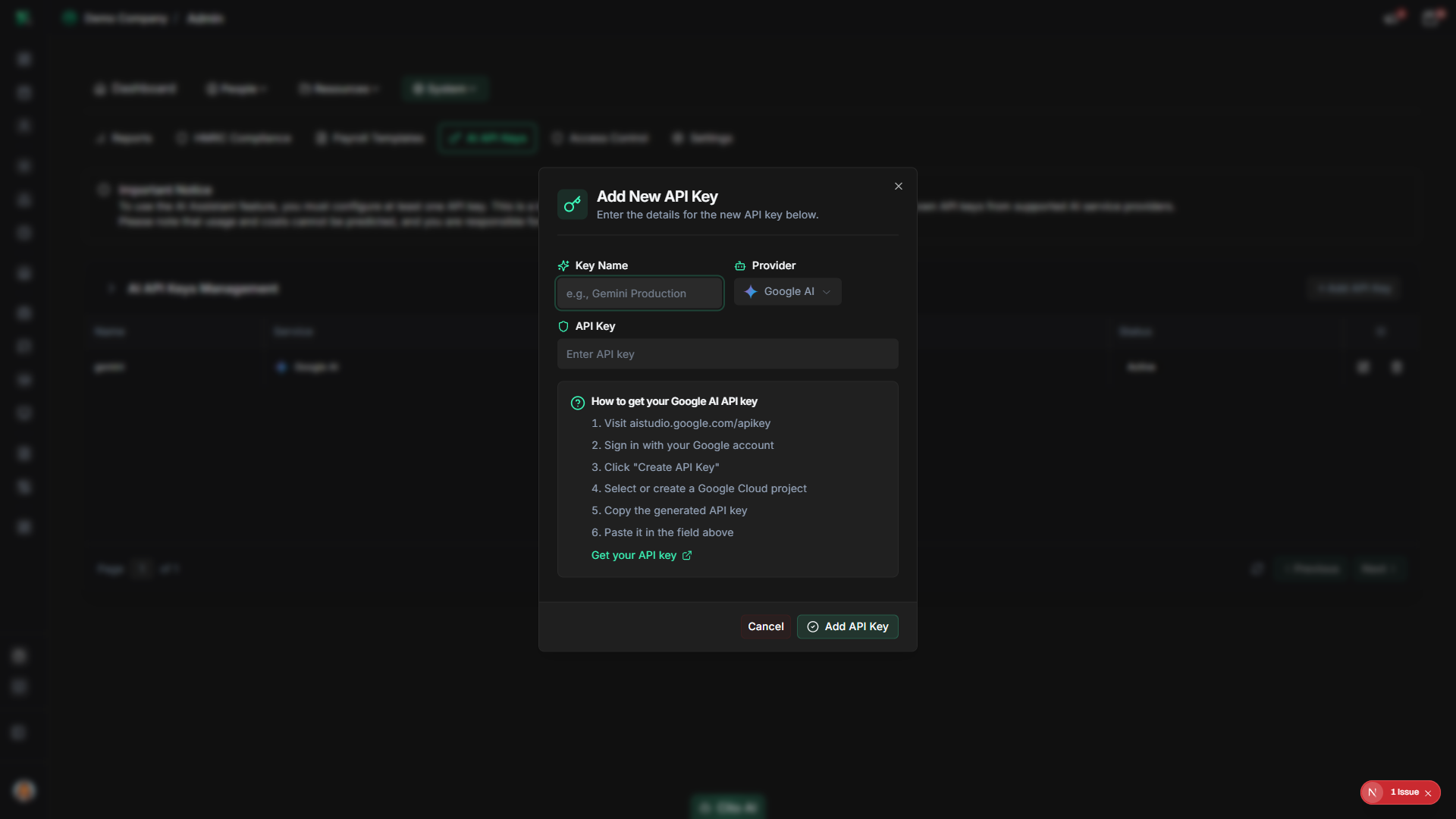
- The API key creation dialog will open
- Fill in the key details:
- Name - Enter a descriptive name (e.g., "OpenAI Production", "Anthropic Claude")
- Service - Select the AI service (OpenAI, Anthropic, Google AI, etc.)
- API Key - Paste the API key from the service provider
- Status - Set to Active to enable the key
- Click "Add" or "Save"
- The API key will be saved and encrypted
- A success message will confirm the key was added
Warning
API keys are sensitive credentials. Store them securely and never share them. The keys are encrypted when stored in CitoHR.
Editing an AI API Key
Update an existing API key:
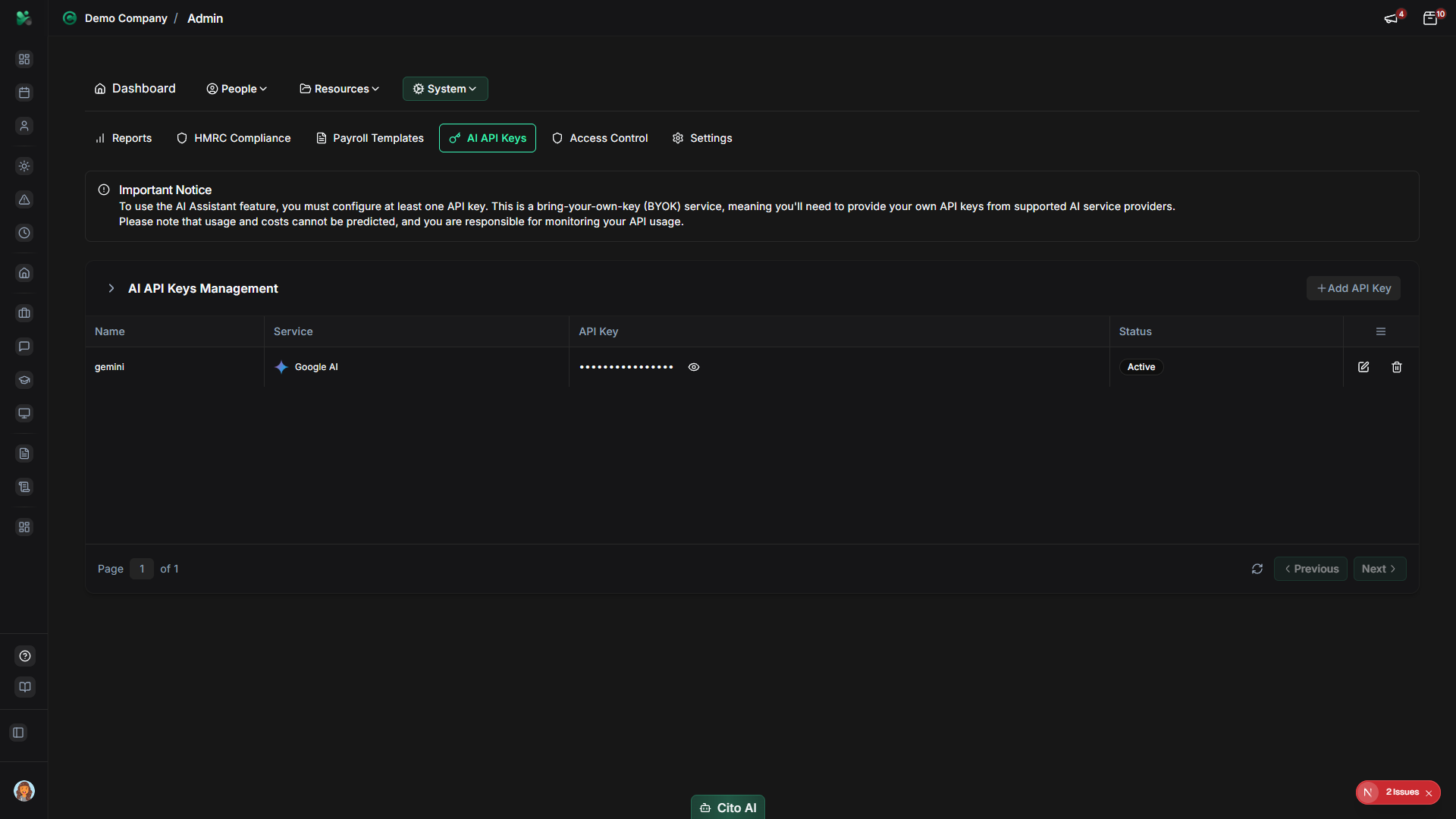
- On the AI API Keys page, find the key you want to edit
- Click the "Edit" button or icon
- The edit dialog will open
- Update fields as needed:
- Change the key name
- Update the API key value (paste new key)
- Toggle Active/Inactive status
- Click "Save" or "Update"
- The changes will be saved
Activating or Deactivating API Keys
Enable or disable API keys:
- On the AI API Keys page, find the key
- Edit the key and toggle the Status field
- Set to Active to enable the key for use
- Set to Inactive to disable the key without deleting it
- Click "Save"
Tip
Deactivate API keys instead of deleting them if you might need them again. This preserves the configuration while preventing
their use.
Deleting an AI API Key
Remove an API key from the system:
- On the AI API Keys page, find the key you want to delete
- Click the "Delete" button or icon
- A confirmation dialog will appear
- Review the warning message carefully
- Click "Confirm" or "Delete" to proceed
- The API key will be permanently removed
Warning
Deleting an API key will immediately disable AI features that depend on it. Make sure to have alternative keys configured
if needed, or be aware that AI features will stop working.
Obtaining API Keys
Get API keys from AI service providers:
- OpenAI - Sign up at platform.openai.com and create an API key in your account settings
- Anthropic - Sign up at console.anthropic.com and generate an API key
- Google AI - Use Google Cloud Console to create API credentials
- Follow each provider's documentation for specific instructions
Tip
API keys typically have usage limits and costs associated with them. Monitor usage through the service provider's dashboard
to manage costs.
Best Practices
- Use descriptive names for API keys to identify their purpose
- Keep API keys secure and never share them publicly
- Rotate API keys periodically for security
- Monitor API key usage and costs through service provider dashboards
- Deactivate unused keys instead of deleting them
- Use separate keys for different environments (development, production) if applicable
- Set up usage alerts with the service provider to avoid unexpected charges
Related Features
- AI-powered features throughout CitoHR that use these API keys